How to Connect Your WABA to Cekat AI Without Migrating
このページは 日本語 ではまだ利用できません。デフォルトの言語 (English) で表示しています。
How to Connect Your WABA to Cekat AI Without Migrating
One WhatsApp Business Account (WABA) can now work with several providers, or BSPs, at once, so you can add Cekat AI without moving your number away from your current provider. The number stays where it is, and Cekat AI is added as a new partner on top of it.
Because the process involves two systems, Meta and Cekat AI, you will see a few notices that look like errors. That is normal. They are telling you that your number is already used by another integration, which is exactly what we want here.
The First 3 Things You Must Have
- A WhatsApp number already live with another provider, and access to that account
- Admin access to your Business Portfolio in Meta Business Manager
- Confirmation that your current provider supports conversation routing. Ask them directly before you start
Do Not Do This
- Don’t delete the number from the WhatsApp Account in Meta Business Manager
- Don’t turn off two-step verification at your current provider
- Don’t skip the conversation routing step at the end
The first two belong to a migration, not to adding a partner, and they will break the service you are running today. The third one means customer messages never reach Cekat AI even though the connection succeeded.
What to Know Before You Start
Each partner gets its own Messaging account under the same number. Two things follow from that, and both are normal:
- Templates do not carry over. Templates already approved with your current provider will not appear in Cekat AI. You need to create them again and submit them for Meta approval
- Billing is separate. Each partner has its own payment configuration, and each partner is billed only for the messages sent through its own system
What stays shared is the number itself, its quality rating, and its messaging limit.
How to Connect Your Number
1. Sign in to Cekat AI
Log in to your dashboard: Use your Cekat AI account, then open Connected Platforms in the left menu.
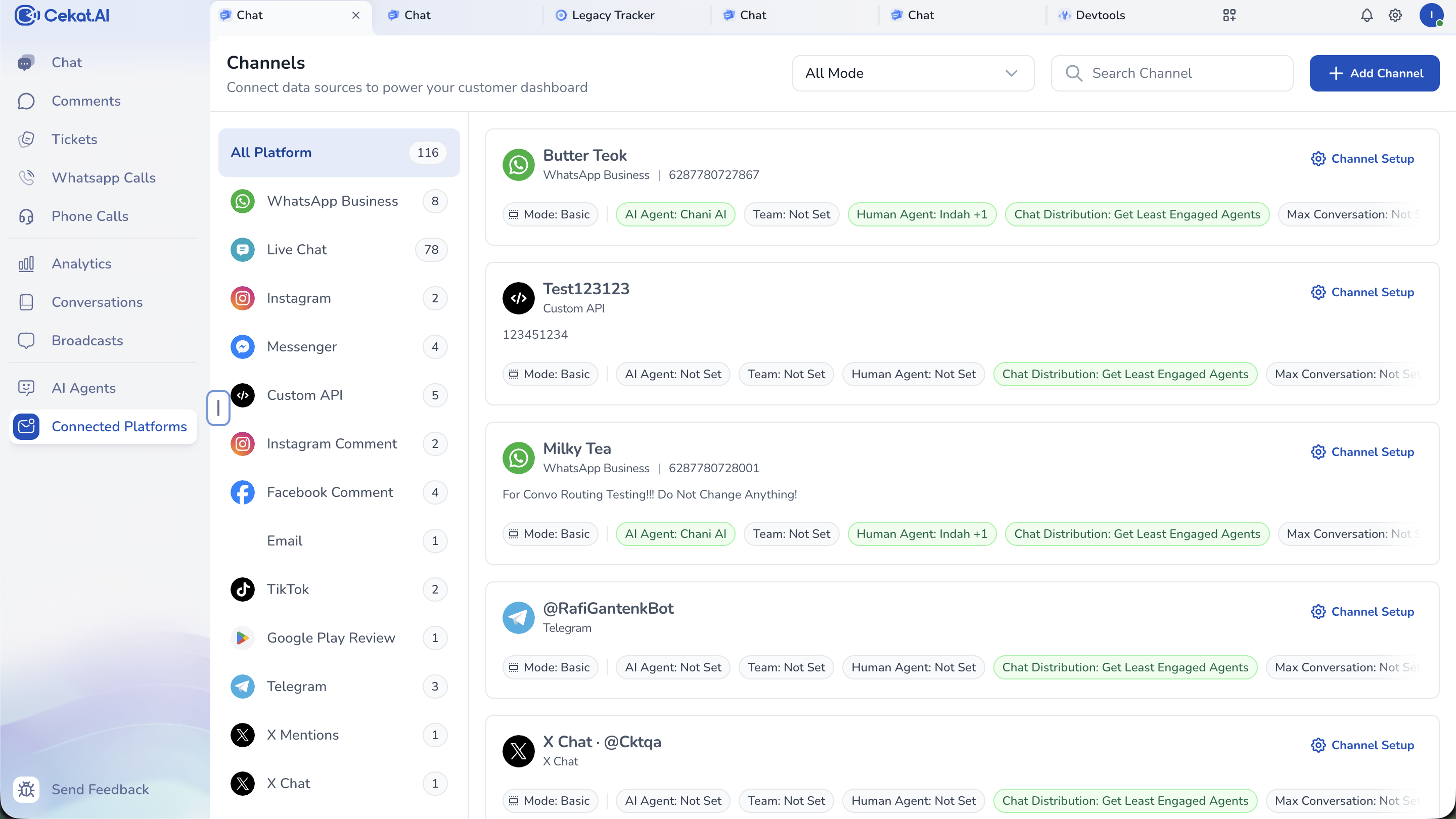
2. Add a WhatsApp Business channel
Click the Add Channel button: You will find it in the top right corner of the Channels page.
Select WhatsApp Business: The Add Channel window opens with the available platforms. Choose WhatsApp Business from that list.
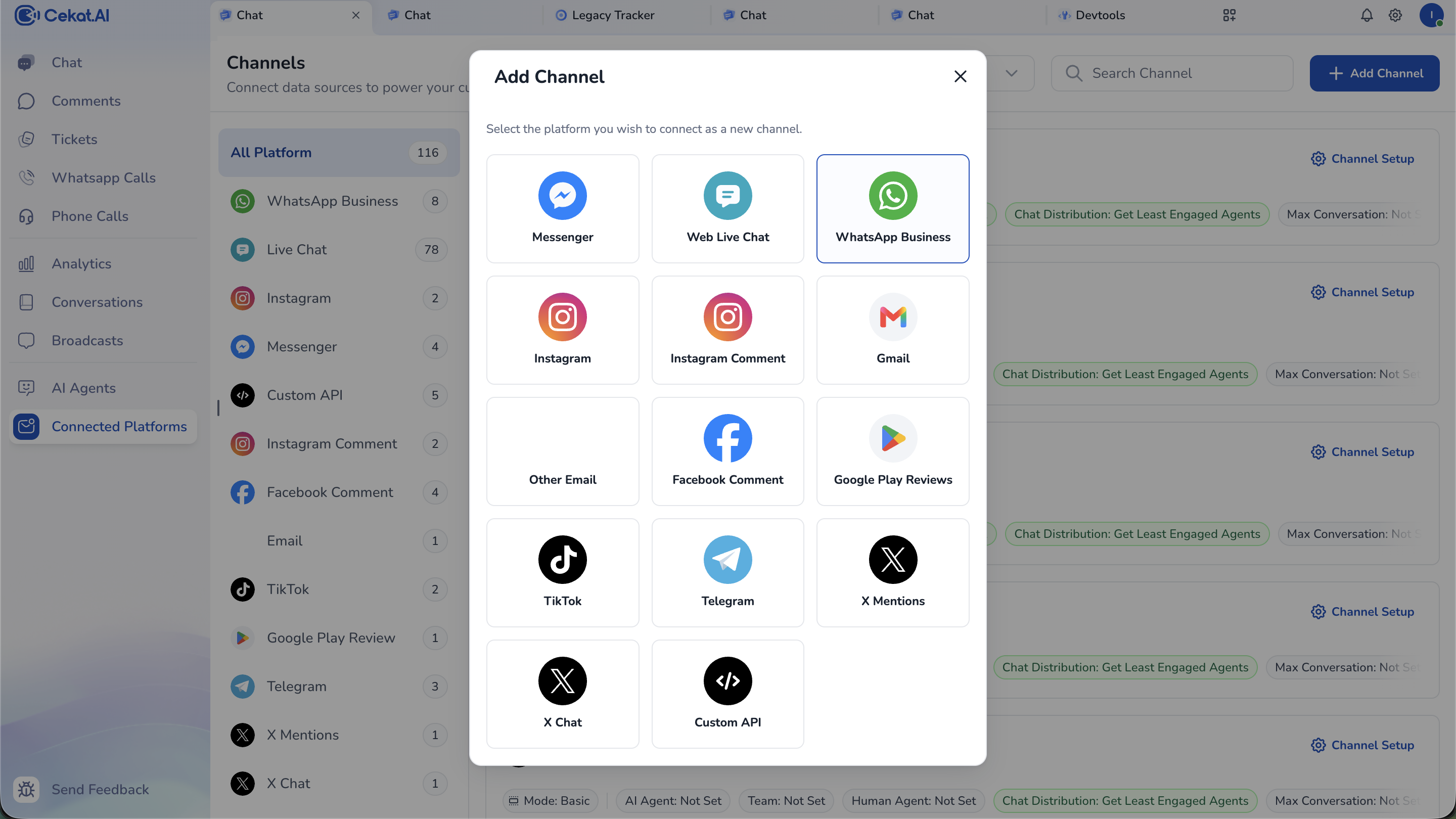
3. Complete the WhatsApp sign up
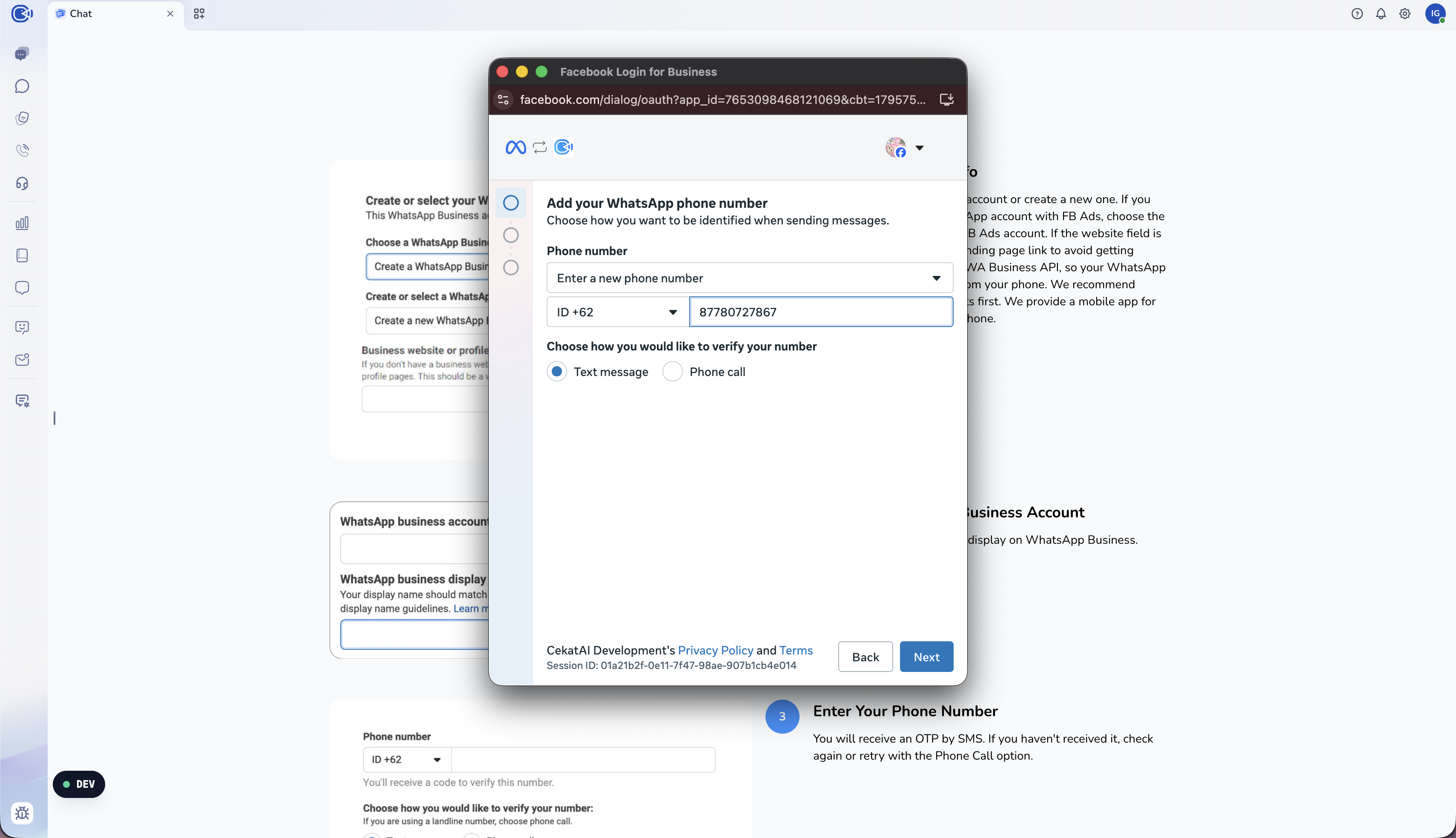
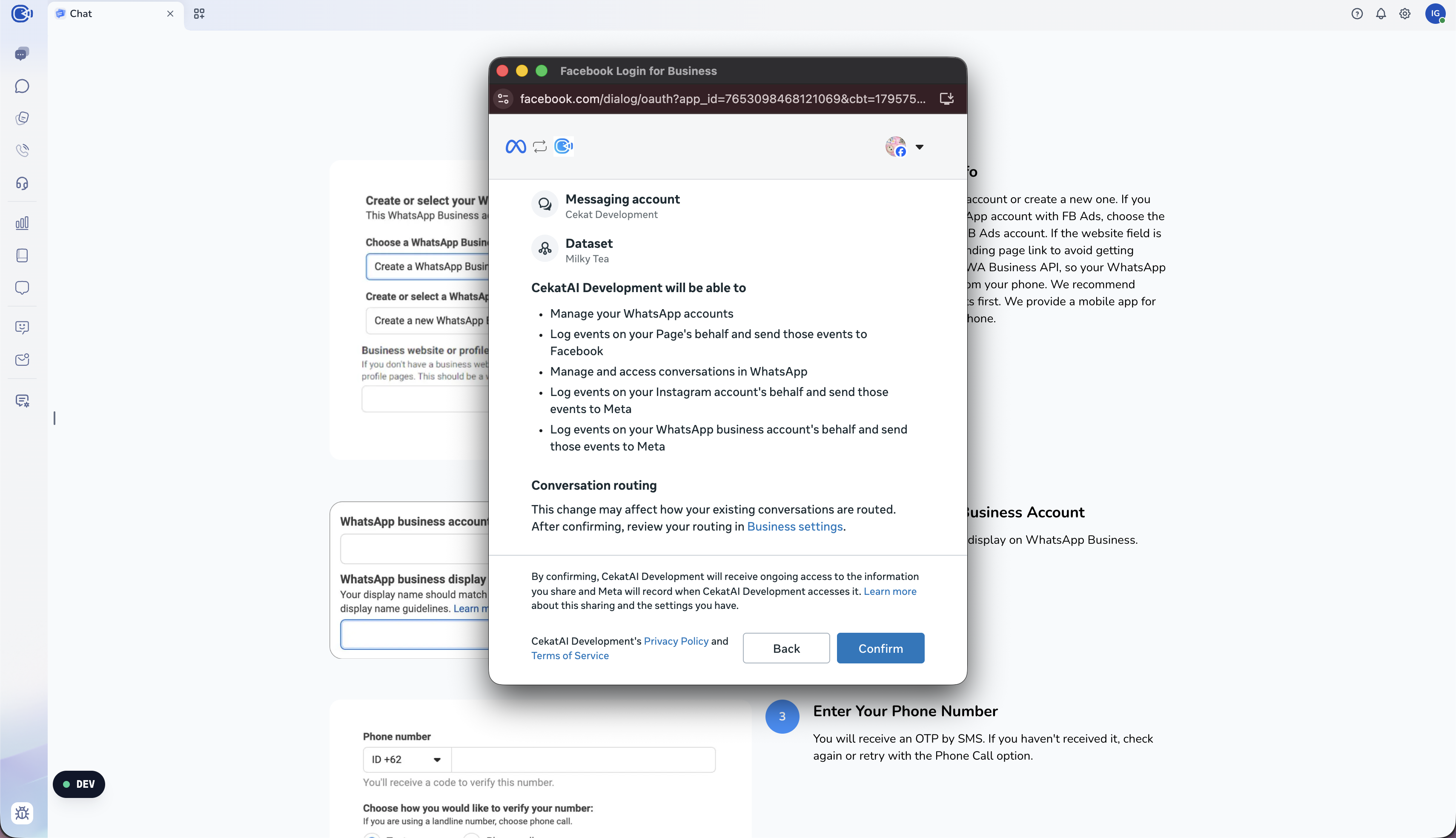
Follow the Facebook Login for Business window to the end: This window is run by Meta, not by Cekat AI.
Enter the WhatsApp number you already use, then choose a verification method.
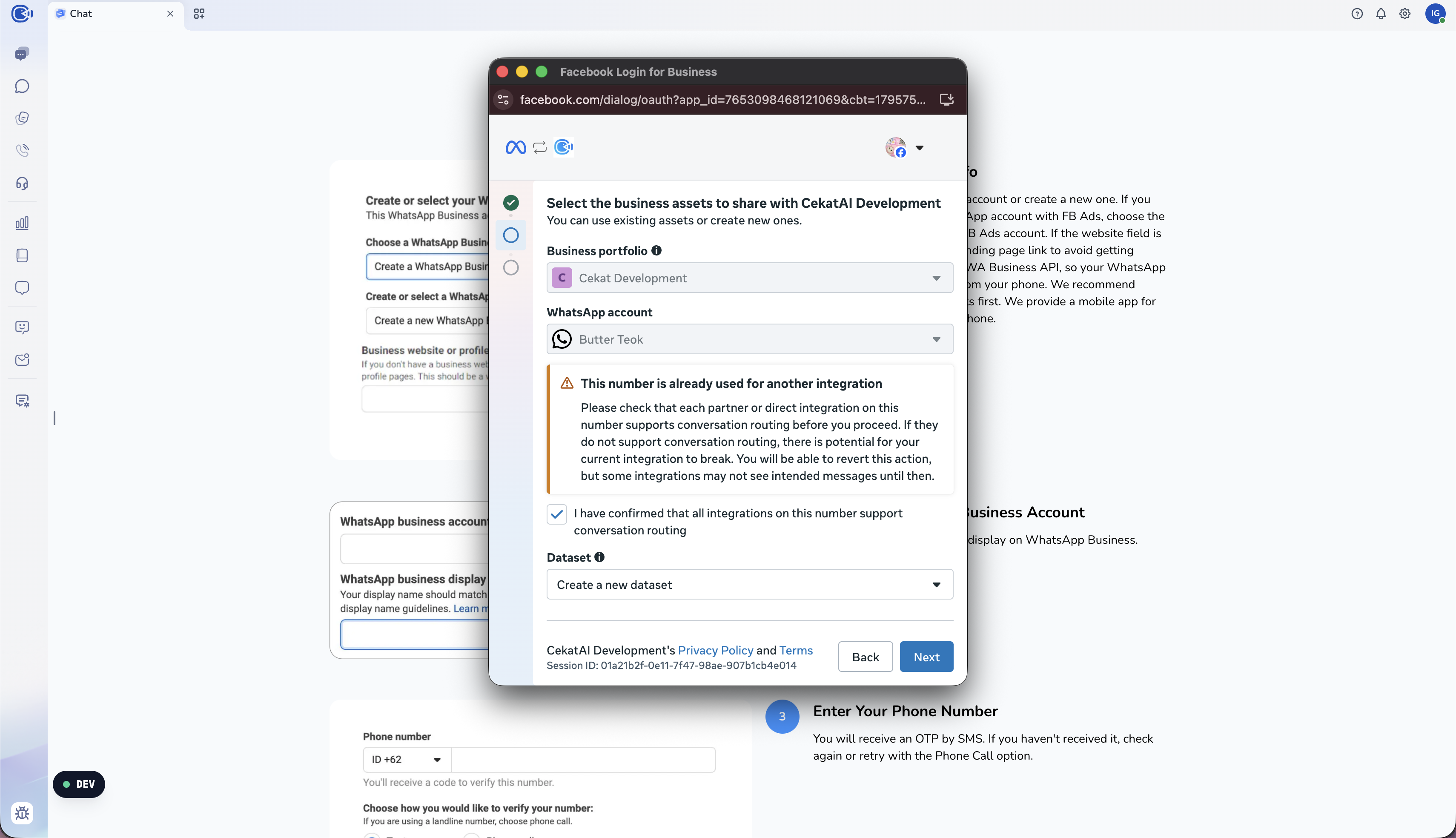
On the Select the business assets to share with Cekat AI screen, choose your Business portfolio and WhatsApp account. You will see this notice:
“This number is already used for another integration”
This notice is expected and it means you are on the right path. Tick the confirmation box:
“I have confirmed that all integrations on this number support conversation routing”
Only tick this box if you have genuinely confirmed that with your current provider.
When the flow finishes you will see Your account is connected to Cekat AI along with the assets that were created.
Pay attention to the Review conversation routing box on the same screen. Meta is warning you that your existing routing may no longer work as expected. That is what we fix in the next step.
Click Finish to close the window.
4. Open conversation routing in Meta
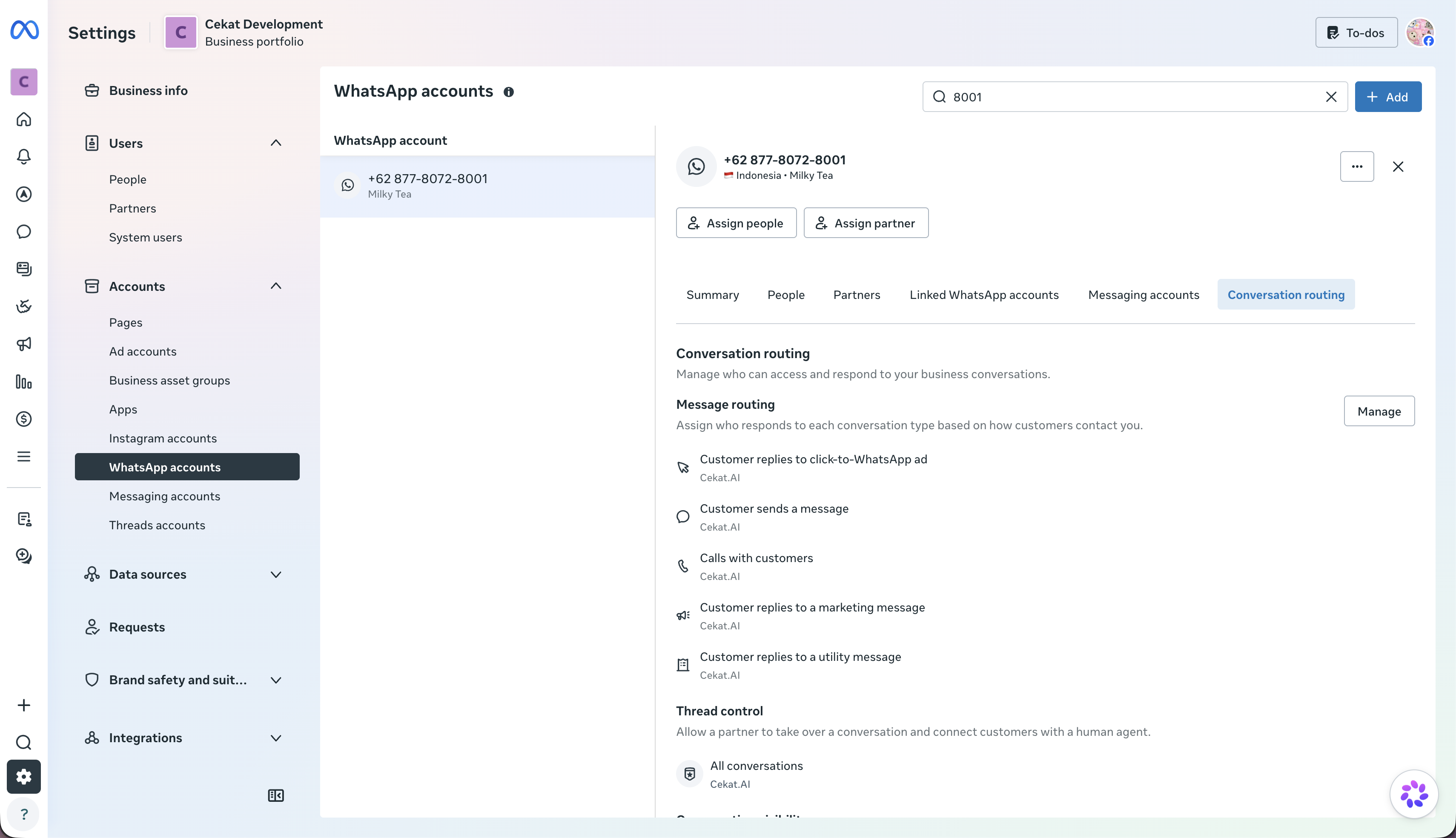
Go to Meta Business Manager: Open Settings, then Accounts, then WhatsApp accounts. Select your number, then open the Conversation routing tab.
This page shows who currently handles each conversation type. If Cekat AI has just been connected, most rows will still point to your previous provider.
5. Point every route to Cekat AI
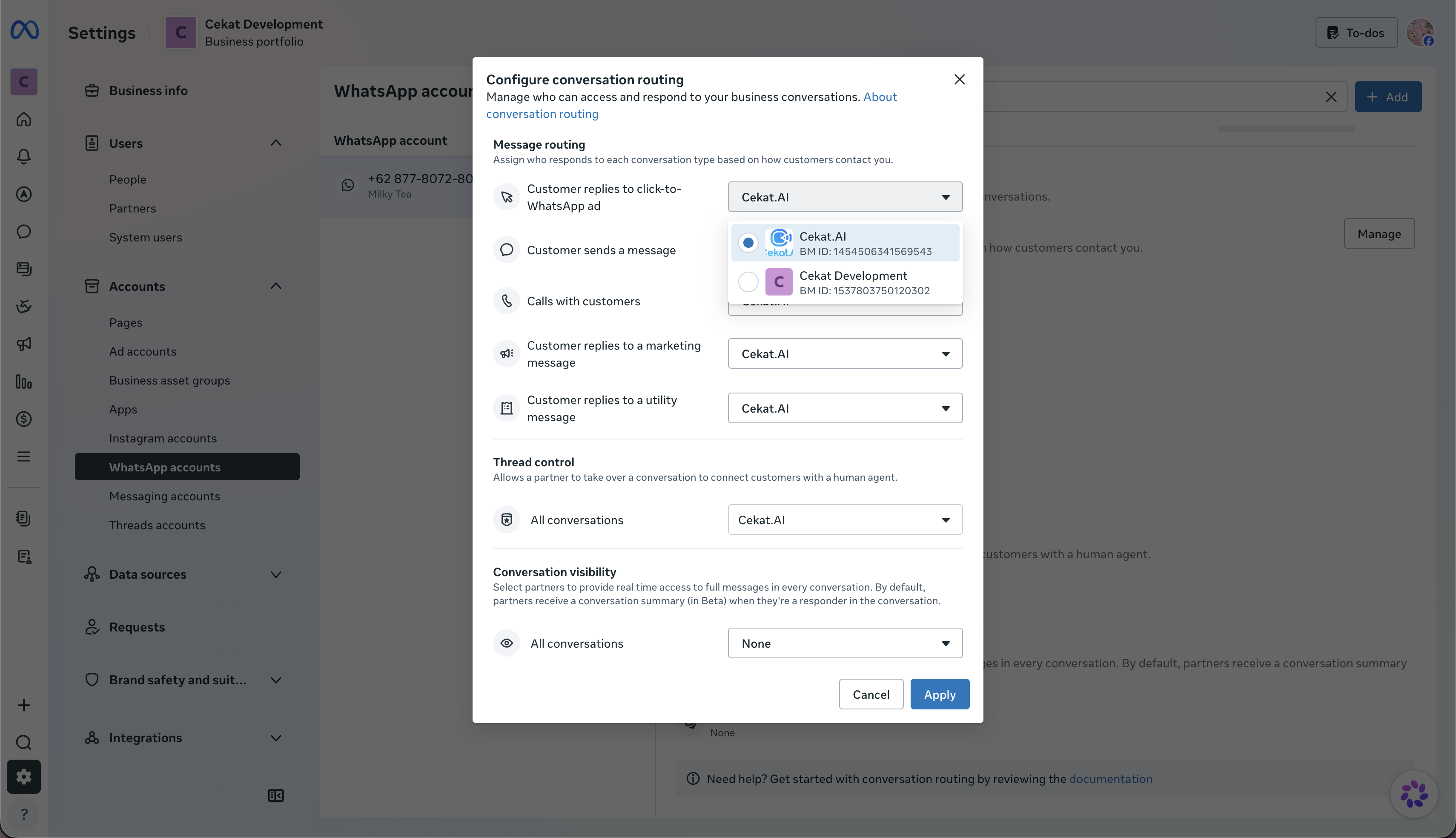
Click Manage in the Message routing section: The Configure conversation routing window opens.
Change each of these rows to Cekat AI:
| Conversation type | When it happens |
|---|---|
| Customer replies to click-to-WhatsApp ad | A customer replies to your click-to-WhatsApp ad |
| Customer sends a message | A customer messages your number directly |
| Calls with customers | WhatsApp calls with customers |
| Customer replies to a marketing message | A customer replies to your marketing message |
| Customer replies to a utility message | A customer replies to your utility message |
Under Thread control, set All conversations to Cekat AI as well. This is what lets Cekat AI take over a conversation and connect the customer with one of your human agents.
Click Apply to save: All routing settings are saved at once.
Check That It Worked
Confirm these four things before you call it done:
- Your number appears on the Connected Platforms page in Cekat AI, labelled WhatsApp Business
- Every row under Message routing points to Cekat AI
- Thread control for All conversations points to Cekat AI
- Send one message from your personal number to the business number, then confirm it arrives in your Cekat AI inbox
Optional: Removing Your Previous Partner
Adding Cekat AI does not require you to remove your previous provider. Both can run side by side on the same number. This section is only for you if you do want to stop using the old one.
Disconnect from the provider’s own platform first: Log in to their dashboard and disconnect or delete the WhatsApp connection there. Do not start in Meta.
Open the Partners tab: In Meta Business Manager, go to Settings, Accounts, WhatsApp accounts, select your number, then open the Partners tab. You will see the partners assigned to this account and their access level.
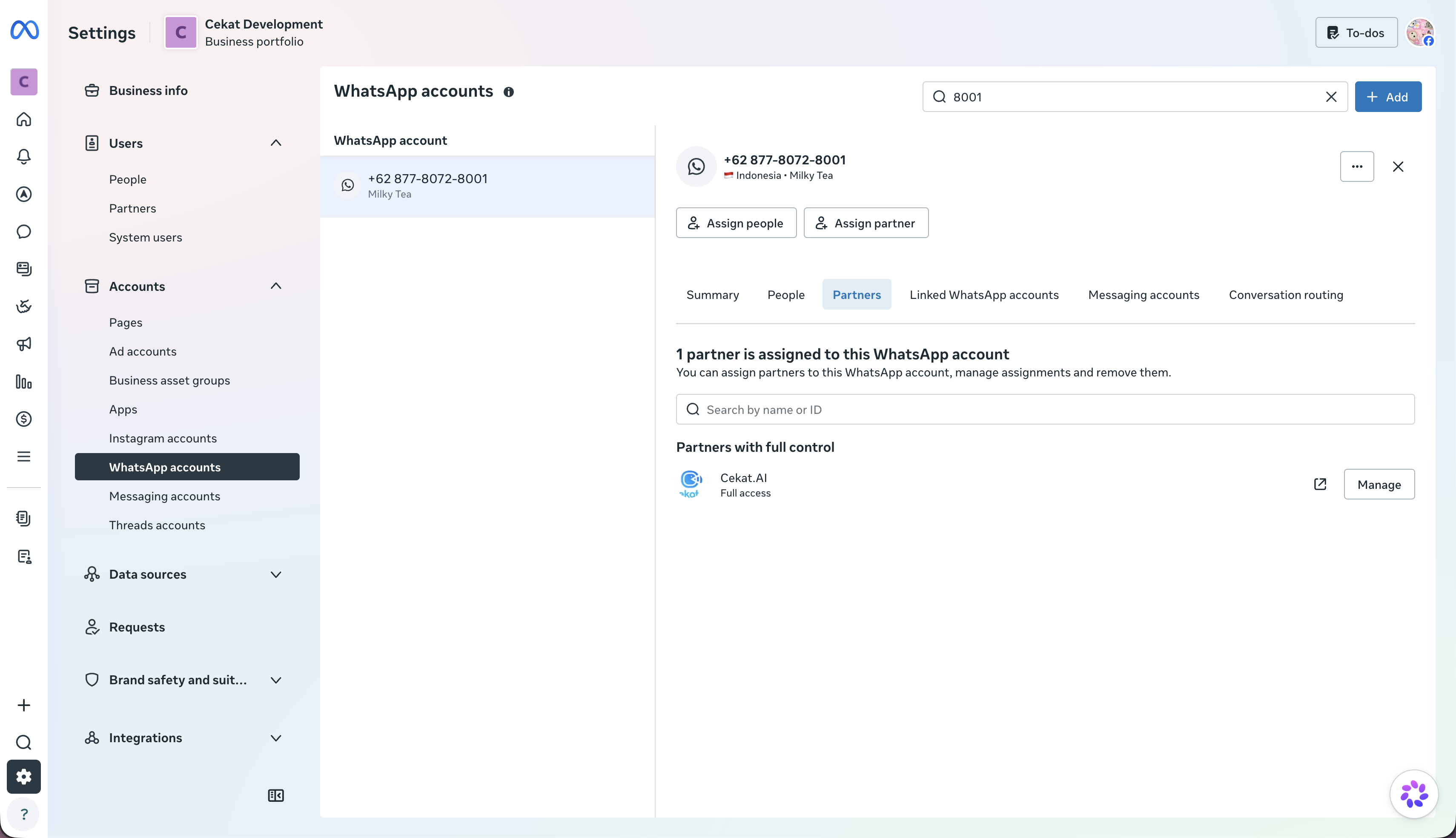
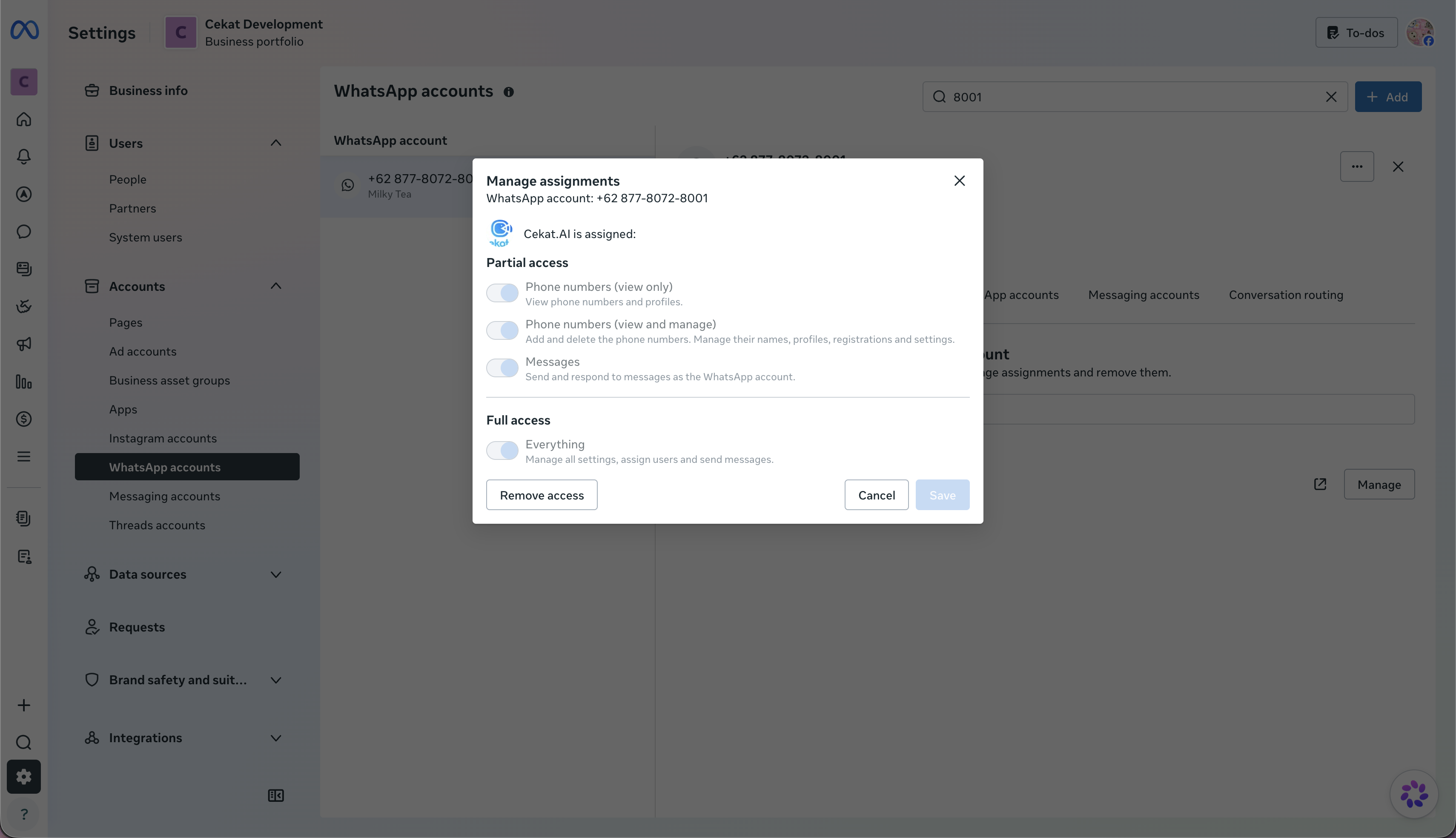
Click Manage next to the partner: The Manage assignments window opens and shows what access that partner holds, from Partial access through to Full access.
Click Remove access: The button sits in the bottom left of that window.
If you want to cut a partner off from your whole portfolio rather than one number, use Settings, Users, Partners, select the partner, then Remove from business portfolio.
Important: The Partner Will Not Disappear Immediately If a Credit Line Was Activated
If you ever activated a credit line with that partner, their name will not disappear right away from the Partners tab after you click Remove access.
Removing a partner and revoking a credit line are two different things. Removing the partner cuts their access to your assets. Revoking the credit line ends the billing relationship, and that revocation is carried out by the partner who owns the credit line, not by you.
While the credit line is still in place, you may see any of the following:
- The partner still listed in the Partners tab
- An Access removed status in WhatsApp Manager
- A remaining balance on that account
This can take a few weeks, especially if there is still an open Meta invoice. It is normal and it does not stop Cekat AI from working, because each partner has its own Messaging account and its own credit line. Revoking your previous provider’s credit line does not affect Cekat AI.
If the old partner is still listed after several weeks, contact that provider and ask them to revoke their credit line, since only they can do it.
Troubleshooting
| Symptom | Possible Cause | Solution |
|---|---|---|
| Customer messages do not reach Cekat AI although the connection succeeded | Conversation routing still points to the previous provider | Repeat Step 5 and confirm every row now reads Cekat AI |
| Your templates are missing in Cekat AI | Each partner has its own template library | Create your templates again in Cekat AI and submit them for Meta approval |
| You cannot send messages from Cekat AI | No payment method is set on the new Messaging account | Contact the Cekat AI team to set up billing |
| Your number is not listed during sign up | Your account is not an Admin on the Business Portfolio | Ask your Business Portfolio Admin to run this process |
| Service at your previous provider breaks after this process | That provider does not support conversation routing | Set the routing back to them in Step 5, then contact them |
| The old partner is still listed in the Partners tab after removal | Their credit line has not been revoked yet | Wait a few weeks, then ask that provider to revoke their credit line |
| You see “Switching partners is not supported in this flow” during sign up | A credit line from the previous provider is still attached to the number | Contact the Cekat AI team, since this needs to be raised with Meta support |