How To Use WhatsApp Call
How To Use WhatsApp Call
このページは 日本語 ではまだ利用できません。デフォルトの言語 (English) で表示しています。
How To Use WhatsApp Call
To call a customer, you first need to send an Initiate Call Request.
On the chat page, click the Call dropdown button, then select Initiate Call Request.
The Initiate Call Request popup will then open.

Inside, you will see two Call Type options:
- Business Initiated Call: you send a permission request to the customer. If the customer allows it (Allow), you can call them directly.
- The customer receives a call request message: they can choose Allow or Not Allow.
- Business Initiated Call: you send a permission request to the customer. If the customer allows it (Allow), you can call them directly.


- Customer Initiated Call: you send a message with an added call button. If the customer taps that button, they call the business directly.
The customer receives a message containing a Voice Call button
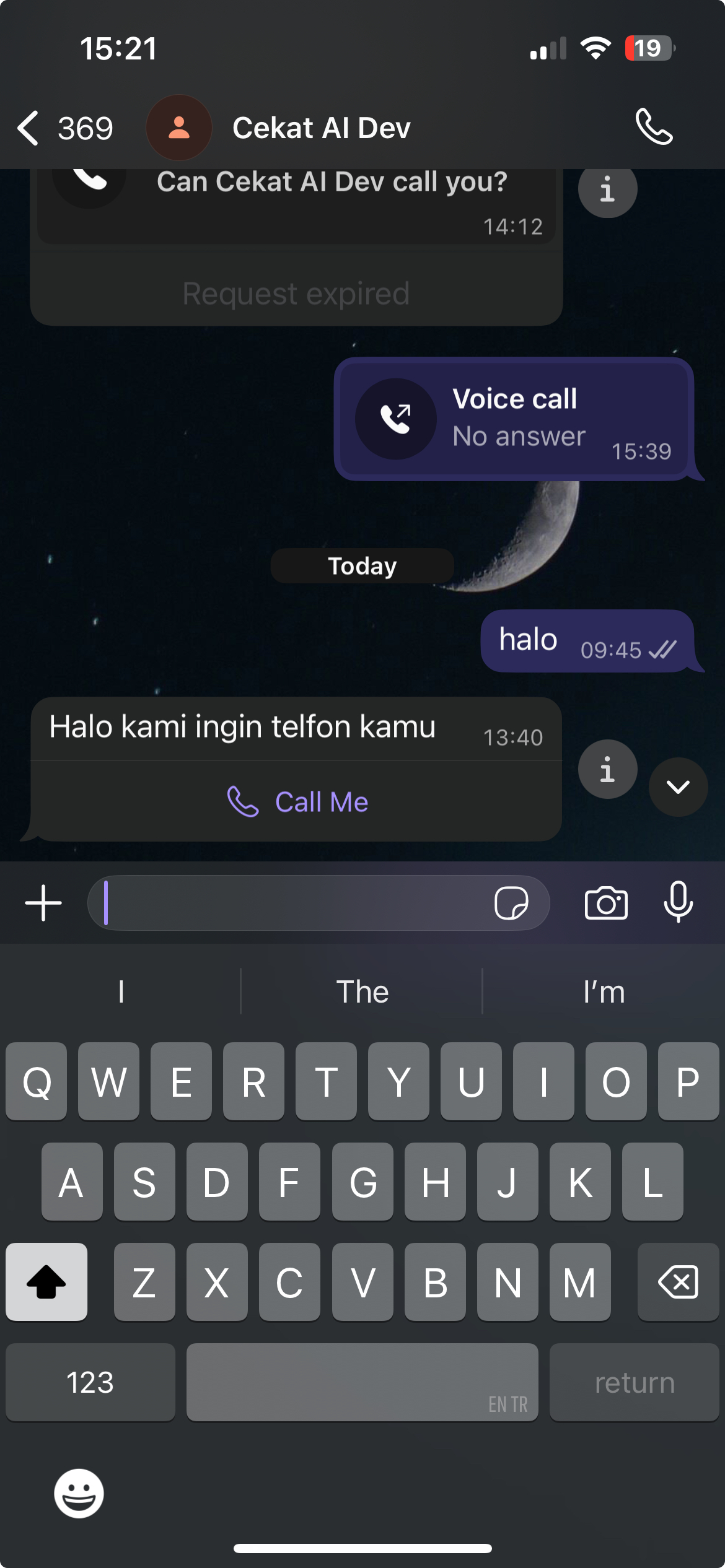
- Next, choose the Message Type:
- Custom Message: you can type a free-form message as long as the conversation is still active (within 24 hours).
- Template: if the conversation is more than 24 hours old, you must use a template message that was created beforehand on the WhatsApp Call Settings page.
- After choosing a template or filling in the message, you can review the message preview on the right side.
- If everything looks right, click Send to send the call request.
Make a Call
If you are available to make calls, the Call button is marked in green.

If you are not available, the Call button is marked in red.

The color of this button works as a status indicator, so the team knows who is ready to make calls.