Multiple Board
Multiple Board
このページは 日本語 ではまだ利用できません。デフォルトの言語 (English) で表示しています。
Multiple Board
This feature lets you create more than one board to group tickets by division, project, or specific workflow. With multiple boards, ticket management becomes more flexible and organized, especially for teams that handle several lines of work in parallel.
Each board has its own ticket templates, so you can customize the ticket format and information to suit each board.
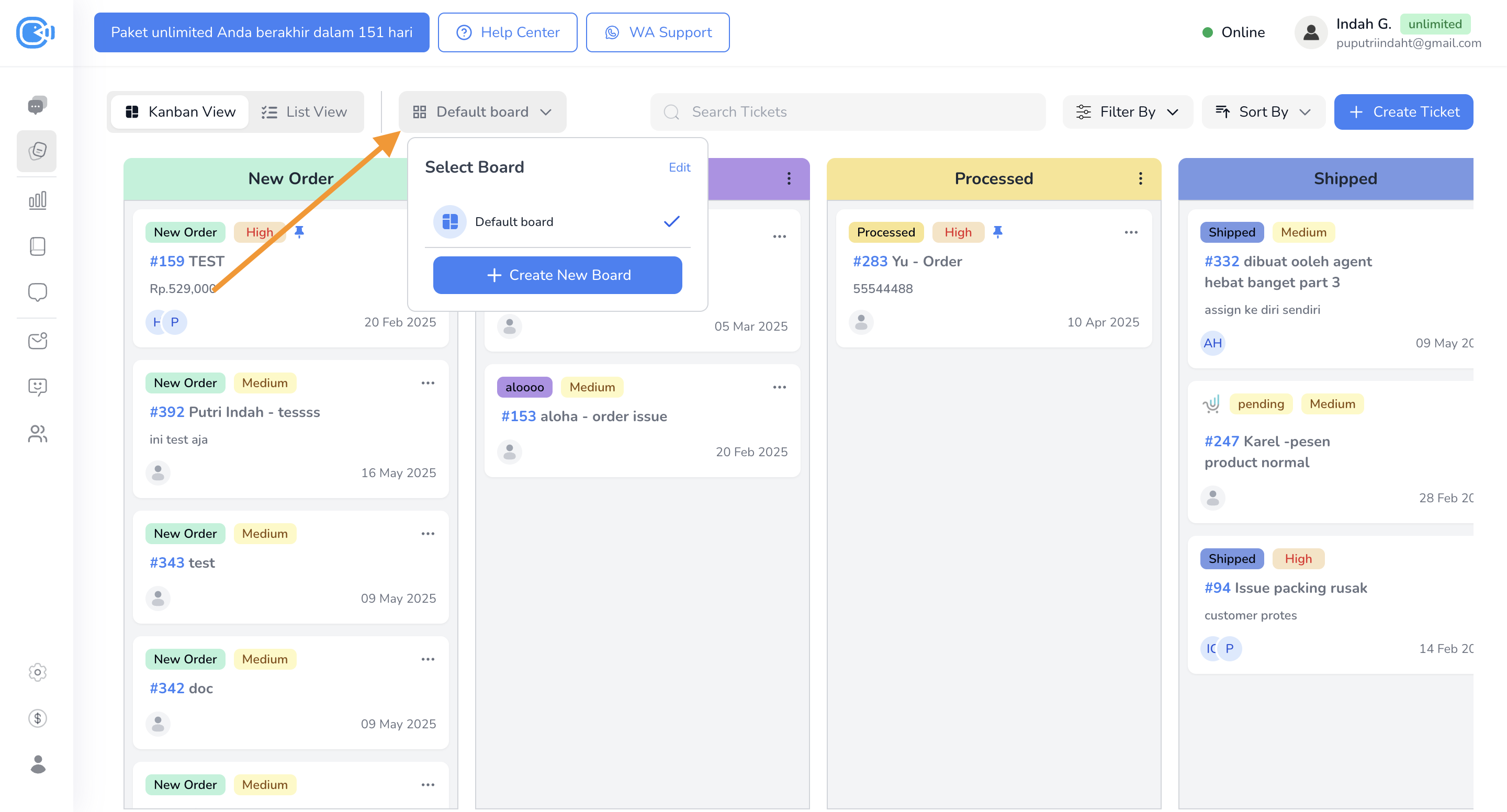
A. Adding a New Board
- On the Ticket Board page, to the left of the search field, there is a dropdown showing the currently active board.
- By default, the first board is named “Default Board”.
- To create a new board:
- Click the board dropdown.
- Select the Create New Board option.
- Name the new board, then click Create.
- The new board is created right away and ready to use.
B. Switching Between Boards
- To change the board you’re using:
- Click the board dropdown, then select the board you want to access.
C. Editing or Deleting a Board
- Click the board dropdown, then select the Edit option.
- On the edit page, you can:
- Rename the board by changing its name.
- Delete a board you no longer use.
- When you’re done making changes, click Save.
D. Setting Ticket Templates per Board
- Go to the Setting page, then select Ticket Setting.
- At the top left (to the left of the search field), there is a board dropdown.
- Select the board you want to configure.
- Once a board is selected, you can:
Create a new template specific to that board.
Set a default template to be used when creating tickets on that board.
