X Mentions
このページは 日本語 ではまだ利用できません。デフォルトの言語 (English) で表示しています。
X Mentions
X Mentions connects your business’s X (formerly Twitter) account to Cekat.AI, so mentions and replies from customers come in real time into the Comments menu. Your team can read, assign, and reply to them from the same menu as other comment channels, such as Instagram Comment and Facebook Comment.
X Mentions uses your business’s own X Developer App (bring your own key). X bills API usage to the App owner, not to Cekat.AI. For this reason, each business creates and tops up its own X Developer Account, and Cekat.AI only uses those credentials. Cekat.AI does not pay for, resell, or charge X fees.
Before You Start
Prepare the following before connecting X Mentions:
- The business X account to connect
- An X Developer Account and App at the X Developer Console
- A payment method and credits already added in the X Developer Console. X does not offer free API access.
- The Client ID, Client Secret, API Key (Consumer Key), and API Key Secret (Consumer Secret) of that App
- App Permissions set to Read and write
You need someone with payment authority. Setup on the X side takes about 10 to 15 minutes, and billing must be completed by a person authorized to make payments.
Creating an X Developer App
You can skip this step if an App with the four credentials above is already available.
- Open the X Developer Console, then log in with the business X profile.
- Accept the Developer Agreement.
- Add a payment method and top up credits.
- Create a new Project and App.
- In the App’s User Authentication settings, select Read and Write, then register the HTTPS callback URL provided by Cekat.AI. This URL ends with
/inboxes/x-callback. - Copy the Client ID and Client Secret. Under Keys & Tokens, also copy the Consumer Key and Consumer Secret.
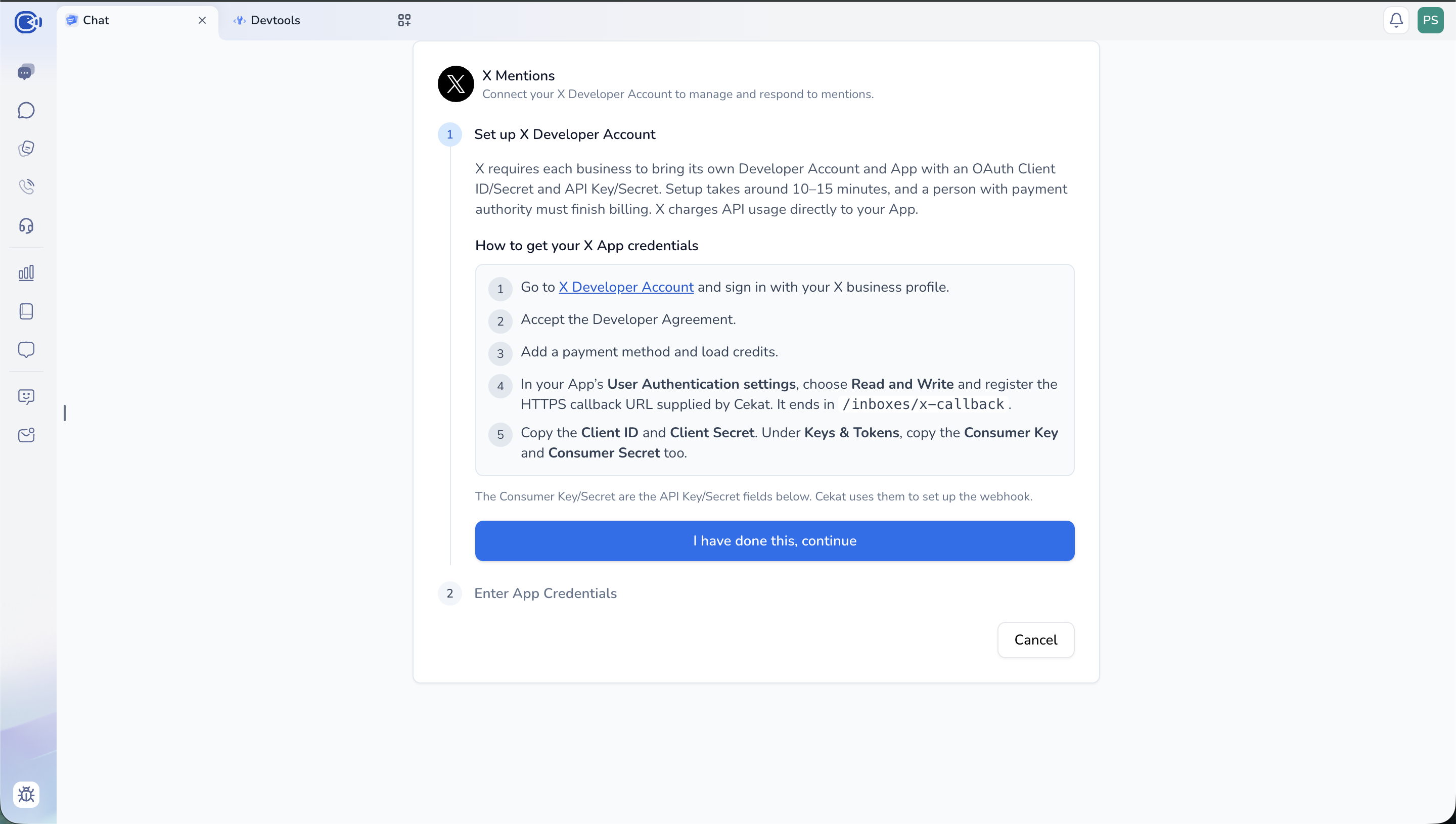
Note. The Consumer Key and Consumer Secret in X are the same as the API Key and API Key Secret fields in Cekat.AI. Cekat.AI uses them to set up the webhook.
Connecting X Mentions
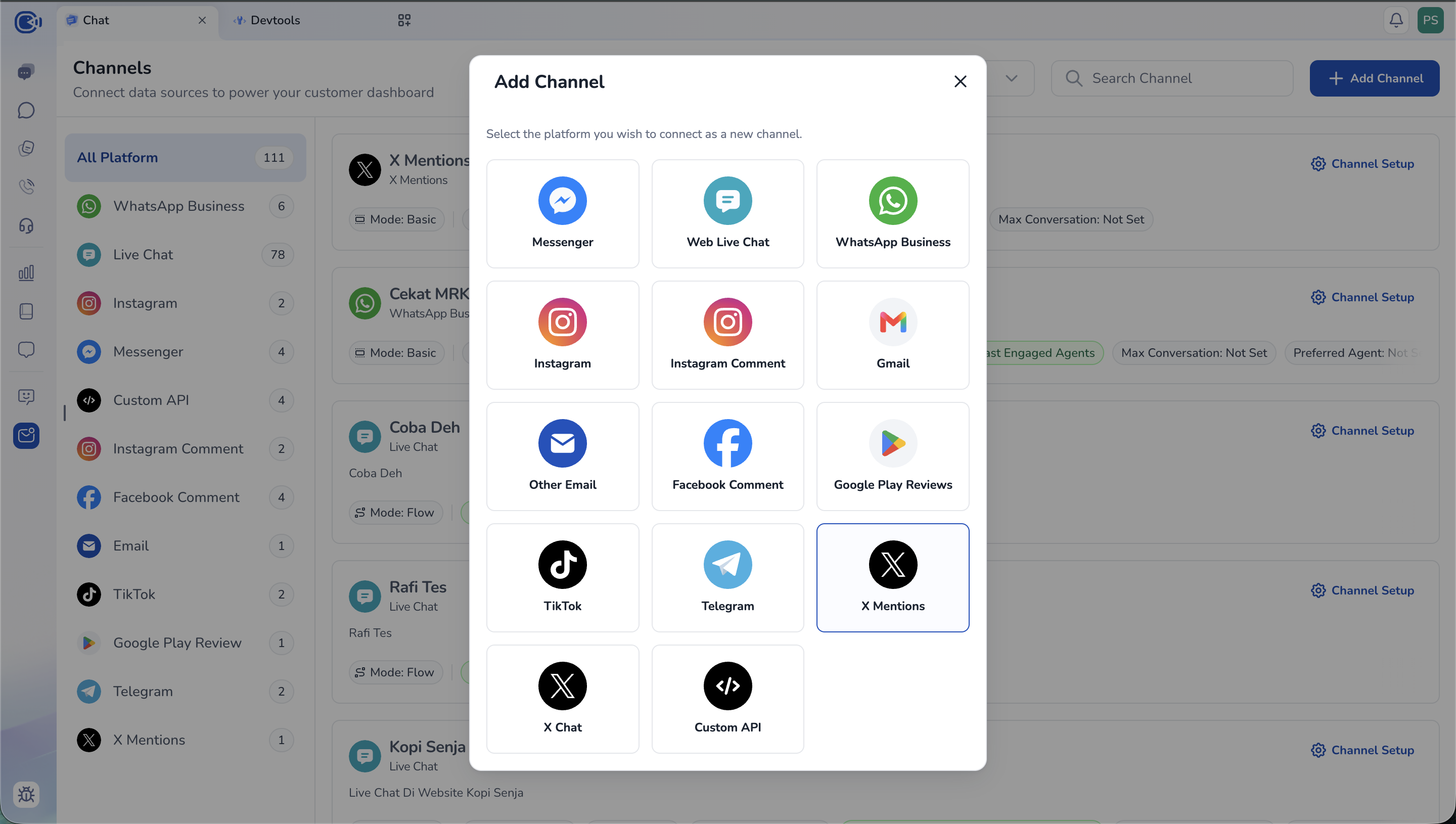
Open Connected Platforms. Open the Chat product, then select Connected Platforms in the sidebar.
Add a channel. Click Add Channel.
Select X Mentions. In the Add Channel window, select X Mentions.
Confirm the X Developer Account setup. In the Set up X Developer Account step, read the guide. Once the App is ready, click I have done this, continue.
Fill in the App credentials. In the Enter App Credentials step, fill in the following four fields.
| Field | Required | Description |
|---|---|---|
| Client ID | Yes | The Client ID of the App in the X Developer Console. |
| Client Secret | Yes | The Client Secret of the same App. |
| API Key (Consumer Key) | Yes | The Consumer Key from Keys & Tokens. |
| API Key Secret (Consumer Secret) | Yes | The Consumer Secret from Keys & Tokens. |
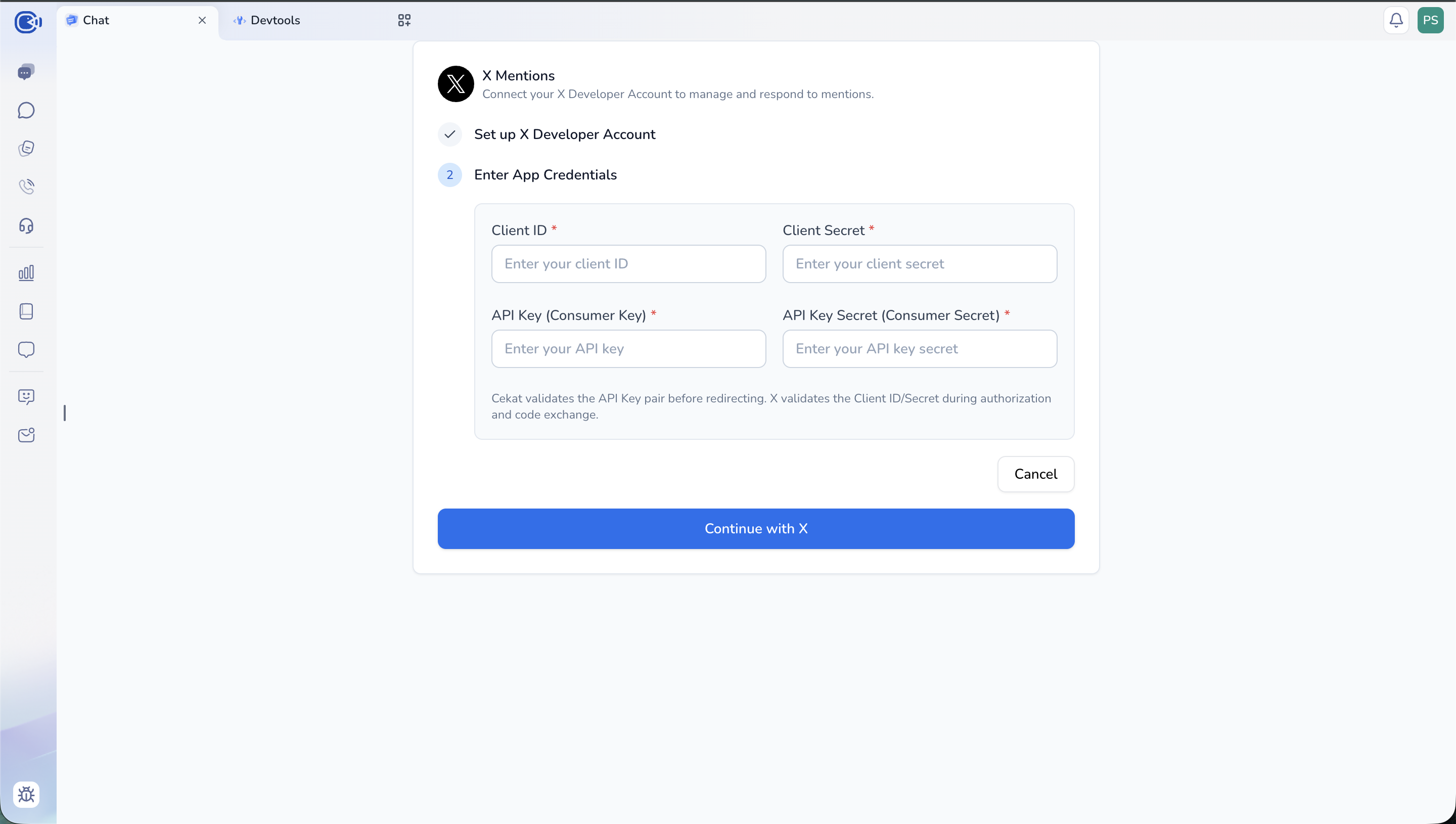
- Continue to X. Click Continue with X. Before redirecting you to X, Cekat.AI validates the API Key and API Key Secret. If anything is wrong, an error message appears in the form and can be fixed without leaving Cekat.AI. The Client ID and Client Secret are validated by X during authorization.
- Approve access on X. Log in to X, then approve access on X’s authorization page. Cekat.AI requests permission to read and create posts.
- Done. After returning to Cekat.AI, the new channel appears in the channel list and the channel’s Basic Setup page opens.
Once connected, Cekat.AI automatically registers the webhook and subscription on that App. Channel settings, such as Teams, Human Agent, and Chat Distribution Method, are explained in Connected Platforms.
Write permission is required. If the App only has Read permission, the connection is not completed and Cekat.AI shows an error with a link to the X Developer Console. Change App Permissions to Read and write, then repeat from the Continue with X step.
Opening X Mentions from the Comments Menu
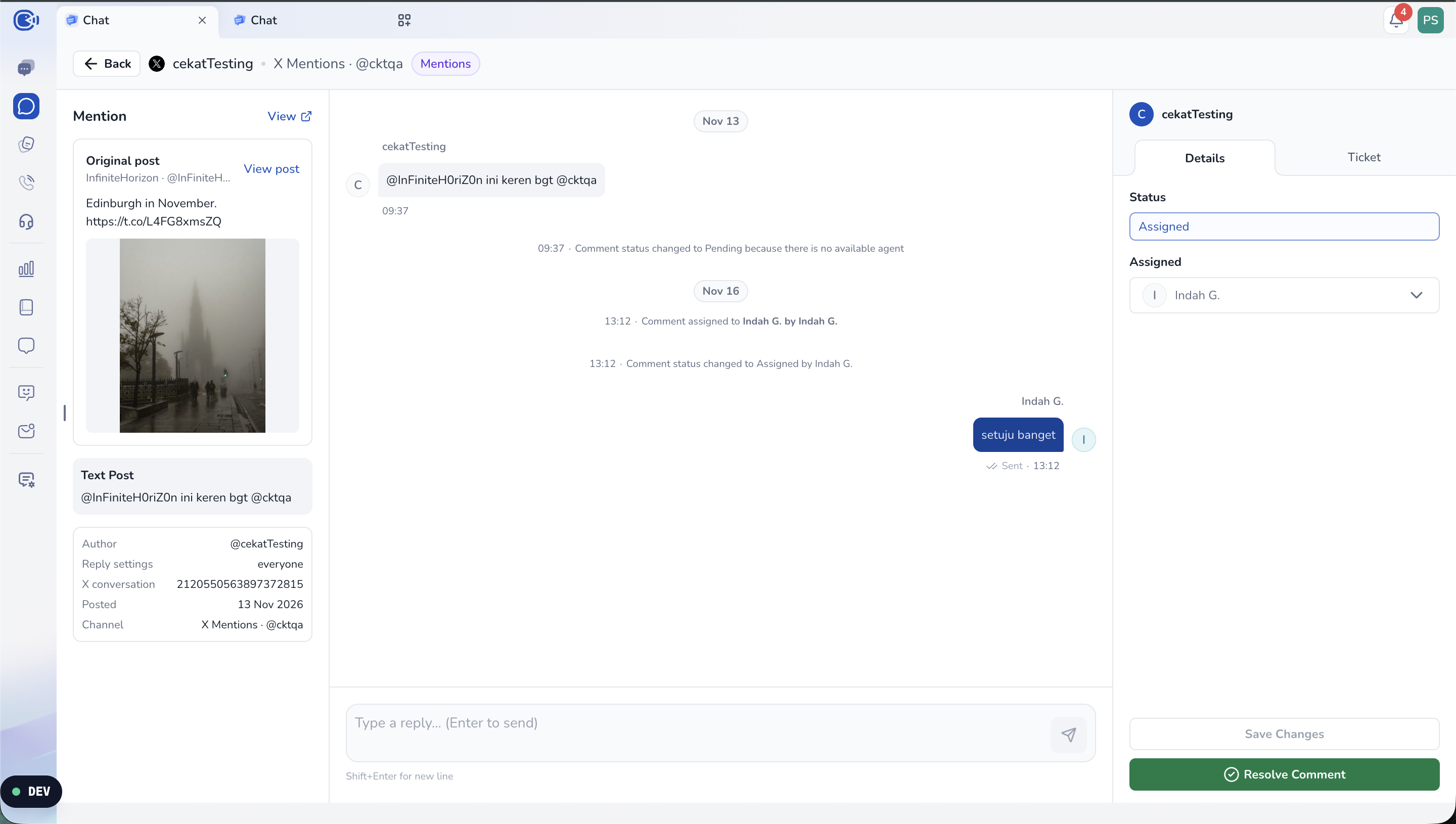
Mentions and replies from X Mentions come into the Comments menu, alongside comments from other channels. Three cases come in: a customer mentions the @handle in someone else’s post, a customer replies to a post by the connected account, and a customer mentions the @handle in a reply on that post.
- Open the Chat product, then select the Comments menu in the sidebar.
- Select the Unassigned tab to see new mentions. Mentions that have been assigned are in the Assigned tab, and completed ones are in the Resolved tab.
- Look for a mention with the X Mentions channel chip and the connected X account, for example
@cktqa, then click it to open the mention room.

The mention room shows the incoming post along with its media and details, including Reply settings, which determine whether a reply can be sent. The Reply to your post or Mentions label in the header indicates the type of mention.
X API Costs
Balance, payment method, and auto-recharge are managed entirely in the X Developer Console. Cekat.AI does not display or manage them. The following activities may be billed by X to the App owner’s account:
- Every mention or reply received. X bills each post event sent to the webhook, so a post with many replies can generate many events.
- Media loading when a mention is opened. The result is cached for 1 hour, so reopening the same mention within 1 hour is not billed again.
- Every reply sent from Cekat.AI. X may charge a higher rate for replies that contain links.
The latest rates are in the X documentation. When a channel is disconnected or deleted, Cekat.AI removes the webhook and subscription on the App, so X stops sending events.
Rules and Limitations
- Only mentions and replies are supported. X Direct Messages are not part of this channel.
- Direct replies to posts by the connected account are received. Replies to replies in the same thread are not received, unless they mention the @handle.
- Posts from protected accounts are not received, because X does not send them.
- Quotes and reposts of the account’s posts do not come in as mentions. A quote that mentions the @handle still comes in.
- Mentions that arrive before the channel is connected are not imported.
- One post creates only one mention room.
- Only the agent assigned to the mention can reply. Replies are text only, with no attachments.
- Mentions can stop coming in if the App’s access is revoked on X, or if X marks the webhook as invalid. Cekat.AI does not detect this condition automatically yet. Reconnect the channel using the same Connecting X Mentions steps, which will register a new webhook and subscription.