X Chat
このページは 日本語 ではまだ利用できません。デフォルトの言語 (English) で表示しています。
X Chat
X Chat connects your business’s X (formerly Twitter) account to Cekat.AI, so customers’ direct messages (DMs) come into the Chat menu and are handled with the same Chat features as other channels: conversation distribution, AI Agent, Flow, SLA, and CSAT. For public mentions on X, use X Mentions, which come into the Comments menu.
X Chat uses your business’s own X Developer App (bring your own key). X bills API usage to the App owner, not to Cekat.AI. Every DM received and every DM sent from Cekat.AI is billed to that X account. Cekat.AI does not pay for, resell, or charge X fees.
Before You Start
Prepare the following before connecting X Chat:
- The business X account to connect
- An X Developer Account and App at the X Developer Console. An App already connected to X Mentions or another X Chat inbox can be reused, as long as App permissions has been changed to Read and Write and Direct Message.
- A payment method and credits already added in the X Developer Console
- The Client ID, Client Secret, API Key (Consumer Key), and API Key Secret (Consumer Secret) of that App
- App permissions set to Read and Write and Direct Message
- A PIN of at least 4 digits for Secure Messaging, created during the connection process. Keep the PIN in a safe place.
You need someone with payment authority. Setup on the X side takes about 10 to 15 minutes, and billing must be completed by a person authorized to make payments.
Creating an X Developer App
You can skip this step if an App with the four credentials above is already available and App permissions is already Read and Write and Direct Message.
- Open the X Developer Console, then log in with the business X profile.
- Accept the Developer Agreement.
- Add a payment method and top up credits. Every DM received and every DM sent from Cekat.AI is billed to this X account.
- Create a new Project and App.
- In the App’s User Authentication settings, select Read and Write and Direct Message, then register the HTTPS callback URL provided by Cekat.AI. This URL ends with
/inboxes/x-callback. - Copy the Client ID and Client Secret. Under Keys & Tokens, also copy the Consumer Key and Consumer Secret.
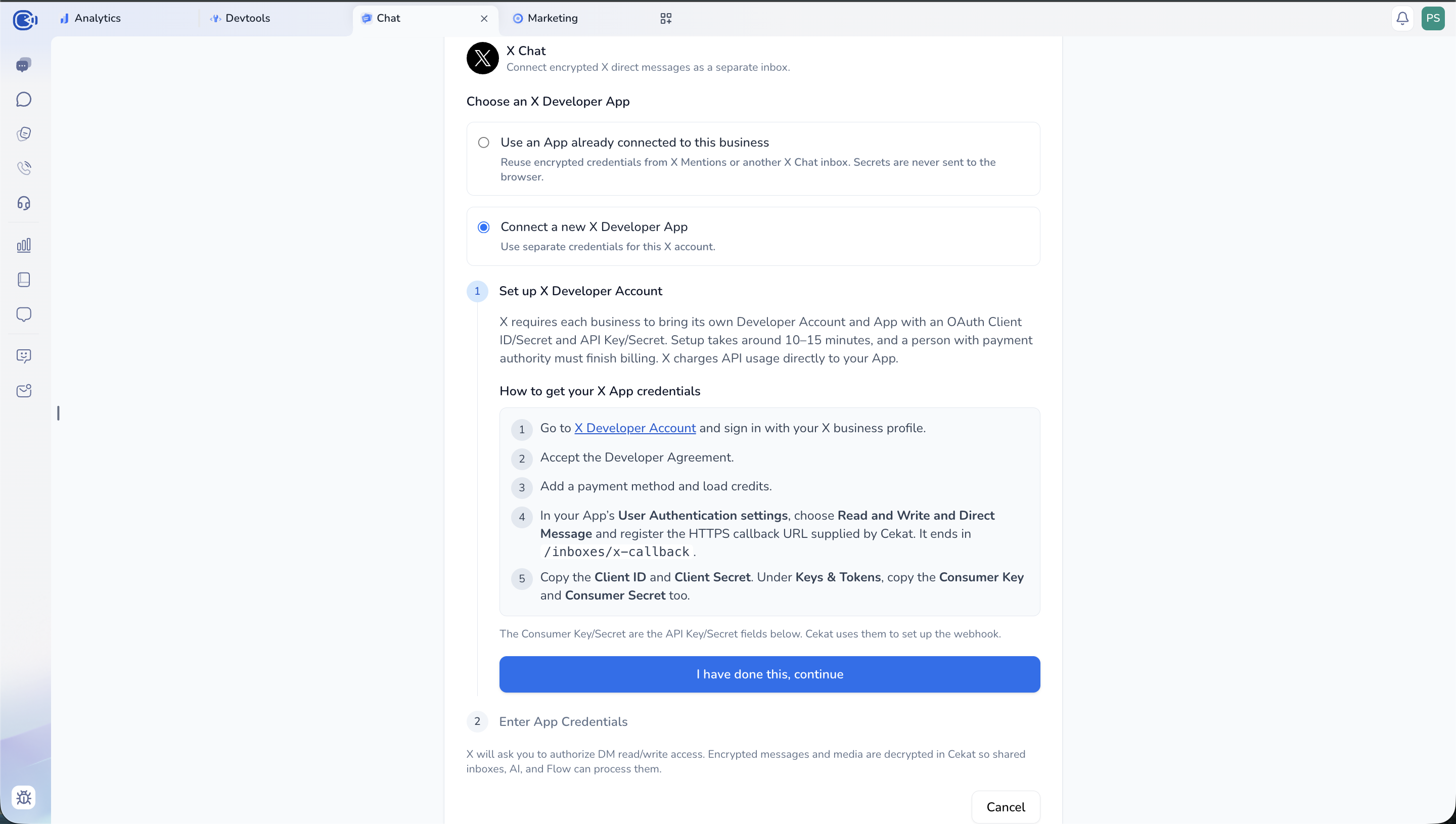
Note. The Consumer Key and Consumer Secret in X are the same as the API Key and API Key Secret fields in Cekat.AI. Cekat.AI uses them to set up the webhook.
Connecting X Chat
Open Connected Platforms. Open the Chat product, then select Connected Platforms in the sidebar.
Add a channel. Click Add Channel, then select X Chat.
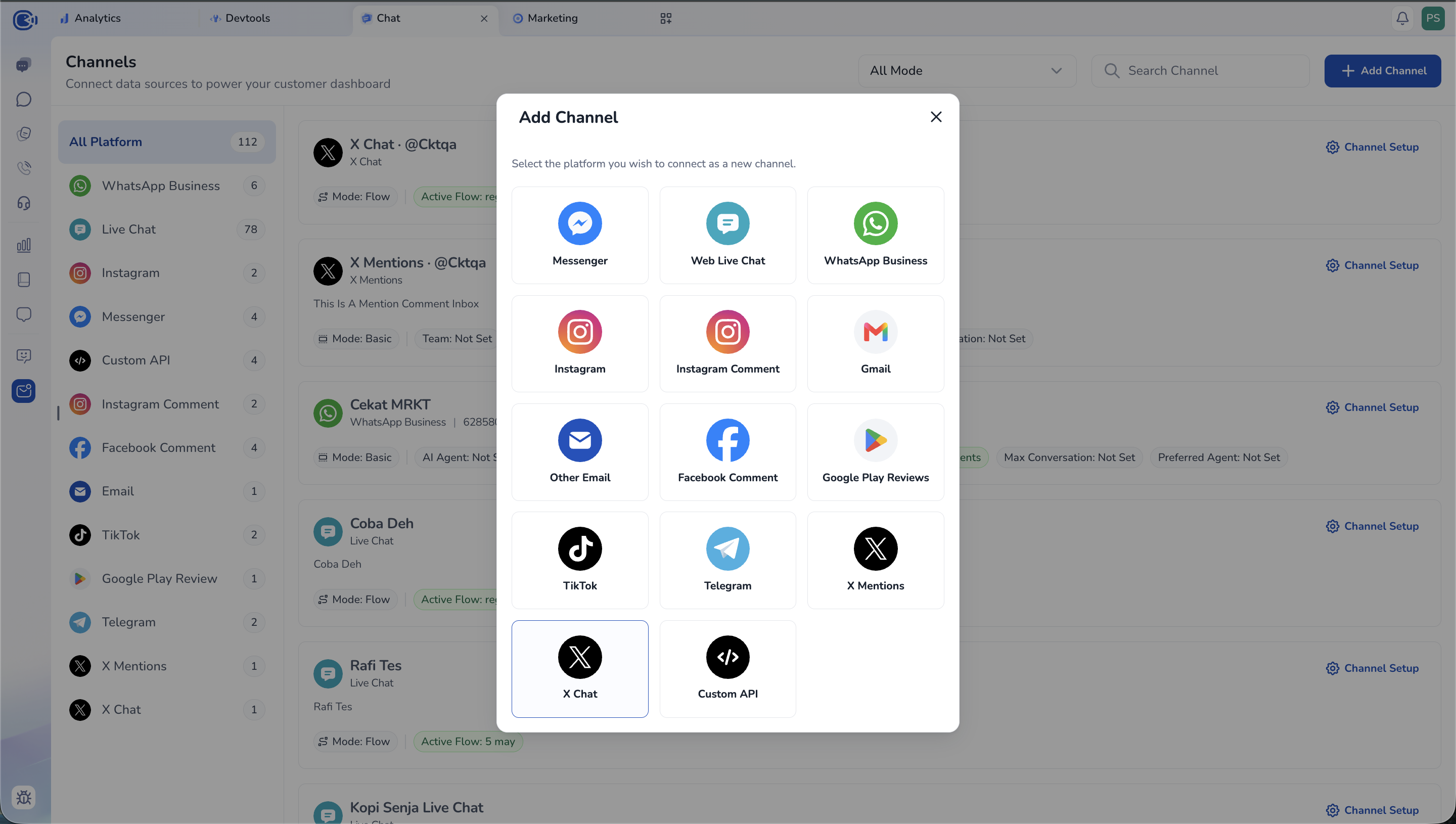
Choose an X Developer App. Under Choose an X Developer App, select one of the following options.
| Option | Description |
|---|---|
| Use an App already connected to this business | Reuses the encrypted credentials from X Mentions or another X Chat inbox. The credentials form is skipped and the process continues to authorization. Secrets are never sent to the browser. |
| Connect a new X Developer App | Uses separate credentials for this X account. |
- Confirm the X Developer Account setup. For a new App, read the guide in the Set up X Developer Account step, then click I have done this, continue.
- Fill in the App credentials. In the Enter App Credentials step, fill in the following four fields.
| Field | Required | Description |
|---|---|---|
| Client ID | Yes | The Client ID of the App in the X Developer Console. |
| Client Secret | Yes | The Client Secret of the same App. |
| API Key (Consumer Key) | Yes | The Consumer Key from Keys & Tokens. |
| API Key Secret (Consumer Secret) | Yes | The Consumer Secret from Keys & Tokens. |
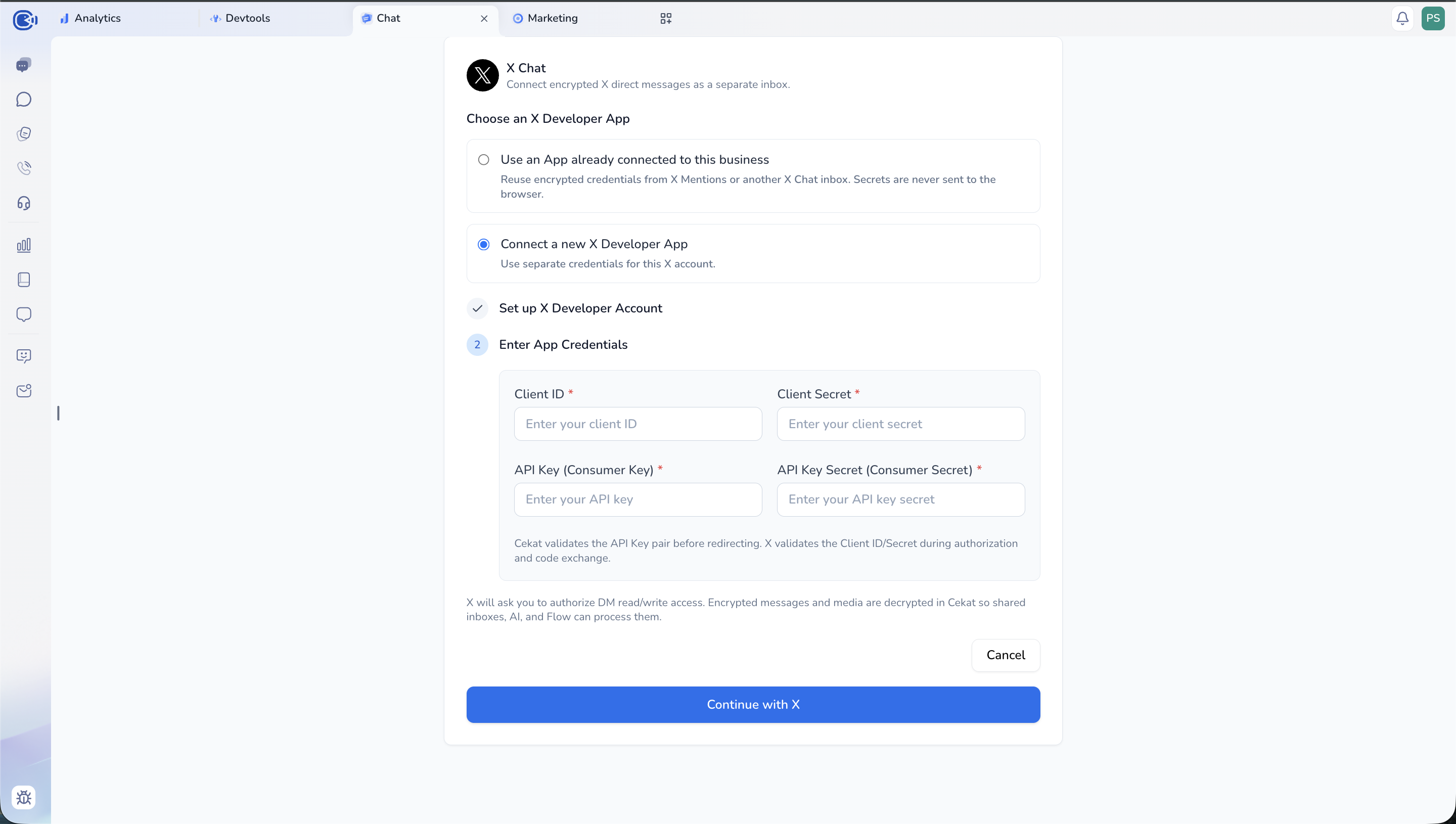
- Continue to X. Click Continue with X. Before redirecting you to X, Cekat.AI validates the API Key and API Key Secret. If anything is wrong, an error message appears in the form and can be fixed without leaving Cekat.AI. The Client ID and Client Secret are validated by X during authorization.
- Approve access on X. Log in to X, then approve access on X’s authorization page. Cekat.AI requests permission to read DMs, send DMs, and upload media. Cekat.AI does not request permission to create posts. Encrypted messages and media are decrypted in Cekat.AI so the shared inbox, AI, and Flow can process them.
- Set up Secure Messaging. X encrypts DMs end to end, so Cekat.AI creates an encryption key for this X account before it can read and reply to messages. On the Set Up Secure Messaging screen, fill in Choose a PIN and Confirm PIN, then click Set up and Continue. The PIN must be at least 4 digits and both entries must match. The PIN is entered once, is not stored, and is not shown again.
- Wait for the process to finish. The Finishing connection… screen shows five steps that run in order: creating the encryption key, registering the public key with X, securely storing the private key, registering the webhook, and subscribing to chat events.
- Done. The new channel appears in the channel list and the Basic Setup page opens with the message “X Chat connected”.
Channel settings, such as AI Agent, Teams, Human Agent, Flow Builder, SLA, and CSAT, are explained in Connected Platforms. AI Agent is Off by default, so choose an AI Agent in the Basic tab if you want DMs answered automatically.
DM permissions are required. If X does not grant permission to read DMs, send DMs, or upload media, the connection is not completed and Cekat.AI shows the message “We Didn’t Get Permission to Read DMs”, “Send DMs”, or “Upload Media”, with a link to the X Developer Console. Open User Authentication settings on the App, select Read and Write and Direct Message, then connect again.
If Secure Messaging fails. If X does not accept the encryption key, the Secure Messaging Setup Failed screen appears. The credentials and permissions that were already validated remain saved. Click Try again to return to the PIN screen. If it happens repeatedly, contact the Cekat.AI support team.
Opening X Chat from the Chat Menu
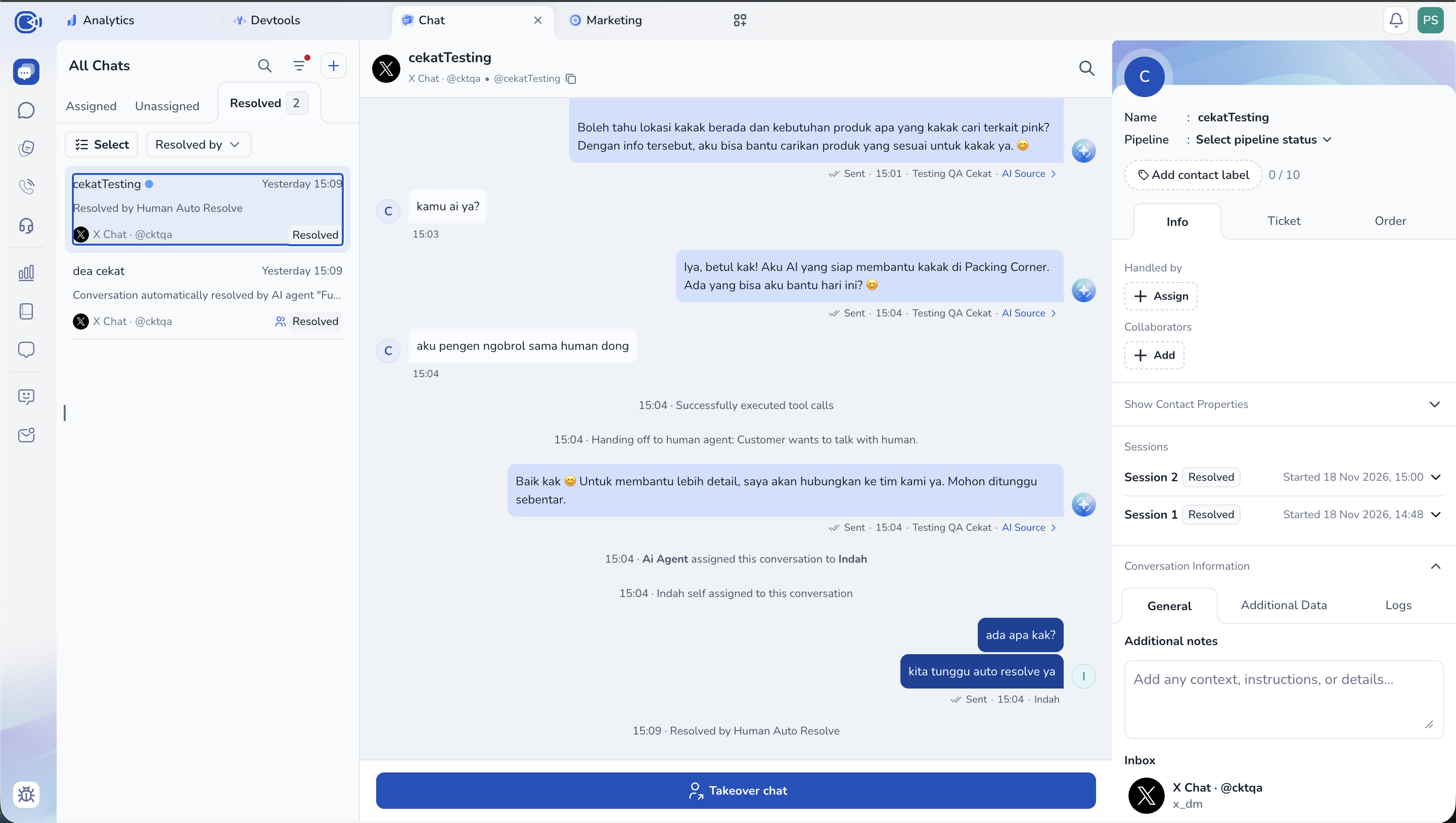
DMs from X Chat come into the Chat menu, alongside conversations from other channels.
- Open the Chat product.
- Select the Unassigned tab for conversations that have not been handled. Conversations answered by an AI Agent, Flow, or an agent are in the Assigned tab, and completed ones are in the Resolved tab.
- Look for a conversation with the X icon and the X Chat label along with the @handle of the connected business X account, for example
X Chat · @cktqa, then click it to open the Chat Box.
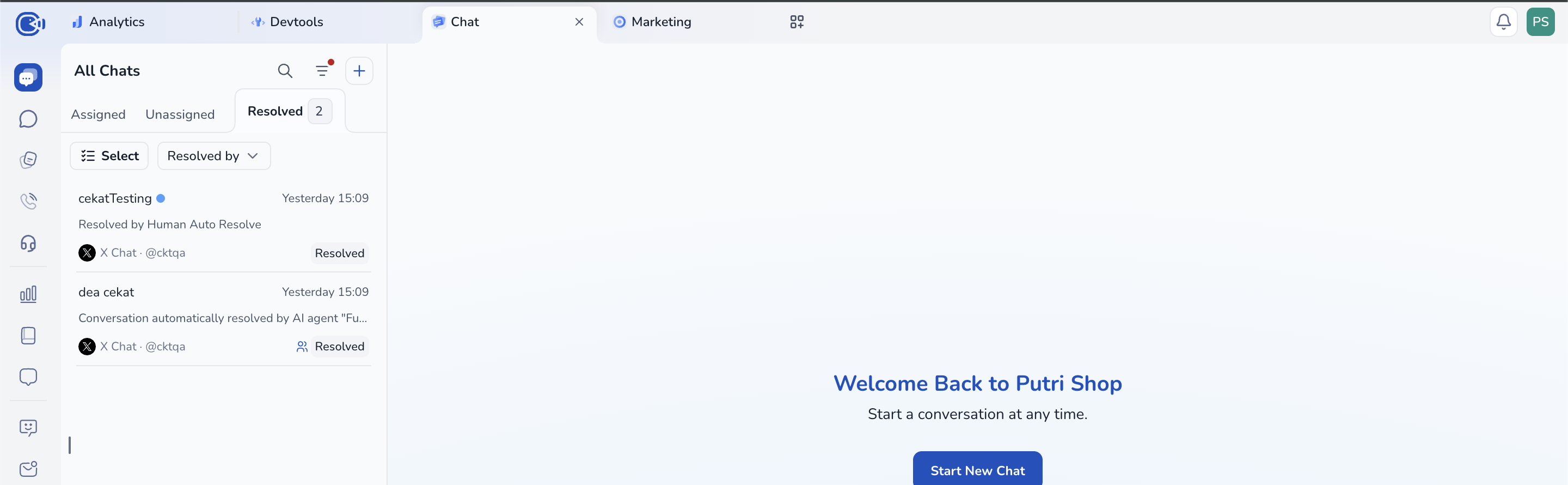
The Conversation List, Chat Box, and Conversation Details for X Chat work like other channels. Full explanations are on the Conversation List and Chat Box pages.
X API Costs
Balance, payment method, and auto-recharge are managed entirely in the X Developer Console. Cekat.AI does not display or manage them. The following activities may be billed by X to the App owner’s account:
- Every DM received.
- Every DM sent from Cekat.AI, including agent replies, AI Agent replies and follow-ups, Flow messages, Follow-Up Before Resolving, and CSAT messages. Clients with many automated messages pay per message.
- DMs that contain links, such as CSAT messages, may be charged at a higher rate.
The latest rates are in the X documentation. When a channel is deleted, Cekat.AI removes that channel’s subscription, so X stops sending events. The webhook is only removed if no other channel on the same App uses it, for example X Mentions.
Rules and Limitations
- Only one-to-one DMs are supported. Group DMs are not supported.
- One pair of X accounts becomes one conversation. A contact is created from the X account (name, username, and avatar). X does not provide phone numbers, so X Chat contacts do not have a phone number.
- The customer must send a DM first. Cekat.AI does not start chats with X accounts that have not sent a message, and does not send broadcasts to X accounts.
- X does not document a reply time limit, so a conversation can always be taken over with Takeover chat.
- DMs that arrive before the channel is connected, or while the channel is disconnected, are not imported.
- Text messages can be up to 10,000 characters, with one photo, video, or GIF per message. Templates, buttons, and quick replies are not available, including in Flow.
- AI Agent and Flow are available from the first release without a feature flag. X may require separate written approval for AI-generated replies, and it has not been confirmed whether that rule covers DMs. This risk sits with the client’s own X App.
- Mentions and DMs from the same customer appear in two places, namely X Mentions in the Comments menu and X Chat in the Chat menu, and are not merged.
- DMs can stop coming in if the App’s access is revoked on X, or if X marks the webhook as invalid. Cekat.AI does not detect this condition automatically yet. Reconnect the channel using the same Connecting X Chat steps, which will register a new webhook and subscription.