Ads
이 페이지는 아직 한국어 언어로 제공되지 않습니다. 기본 언어(English)로 표시합니다.
Ads
Campaign Management / Ads Management is a feature for managing ads (usually Facebook Ads / Instagram Ads) directly from within the platform, without having to open Meta Ads Manager. Its main purpose is to make it easier for you to monitor, manage, and optimize your ads from a single dashboard.
Steps to Open Campaign Management / Ads Management:
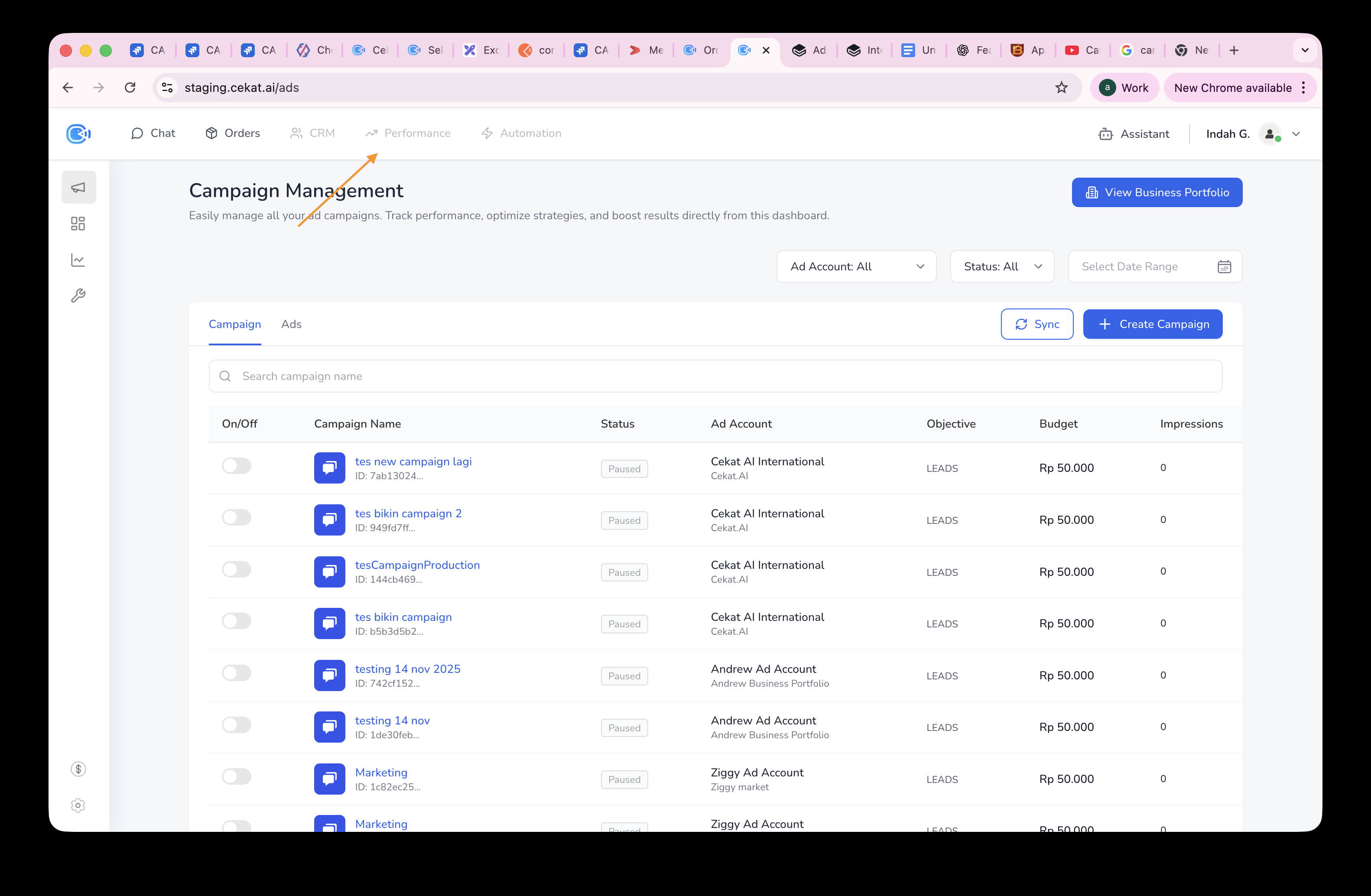

Elements on the Campaign Management page:
- View Business Portfolio button
- Ad Account
- Status filter
- Date filter
- Sync button
- Create Campaign button
- Campaign tab
- Ads tab
- Search field
- Campaign list
Elements on the Ads Management page:
- View Business Portfolio button
- Ad Account
- Status filter
- Date filter
- Sync button
- Create Campaign button
- Campaign tab
- Ads tab
- Search field
- Ads list
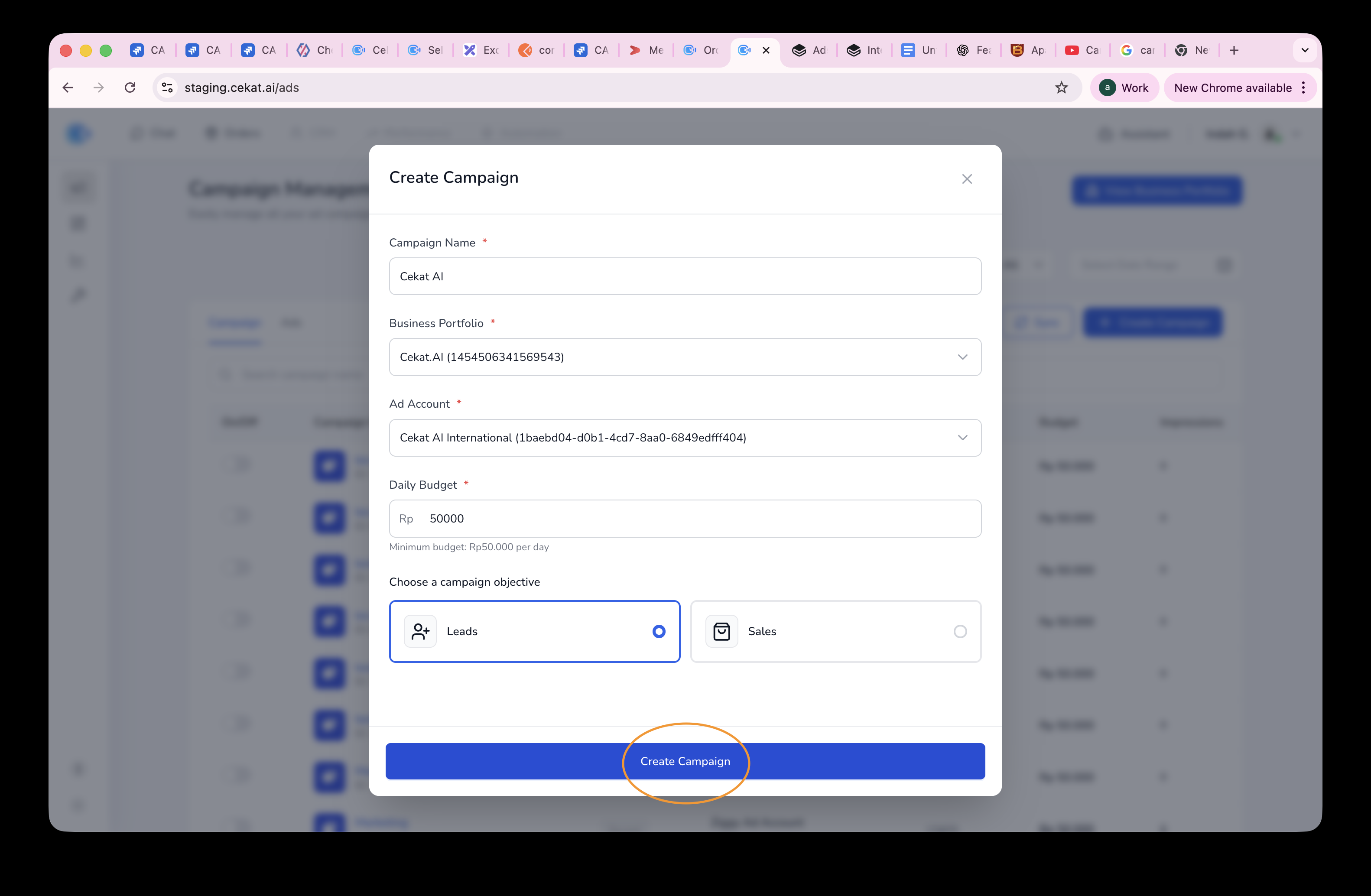
Steps to Create a Campaign:
- Click the Create Campaign button

- Enter the Campaign Name
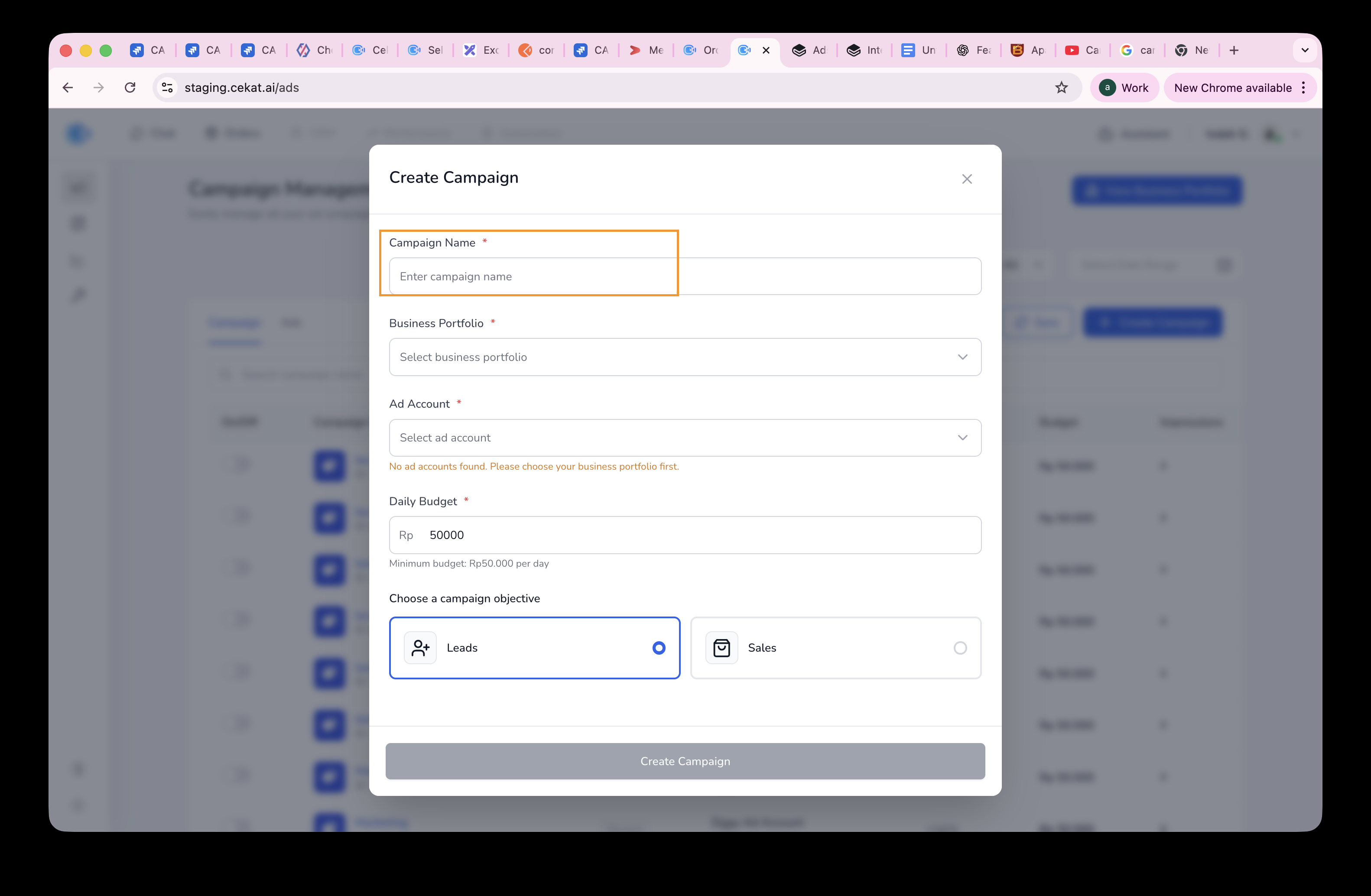
- Enter the Business Portfolio

- Select the Ad Account

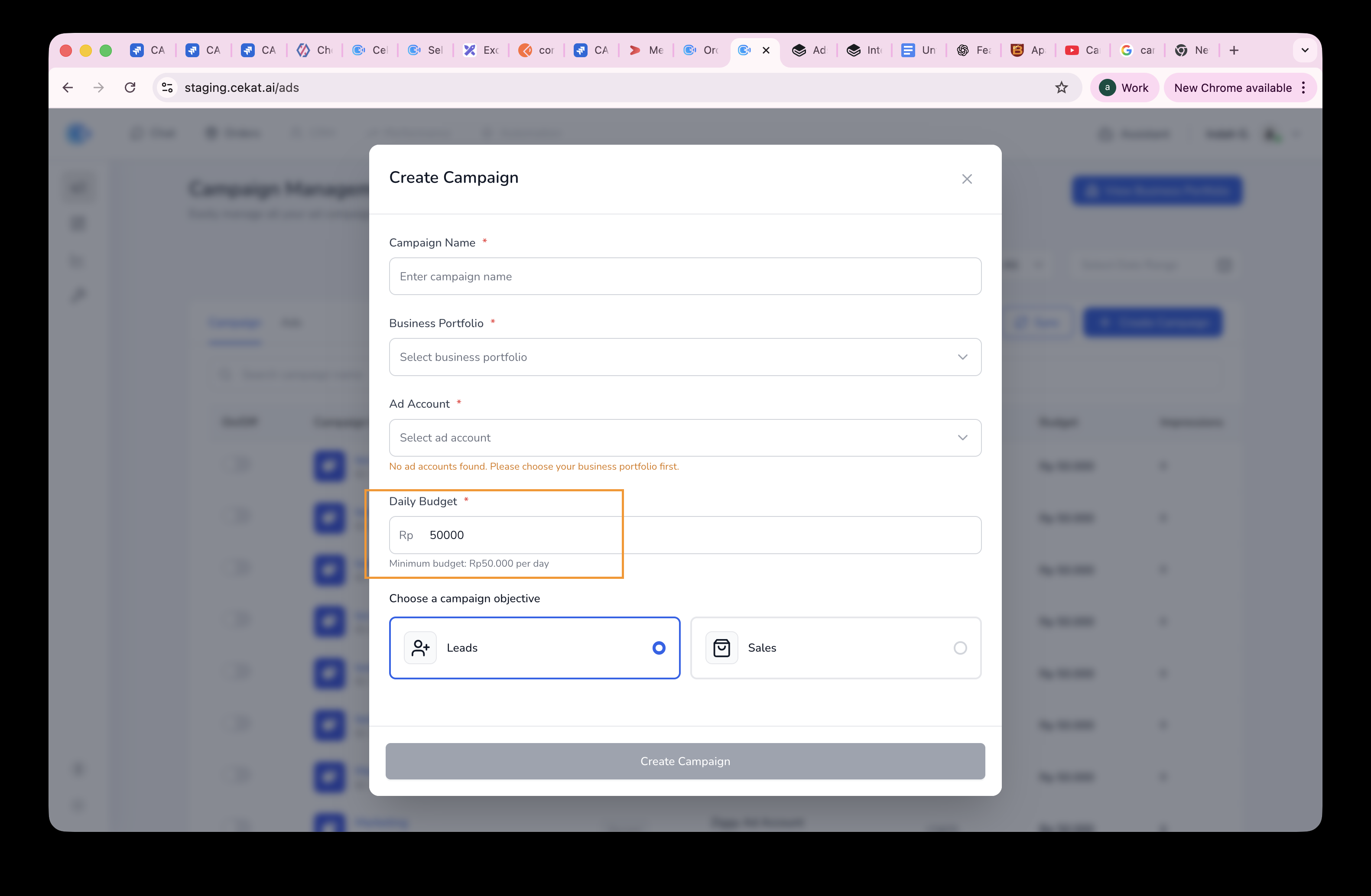
- Enter the Daily Budget
Minimum budget: Rp50.000 per day
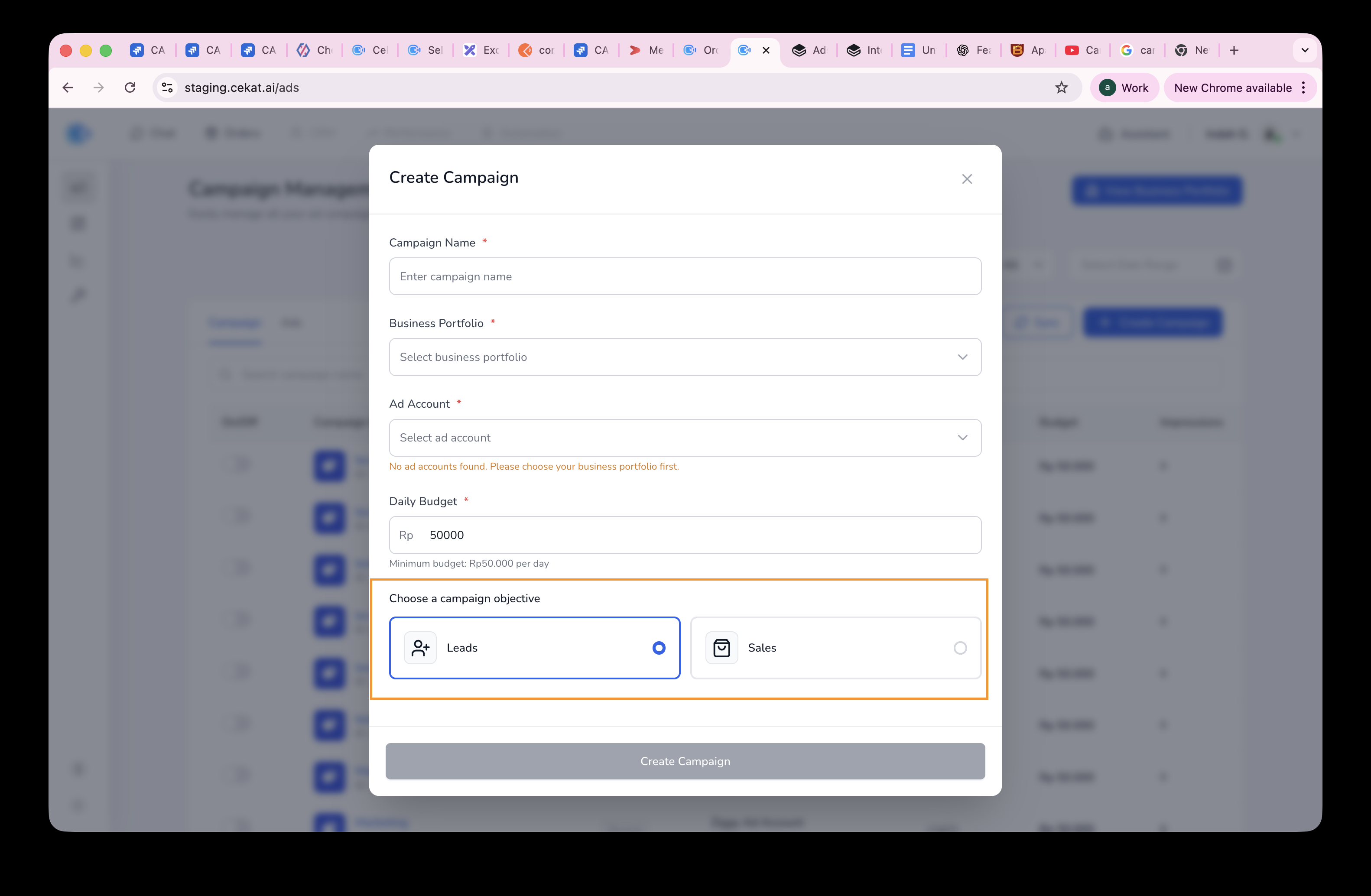
- Select the campaign objective
There are 2 campaign objectives: Leads and Sales.
- Click the Create Campaign button
The Create Campaign button has 4 states:
- It becomes enabled when the user has added a Prompt
- It becomes enabled when the user changes the Prompt content
- It becomes disabled when no Prompt has been added
- It becomes disabled when there are no changes to the Prompt
You will be in Campaign Configuration
- Select a Page
The Page is the Facebook page that was registered during embedded sign up.
- Enter the Ad Set Name
The Ad Set Name field has a maximum of 100 characters.
- Enter the Age
The minimum age to create a Campaign is 21.
- Select the Gender
There are 3 gender options: Male, Female, and Both. This is the gender of the target audience.
- Select the Ad Media Type
There are 2 ad media types: Image and Video.
- Enter the Headline
The Headline field has a maximum of 40 characters. We recommend a headline of 30 characters or fewer.
- Enter the Description
The Description field has a maximum of 90 characters. We recommend a description of 70 characters or fewer.
- Upload an Image
The image file must be in JPG/JPEG/PNG format.
- Enter the Message
The Message field has a maximum of 2200 characters. We recommend a message of 125 characters or fewer.
- Enter the Link
The link you enter is the destination you want for the campaign.
- Select the Call to Action button
The Call to Action button options are Learn More, Shop Now, Sign Up, Download, Book Travel, and Get Quote.
Enter the Ad Name
- Select the Ad Status
There are 2 ad statuses: Paused and Active. Paused means the Ad only appears in Meta Ads but will not be published. Active means the Ad appears in Meta Ads and will be published.
Click the Create Complete Campaign button