Extra Authority
此页面暂无中文版本。显示默认语言(English)。
Extra Authority
Extra Authority lets CRM Administrators control in more detail who can open data, what data can be viewed or searched, and what actions can be performed on Contacts, Companies, Boards, and shared Views. This feature complements the existing CRM Authority, Role hierarchy, Board access, and View visibility; it does not replace them.
Use Extra Authority when your team needs more specific access control than a single general access setting. For example, you can allow all users to open Contacts but allow only certain agents to export. You can also give a role access to all data without allowing that role to delete data.
Important: existing businesses
Businesses that already use the CRM can keep working as usual even if Extra Authority or Default Authority has not been set. Existing users can continue using the CRM with the access they have today; no configuration is required right away just to continue daily activities.
This requirement applies when an Administrator creates a new Board. Before that Board can be shared as Public or Restricted, the Board creator must set the Default Authority on it. The system does not allow sharing settings to be completed without a valid default configuration.
Who can configure Extra Authority
CRM Authority still governs administrative and settings access:
- Super Administrators and Administrators can access CRM settings and create Boards according to the applicable CRM rules.
- Basic User operational access is determined by the Extra Authority granted for each Contact, Company, Board, or View.
Extra Authority governs operational access. This feature does not automatically give Administrators or Super Administrators unlimited access to CRM data or actions.
Where to find the settings
There are three entry points for Extra Authority:
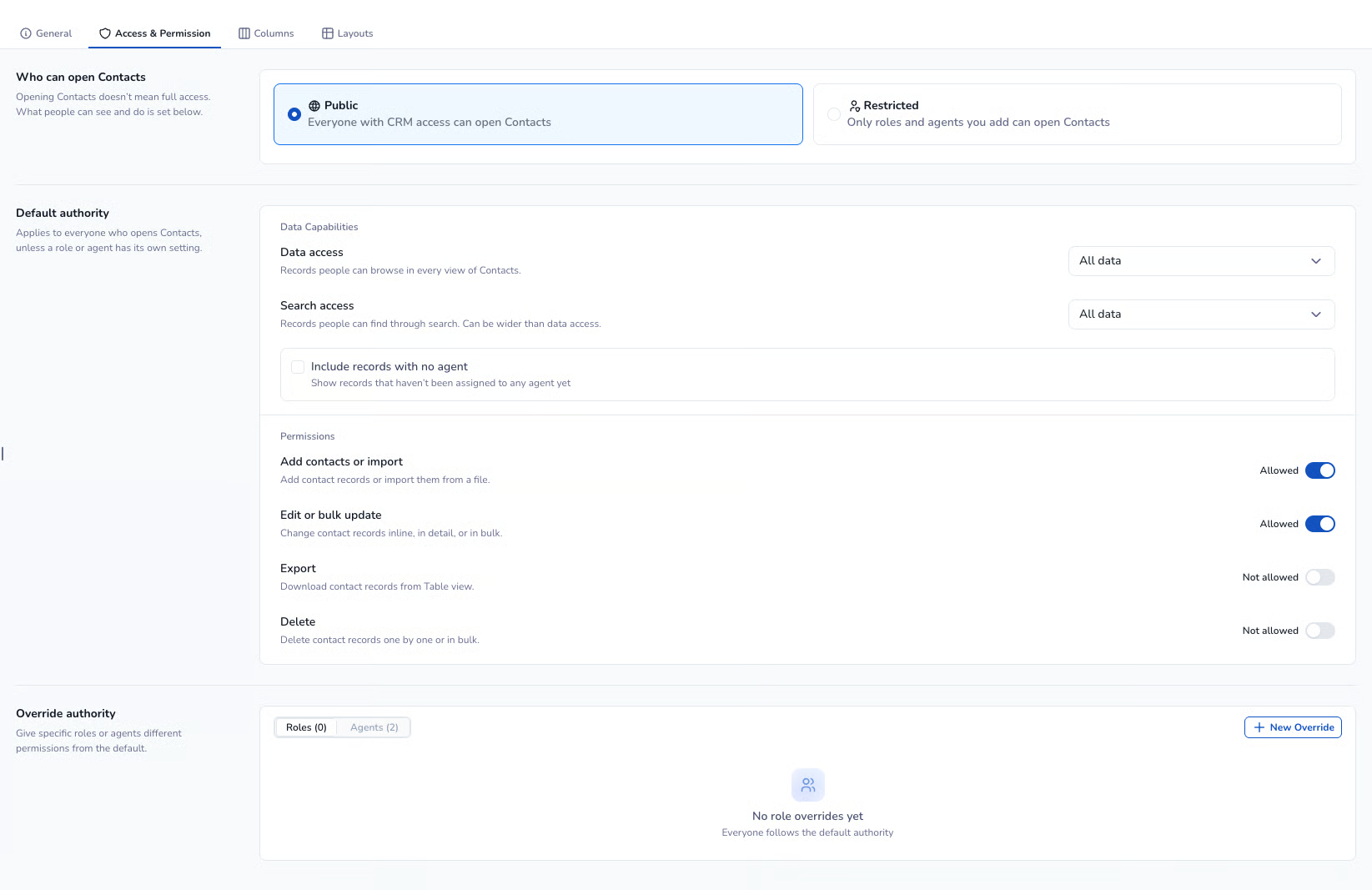
Page or Board settings: To configure Contacts or Companies, open the relevant CRM page, open its settings, then select Access & Permission. To configure a specific Board, open that Board’s settings after the Board has been created.
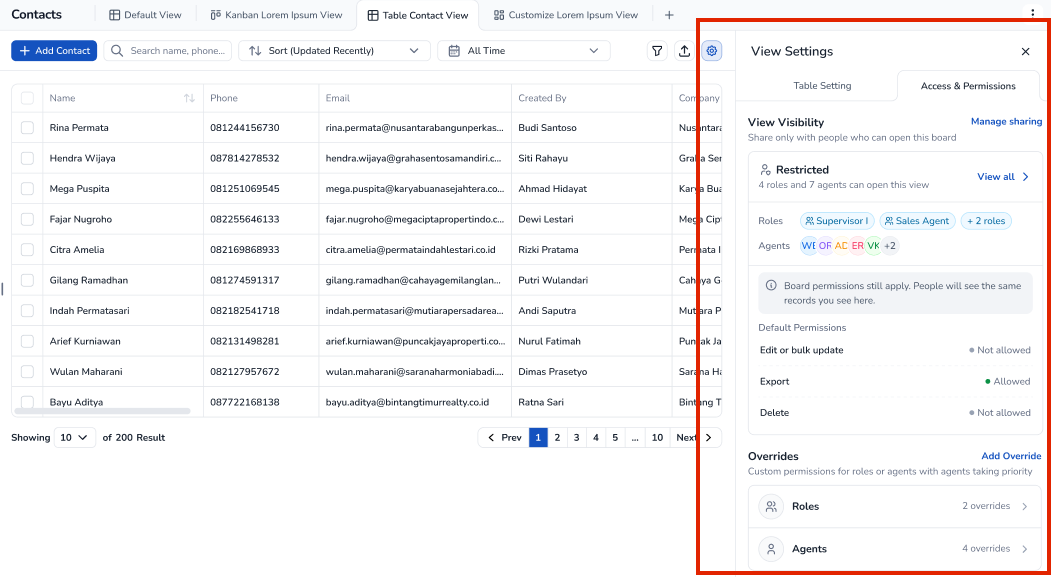
View settings: Open a Board or CRM page, then select the View you want to configure. Open View Settings, then select Access & Permissions. Use Manage sharing to open the Manage Sharing panel. From this panel, you can decide whether the View is Public or Restricted, set the list of Roles and Agents who can open the View, and set View-level permissions for Edit and bulk update, Export, and Delete. The panel also makes clear that Board permissions still apply and that users only see data the View creator can see.
CRM Hierarchy: Open Settings → User Management → CRM → Hierarchy. This Extra Authority entry point is available only to Administrators and Super Administrators. This page provides a Role-based way to review the Boards and Views assigned to Roles, as well as items that are Public.
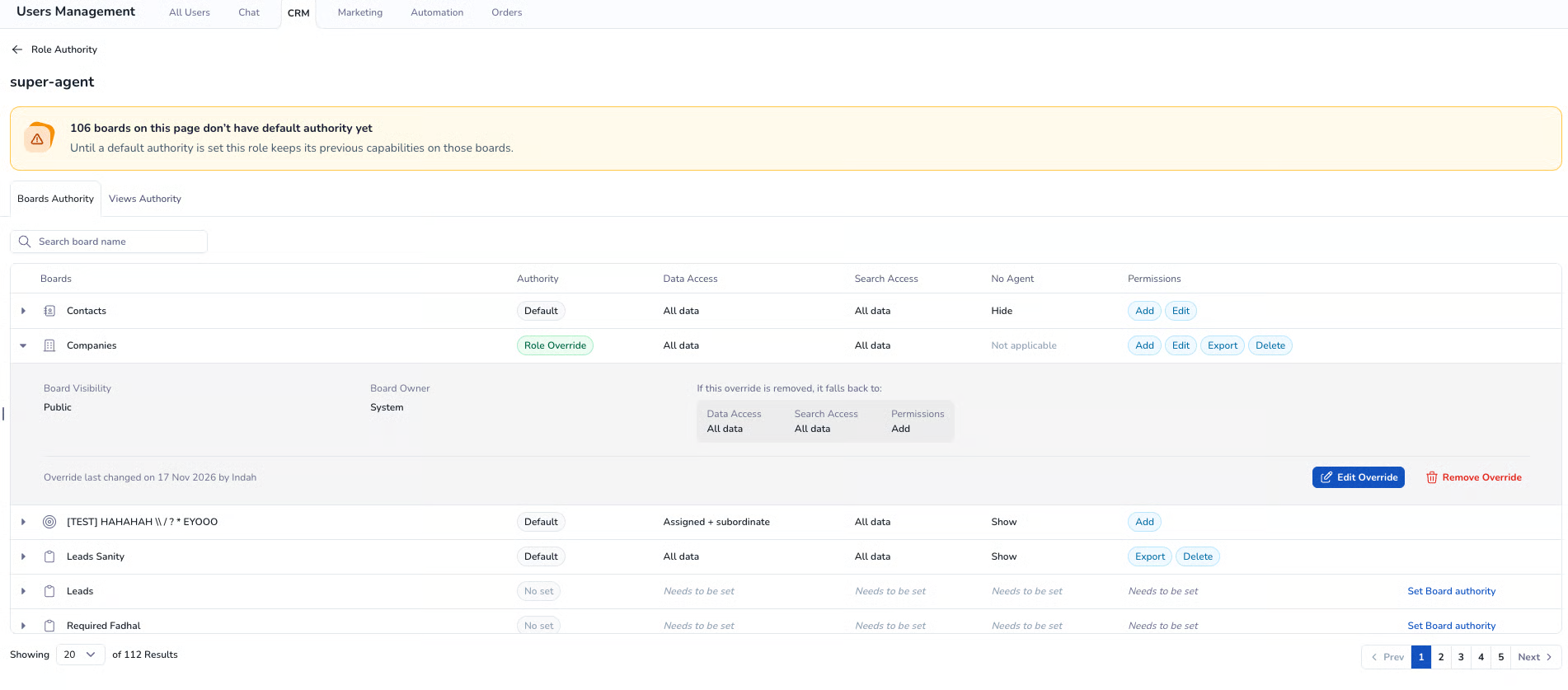
From CRM Hierarchy, authorized Administrators can see the Boards and Views assigned to Roles or shared Publicly, see each Role’s capabilities on every Board and View, set the Default Authority for those Boards or Views, and create or update overrides for Roles and Agents.
The page-level Access & Permission screen has three areas:
- Who can open [page] — choose Public or Restricted.
- Default authority — set the baseline access for users who can open the page.
- Override authority — give specific Roles or Agents settings that differ from the default.
Each Board has its own separate Extra Authority configuration. Set it from the Board settings after the Board has been created.
Understanding the access model
Visibility: who can open
Choose one of the following visibility options.
| Visibility | Meaning |
|---|---|
| Public | All users with the appropriate CRM access can open the Contact, Company, or Board. The data they see and the actions they can perform still follow each user’s Effective Authority. |
| Restricted | Only the specific Roles and/or Agents added by the creator can open the item. |
Public does not mean unrestricted access. Users can open a Public Page or Board, but they still do not have permission to edit, export, or delete.
Default Authority: baseline access
Default Authority applies to all users who can open the Page or Board, unless they have an override. Set the following:
| Setting | What it controls |
|---|---|
| Data access | The data users can see when browsing normally in the CRM. The options are All data, Assigned to me + subordinate, or No access. |
| Search access | The data users can find through search. Search access can be broader than normal browsing, but cannot be narrower than Data access. |
| Include records with no agent | Determines whether records that have no agent yet are included, according to the selected data scope. |
| Add or import | Determines whether users can create records or import from a file. For Boards, this means adding items. |
| Edit or bulk update | Determines whether users can edit records one by one or update records in bulk. |
| Export | Determines whether users can download data from the Table view. |
| Delete | Determines whether users can delete records one by one or in bulk. |
In this guide, Assigned to me means the user is listed in at least one agent-type property on the record. Subordinate means agents in the user’s direct child Role only; it does not include all lower Roles in the hierarchy.
Override Authority: exceptions for Roles or Agents
Use an override when a Role or Agent needs different access from the default. An override can be more restrictive or broader than the default, but it must not exceed the creator’s applicable capabilities.
- Under Override authority, select the Roles or Agents tab.
- Select New Override.
- Select the Role and/or Agent that will receive the exception.
- Choose Data access and Search access, then set the permitted actions.
- Create the override.
For Board-level overrides, the Board creator’s current Effective Capability is the maximum that can be granted. You can give specific Roles or Agents access that is lower or higher than the default, but only within that limit. If the Board creator later loses a capability, all related grants on that Board are recalculated and reduced accordingly. For example, if the creator loses the Export permission, Roles or Agents who previously received Export through that Board can no longer effectively export.
For View-level overrides, the principle is the same, but the limit is the View creator’s capability in the context of that View’s parent. A View only shows datasets that the creator can actually see, which are then narrowed again by the View’s saved filter. For example, if the View creator can browse Assigned to me + subordinate and has edit permission, the View can only show data within that scope and the creator can only grant Edit permission within the View. The creator cannot grant broader Data access or Export if they do not have it. If the creator’s Edit permission is later revoked, the Edit permission is also revoked for all Roles or Agents who received it through that View.
The system applies authority in the following order:
- Agent Override
- Role Override
- Default Authority
This means a setting specific to an Agent takes priority over a Role setting. If an Agent override is removed, the Agent goes back to following the Role override if one exists; otherwise, the Agent follows the Default Authority.
Configuring Contacts or Companies
Use the following steps to set the baseline authority for Contacts or Companies.
- Open Contacts or Companies in the CRM.
- Open the page settings and select Access & Permission.
- Under Who can open [page], select Public or Restricted.
- If you choose Restricted, add the Roles and/or Agents who can open the page.
- Under Default authority, choose the appropriate Data access and Search access.
- Decide whether records with no agent should be included.
- Enable only the permissions that are needed: Add/import, Edit/bulk update, Export, and Delete.
- Add overrides for Roles or Agents that need exceptions.
- Save or confirm the configuration according to the actions available on the screen.
Recommendation: start with the minimum access needed for day-to-day work, then add Role or Agent overrides only when there is a clear business need. This approach makes the default settings easier to understand and reduces the risk of excessive access.
Creating a new Board and configuring its authority
Only Administrators and Super Administrators can create Boards according to the applicable CRM rules.
- In the CRM sidebar, select Create new board.
- Choose a template, such as Deals, Leads, Projects, or Blank Template.
- Enter the Board name and choose what the Board will manage.
- Continue the Board creation process.
- Open the new Board’s settings, then select Access & Permission.
- Choose whether the Board is Public or Restricted.
- Set the Board’s Default Authority before completing the Board sharing settings.
- If the Board is Restricted, select the Roles and/or Agents who can open it.
- Add overrides for Roles or Agents only if needed.
- Complete sharing once the default configuration is valid.
A Board cannot complete Public or Restricted sharing until Default Authority is set. Each Board is configured separately; changing the authority on a Contact or Company does not change a Board’s authority.
Using Views safely
A View adds an authorization context for a specific saved dataset. A View can make access narrower or broader for that View, but it cannot grant capabilities beyond the View creator’s current capabilities.
For shared Views:
- View capabilities govern Edit/bulk update, Export, and Delete within that View.
- A View does not separately govern Data access, global Search access, or Create/import.
- The creator’s saved filter determines the dataset allowed in the View.
- Users can use a temporary filter only to narrow the saved filter’s dataset; they cannot remove or broaden the creator’s saved filter.
- A copied View becomes Private and does not copy sharing grants.
Use a Restricted View when a manager needs to let specific people work on a controlled set of data without changing data ownership. For example, a renewal support group can get access to a renewal View curated by the manager and edit data from that View, while the data remains assigned to its original owner.
Limitations and common questions
Can I grant access that I do not have?
No. You cannot grant a capability higher than your current Effective Capability. For example, a creator who cannot export cannot enable Export for a Role, Agent, Board, or View. The same rule applies to the scope of Data access and Search access.
Can Public users do everything?
No. Public only determines who can open a Page or Board. Effective Authority determines which data they can see and whether they can add, edit, export, or delete.
Can search reveal data that users cannot browse?
Search access can be broader than Data access. However, Search access does not grant Export, Edit, Delete, or unrestricted browsing access. Search results are still limited by the configured Effective Authority.
Can I edit data assigned to someone else?
Yes, but only if the permitted Page or View grants the required Data access and Edit permission. The data assignment does not change.
What happens if a user changes Role?
Role-based access is recalculated. Views shared explicitly with an Agent remain available regardless of Role changes, as long as that View’s authority is still valid.
What happens if the creator’s capability is later removed?
Capability cascade applies automatically. If a Board creator loses a capability, the Effective Authority granted through that Board is reduced accordingly. If a View creator loses a capability, any View-level grants that depend on that capability are also reduced. For example, if the View creator’s Edit permission is revoked, users who received Edit through that View can no longer edit from that View.
Example configuration patterns
Broad access with safe actions
Use Public visibility with Default Authority All data for browsing and search, while disabling Edit, Export, and Delete. Add an override for operational Roles that need Edit.
Team-owned data
Use Restricted visibility and assign the relevant Roles. Set Data access and Search access to Assigned to me + subordinate, then add individual overrides for team leads who need broader access.
Controlled cross-team collaboration
Restrict normal Page access. Create a saved Restricted View with the approved data, then grant Edit only to the temporary support group. Leave Export and Delete disabled unless there is a specific need.
Checklist before sharing a new Board
Before completing Board sharing, make sure the Board visibility is correct, Default Authority is set, the Roles or Agents on a Restricted Board are chosen deliberately, actions such as Export and Delete are enabled only when needed, and all overrides are documented and remain within your Effective Capability.
Glossary
| Term | Meaning |
|---|---|
| Authority | The existing CRM administrative level, such as Super Administrator, Administrator, or Basic User. |
| Role | An organizational grouping used for the hierarchy. |
| Agent | An individual CRM user who can receive a personal override. |
| Default Authority | The baseline authority that applies when no matching Role or Agent override exists. |
| Override Authority | A specific exception for a Role or Agent from the default settings. |
| Effective Authority | The user’s final access after applying the default, Role, Agent, Page, View, and creator rules. |
| View | A saved CRM dataset and layout that can apply contextual access within the permitted data. |