> For the complete documentation index, see [llms.txt](https://docs.cekat.ai/llms.txt). Markdown versions of documentation pages are available by appending `.md` to page URLs; this page is available as [Markdown](https://docs.cekat.ai/en/start-here/quickstart/2.-connect-your-whatsapp/whatsapp-existing-number-coexistence.md).
# WhatsApp Existing Number (Coexistence)
If you want to connect a **WhatsApp number you're already using**, you can use the **coexistence** method. It lets you keep your current number without losing any data, while connecting it to Cekat at the same time. Before you begin, make sure the number is already registered as a WhatsApp Business account.
### **How to connect a WhatsApp inbox using coexistence**
1. Go to the Connect Platform page
* Open the **Connect Platform** page from the **navbar** or the **Settings menu**.
2. Click the plus button to add a new inbox or platform
* Click the **"+"** button to the right of **Inboxes** to add a new inbox or platform.
3. **Choose WhatsApp Business**
* Select the **WhatsApp Business** option.
4. Log in to Meta/Facebook
* Sign in with your Meta or Facebook account.
5. Create a Business Portfolio
* If you don't have a portfolio yet, fill in:
* Business name
* Business website
* Country
* Click Continue.
6. Connect your WhatsApp Business account
* If you already have an account, select it.
* If you don't, choose Create a new WhatsApp Business account and Create a new business profile.
7. Fill in your business profile
* Enter your WhatsApp Business account name.
* Set your display name (this is what customers will see).
* Choose your business category.
8. Add your phone number
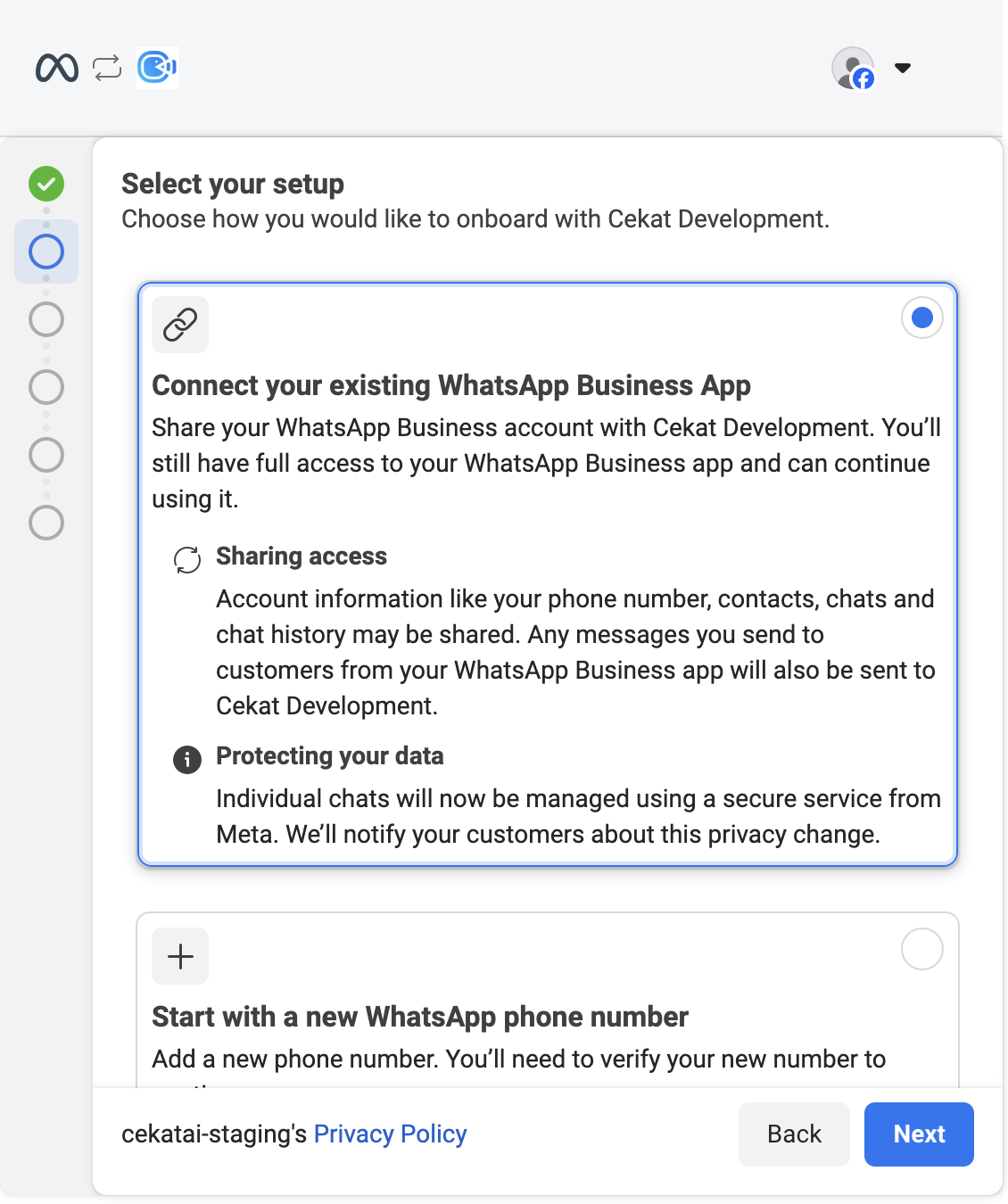
* On the "Choose how you would like to onboard with Cekat Development" screen,
* select "Connect your existing WhatsApp Business App".
* Enter the phone number that's already registered with WhatsApp Business.
9. Verify with the OTP code
* Enter the OTP code sent to your phone number.
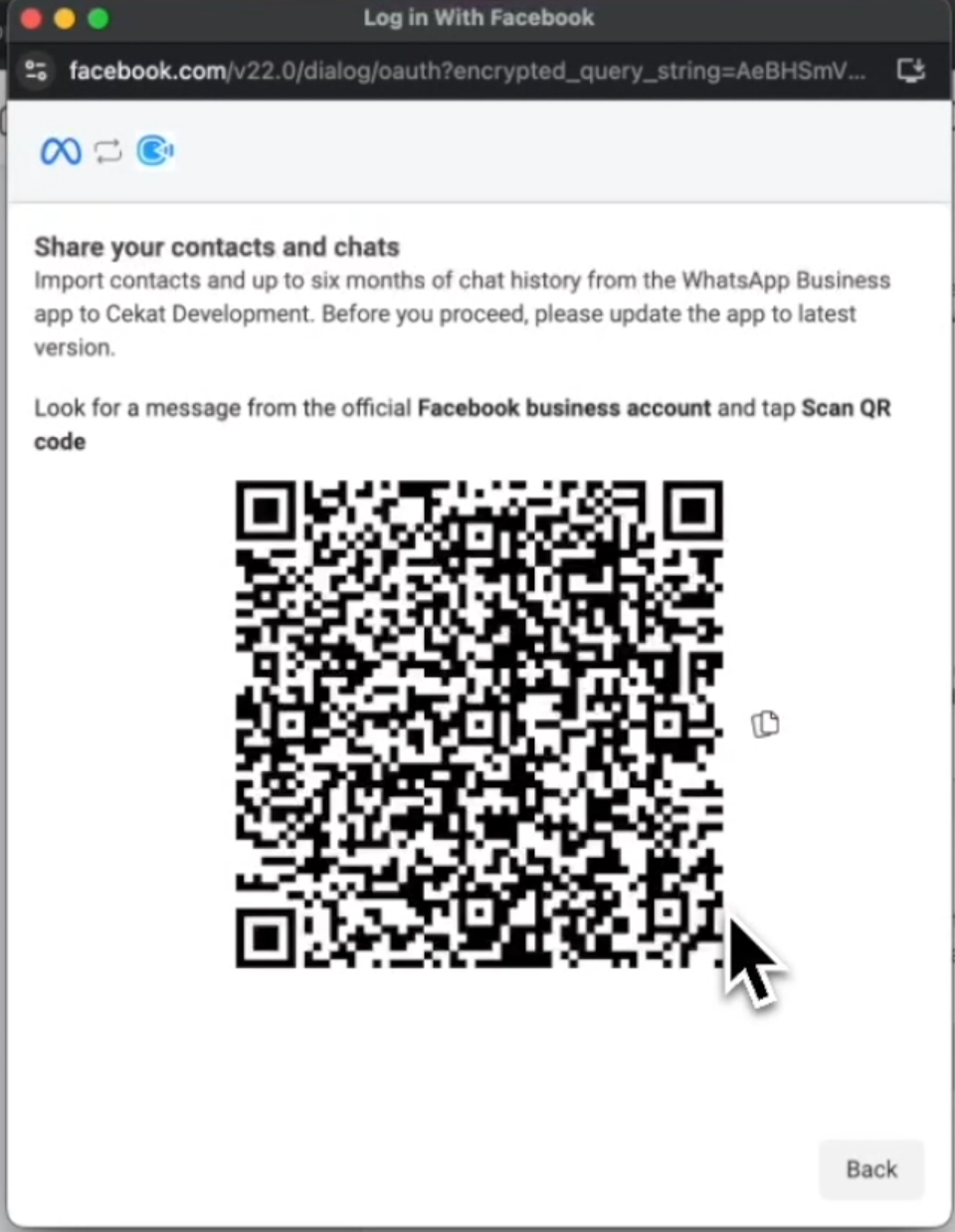
10. Wait for the QR code
* Once you're verified, a QR code will appear on screen.
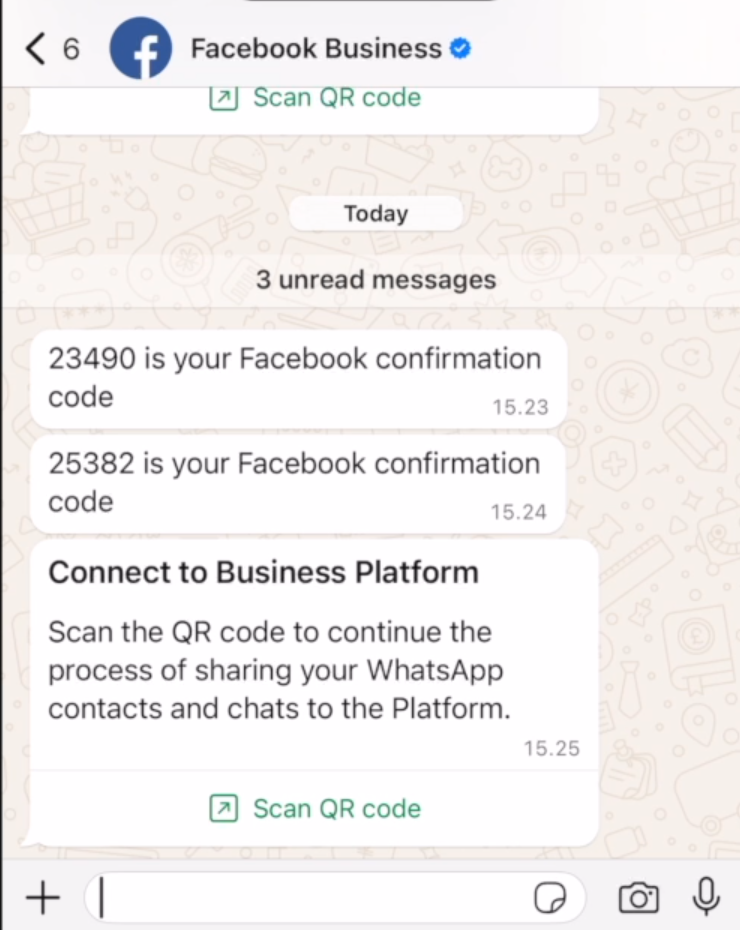
11. Open WhatsApp on your phone
* Open the WhatsApp app on your phone.
* You'll receive a message from Facebook Business.
12. Scan the QR code
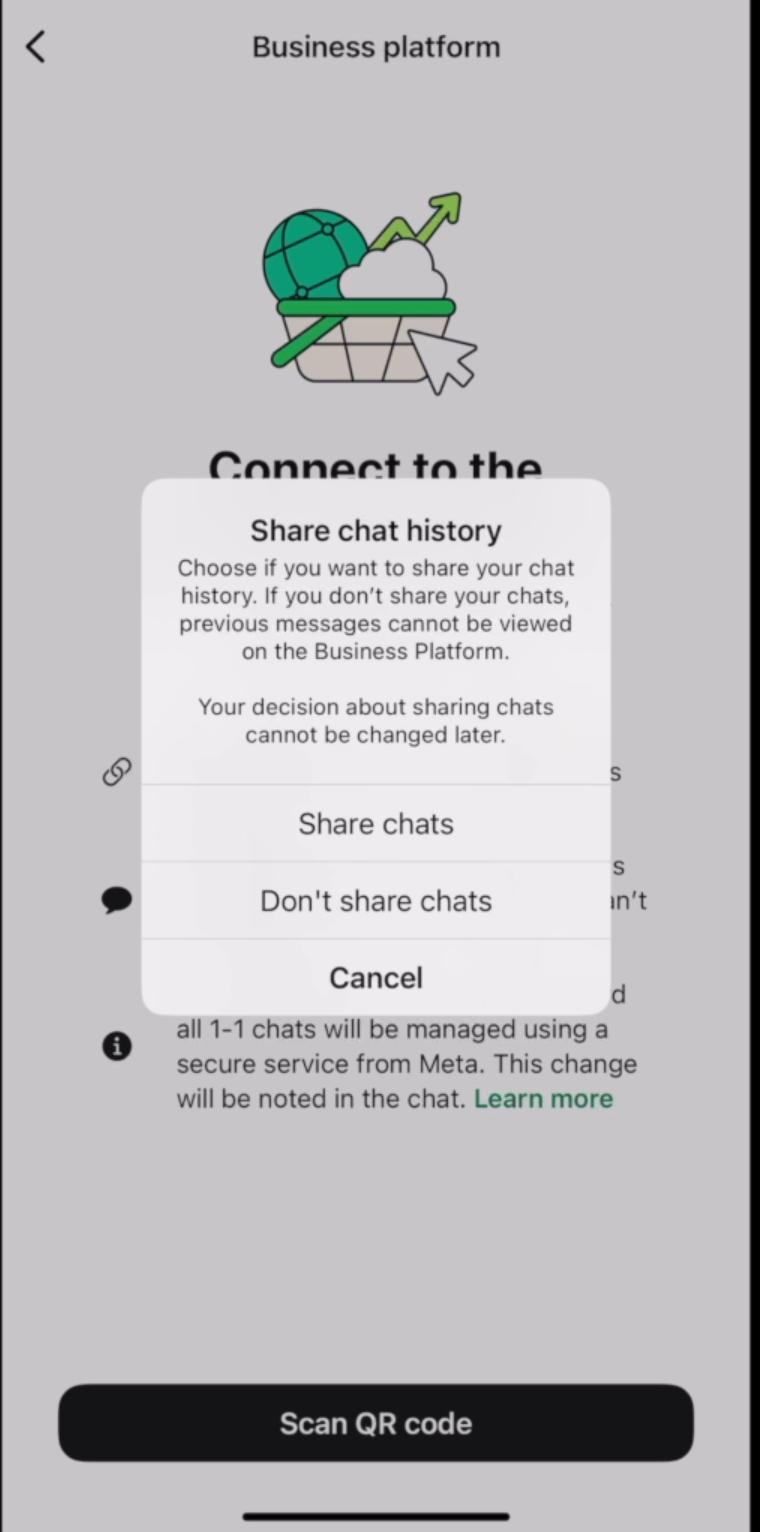
* In that message, choose "Scan QR Code".
* Decide whether you want to sync your chats. If you do, choose "Share Chat".
* Scan the QR code shown in your browser.
13. Confirm the connection
* Once it works, you'll see the message "You connected to Cekat" in WhatsApp on your phone.
* Tap "OK".
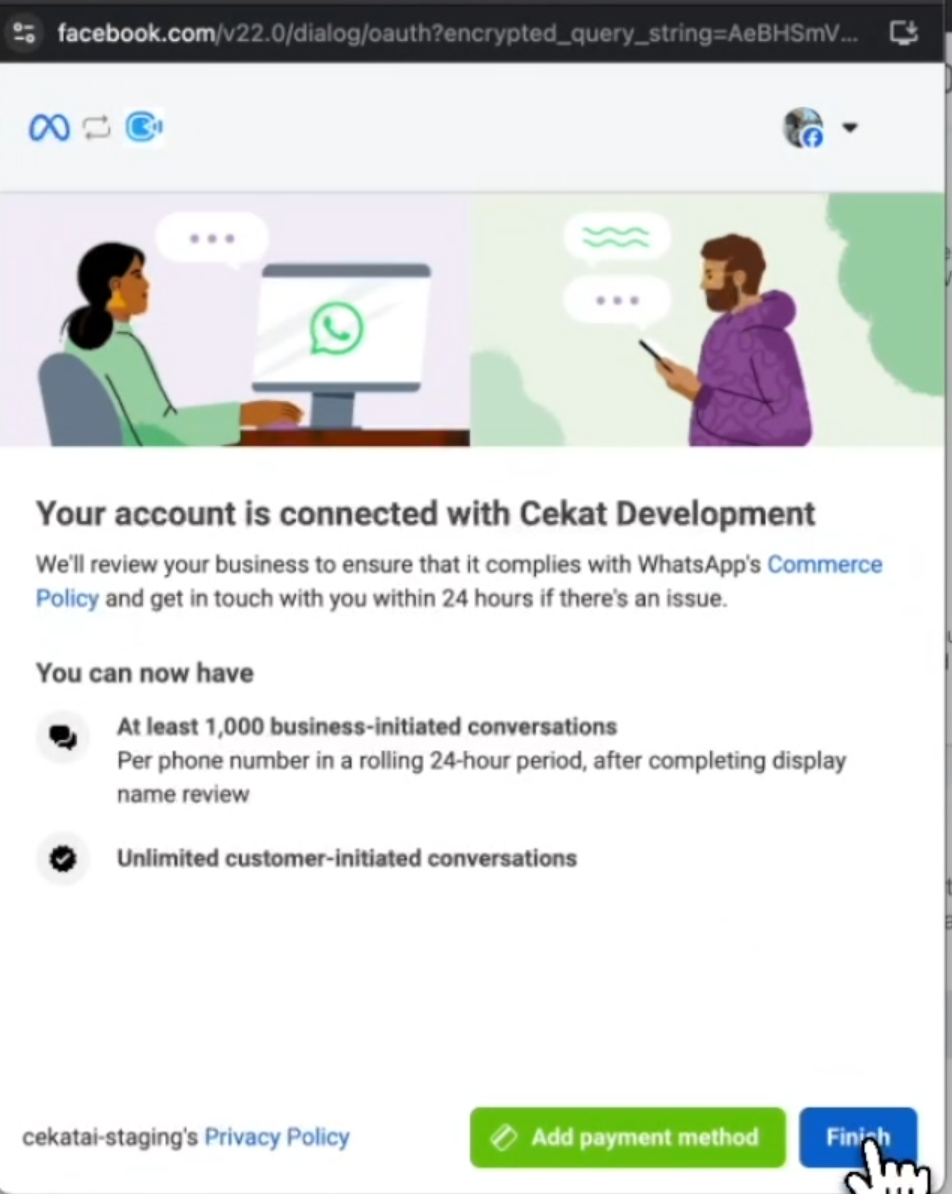
14. Finish connecting
* In your browser, click "Finish".
* You're connected.
***
### Error: Phone Number Not Eligible to Onboard
### Possible cause 1: The account is already connected to a Facebook Business portfolio
**1. Open Meta Business Suite**
* Go to [business.facebook.com](https://business.facebook.com).
**2. Open your Business Portfolio**
* Select "Cekat AI", then go to "Settings".
**3. Check the WhatsApp account**
* Go to "WhatsApp Account".
* If the three-dot menu for "Disconnect" can't be clicked because the account is still connected to a partner, carry on with the next step.
**4. Remove the partner connection**
* Go to "Partner", then click "Manage".
* Choose "Remove Account".
* Choose "Remove from Business Portfolio".
**5. Reconnect to Cekat**
* Once that's done, try connecting to Cekat again.
### Possible cause 2: The account is already connected to a Facebook Page
**1. Open your Facebook Page**
* Open your Facebook Page and go to "Settings".
* Or go straight to [this link](https://www.facebook.com/settings/?tab=linked_profiles).
**2. Check the WhatsApp connection**
* Select "WhatsApp".
* If you see "Connection Request Pending", click "Request Cancel".
**3. Remove the WhatsApp number**
* Enter your phone number and verify it again with the OTP.
* Under "Your WhatsApp Number", click "Remove".
**4. Reconnect to Cekat**
* Once that's done, try connecting your WhatsApp Business account to Cekat again.
### **Another option**
Coexistence is a new feature from Meta, and Meta hasn't yet shared details about which numbers aren't eligible for it. If you keep getting this error, try a different WhatsApp Business number that you own.
#### Still not sure about something? Watch the video tutorial below to see each step in action.
{% embed url="" %}