> For the complete documentation index, see [llms.txt](https://docs.cekat.ai/llms.txt). Markdown versions of documentation pages are available by appending `.md` to page URLs; this page is available as [Markdown](https://docs.cekat.ai/en/order/setup-order.md).

# Set Up Orders

### Orders & Payment

This feature lets you create orders in Cekat with two payment methods:

* **Manual Payment**: payments don't go into your balance.
* **Payment Link**: uses Xendit. Payments are verified automatically, and you can withdraw your money through Cekat.

***

### How to set up Orders & Payment

1. **Go to Orders & Payment in the Setting menu**
   * Choose the **Setting** menu.
   * Open the **Orders & Payment** tab.
2. **You'll see 3 main tabs**
   * **Xendit Account**: set the email for your Xendit account, and the bank account you'll withdraw to.
   * **Payment Method**: turn on the manual method for when you create orders.
   * **Invoice Setting**: set your business logo, name, address and email on invoices.
3. **Turn on your Xendit account to use Payment Links**
   * In the Xendit Account tab, click **Bind Email**.
   * Enter your email, then click **Send OTP**.
   * Check your email and enter the OTP.
4. **Check for the invitation email from Xendit**
   * You'll receive an email titled **"Account Creation Invitation"**.

     <figure><img src="https://3693109682-files.gitbook.io/~/files/v0/b/gitbook-x-prod.appspot.com/o/spaces%2FZNZlvyOVkZXyd3pz2Cql%2Fuploads%2FrNJmrP1NbkyVUYlJKVbK%2FScreenshot%202025-07-29%20at%2010.10.19%E2%80%AFAM.png?alt=media&#x26;token=83fa009a-9dc9-4850-a78a-16333461e77e" alt="" width="375"><figcaption></figcaption></figure>
   * Click **Create Account** to sign up.
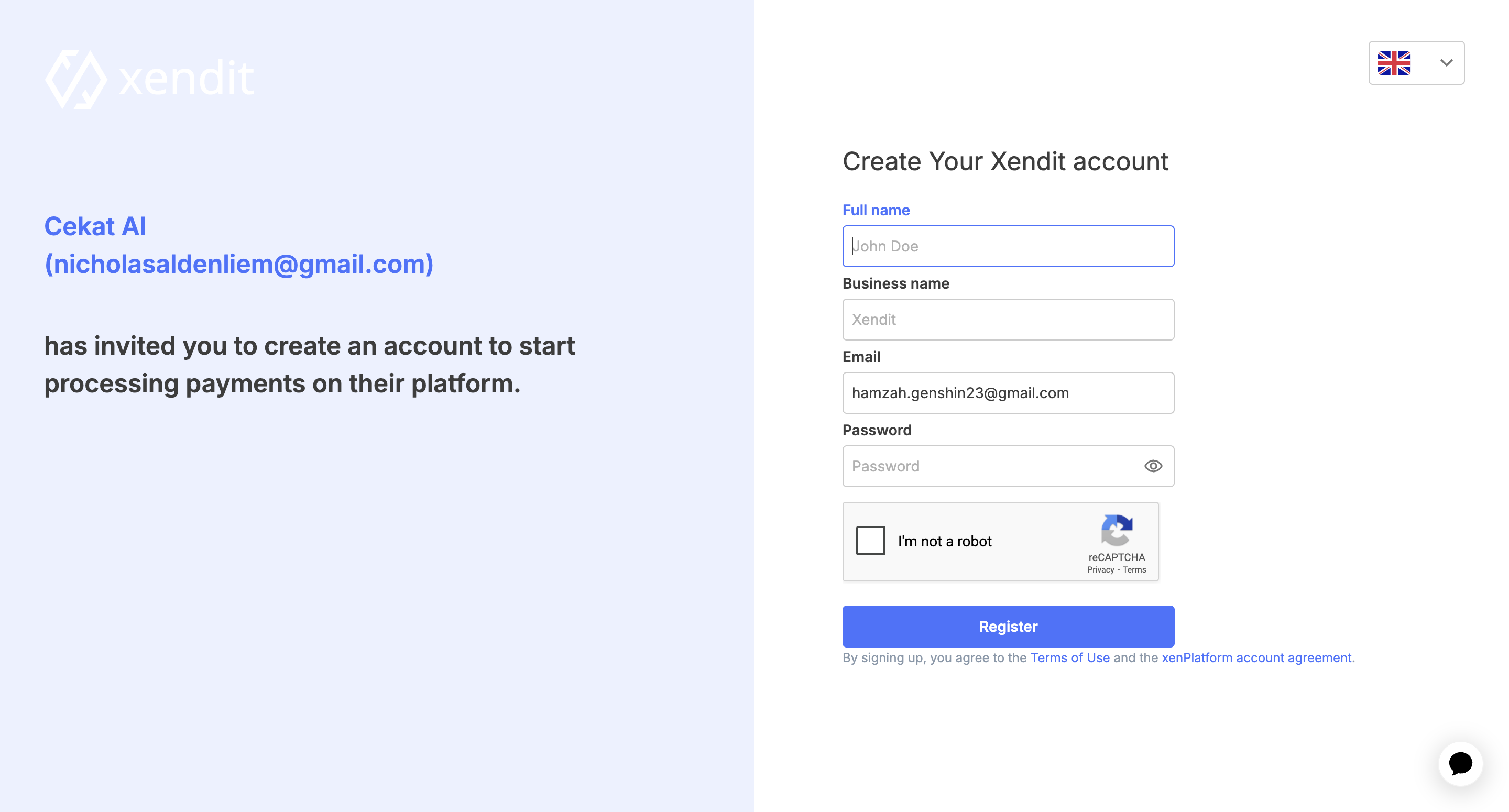
5. **Create your Xendit account**
   * Fill in your name, business name and password.
   * Click **Register**, then enter the OTP sent to your email.

     <figure><img src="https://3693109682-files.gitbook.io/~/files/v0/b/gitbook-x-prod.appspot.com/o/spaces%2FZNZlvyOVkZXyd3pz2Cql%2Fuploads%2FjvpKhWbDf3R4007aq6de%2FScreenshot%202025-07-29%20at%2010.10.30%E2%80%AFAM.png?alt=media&#x26;token=732b05ae-6db1-418a-94c5-2ee6b0090f67" alt="" width="375"><figcaption></figcaption></figure>
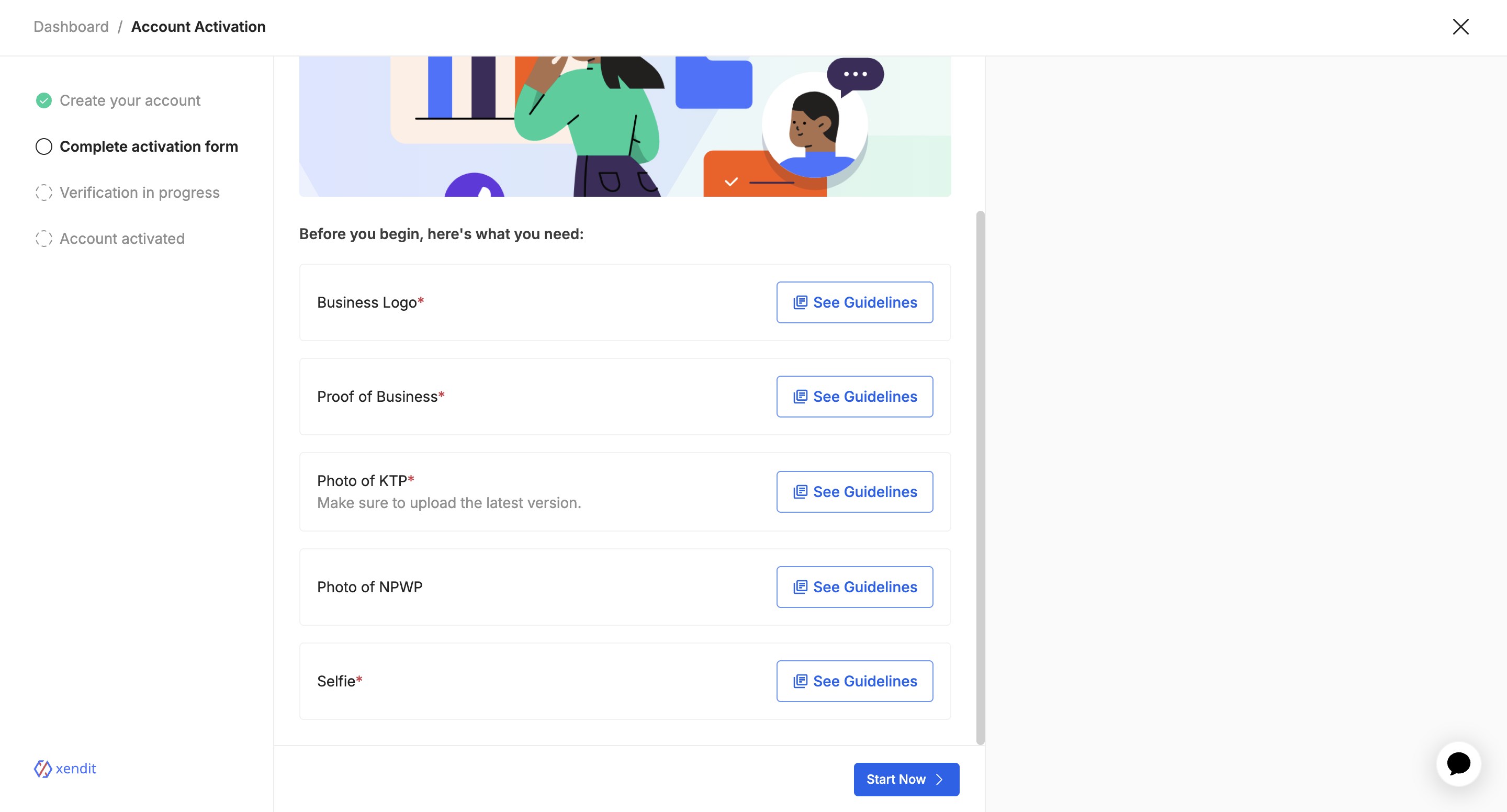
6. **Fill in Xendit's extra details**
   * Such as your business location and what you'll use Xendit for.

     <figure><img src="https://3693109682-files.gitbook.io/~/files/v0/b/gitbook-x-prod.appspot.com/o/spaces%2FZNZlvyOVkZXyd3pz2Cql%2Fuploads%2Feq6sIjQes2HyxkX20hQb%2FScreenshot%202025-07-29%20at%2010.11.58%E2%80%AFAM.png?alt=media&#x26;token=2ba24650-e141-46b2-880f-e95f2c0db2fd" alt="" width="375"><figcaption></figcaption></figure>
   * Then complete the activation form (KYC): business logo, description, ID card photo, selfie and so on.

     <figure><img src="https://3693109682-files.gitbook.io/~/files/v0/b/gitbook-x-prod.appspot.com/o/spaces%2FZNZlvyOVkZXyd3pz2Cql%2Fuploads%2F8YX5cePEzGaoY1C8wVCH%2FScreenshot%202025-07-29%20at%2010.13.09%E2%80%AFAM.png?alt=media&#x26;token=7fba3906-5c09-4927-aa1c-a81442b2859a" alt="" width="375"><figcaption></figcaption></figure>
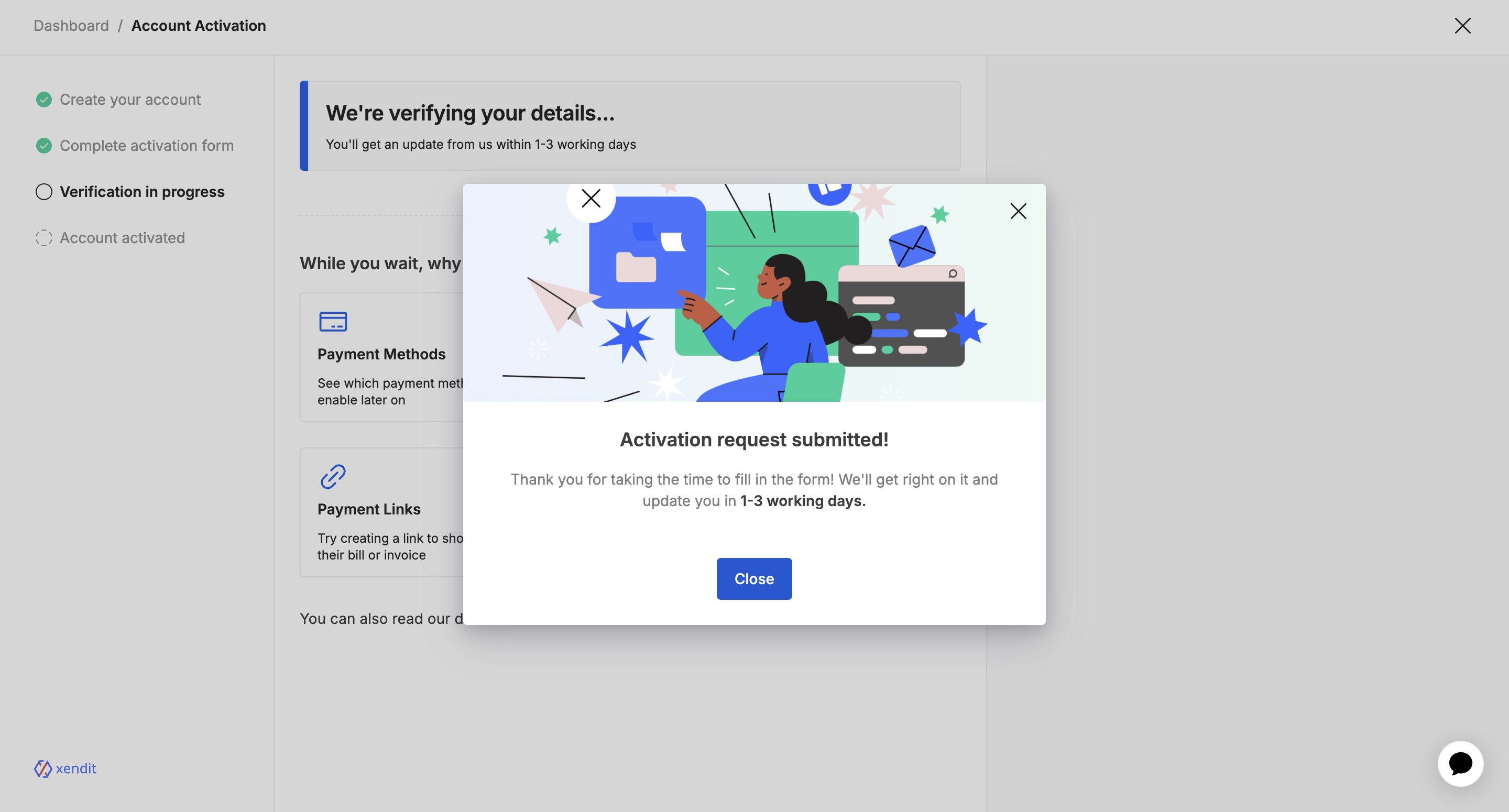
7. **Xendit activation takes 1–3 working days**
   * If anything's missing, they'll contact you by email.

     <figure><img src="https://3693109682-files.gitbook.io/~/files/v0/b/gitbook-x-prod.appspot.com/o/spaces%2FZNZlvyOVkZXyd3pz2Cql%2Fuploads%2F5M6a3jbN4dHAvcDKzTj1%2FScreenshot%202025-07-29%20at%2010.18.14%E2%80%AFAM.png?alt=media&#x26;token=528fa2ae-01ab-4d66-92ac-e22f5dea3f4b" alt="" width="375"><figcaption></figcaption></figure>
   * Once everything checks out, you'll get an email saying your account has been **successfully activated**.

     <figure><img src="https://3693109682-files.gitbook.io/~/files/v0/b/gitbook-x-prod.appspot.com/o/spaces%2FZNZlvyOVkZXyd3pz2Cql%2Fuploads%2FduFWguRNn5c1RlaBNex2%2FScreenshot%202025-08-03%20at%2012.30.46%E2%80%AFAM.png?alt=media&#x26;token=9596c93f-ffb3-4526-92a1-8dc64b16ba3b" alt="" width="375"><figcaption></figcaption></figure>
8. **You can now create orders with Payment Links**
   * Customer payments are verified automatically.
   * You can see your balance on the **Orders page**.