> For the complete documentation index, see [llms.txt](https://docs.cekat.ai/llms.txt). Markdown versions of documentation pages are available by appending `.md` to page URLs; this page is available as [Markdown](https://docs.cekat.ai/en/marketing-legacy/meta-pixel-integration-capi.md).
# Meta Pixel Integration (CAPI)
**Meta Dataset** helps you track conversions from your **Click to WhatsApp (CTWA)** ads, such as leads and purchases, so you can improve how your ads perform overall. Once Meta Dataset is connected, the customer interactions that happen in Cekat show up as events in your Meta Ads Manager reports.
### A. Create and connect a Meta Dataset
1. Go to Settings
* Open the **Setting** menu, then choose **Meta Pixel Integration**.
2. Choose a WhatsApp inbox
* Pick the WhatsApp inbox you want to connect, then click **Setting**.
3. Create a Meta Dataset
* If you don't have a Meta Dataset yet, click **Create Meta Dataset**.
4. Check the dataset details
* Once it's created, you'll see a page showing your **Meta Dataset ID** and **Access Token**.
5. Update the access token
* Click your **Meta Dataset ID** to open Events Manager in Facebook Business.
6. Open Events Manager
* In Events Manager, go to the **Settings** tab.
* Scroll down until you find the **Set up direct integration** section.
7. Generate an access token
* Click **Generate Access Token**, then copy the token that appears.
8. Add the access token to Cekat
* Go back to the Meta Dataset page in Cekat and click **Edit Token**.
* Paste the token you copied, then click **Update**.
### B. Add event tracking
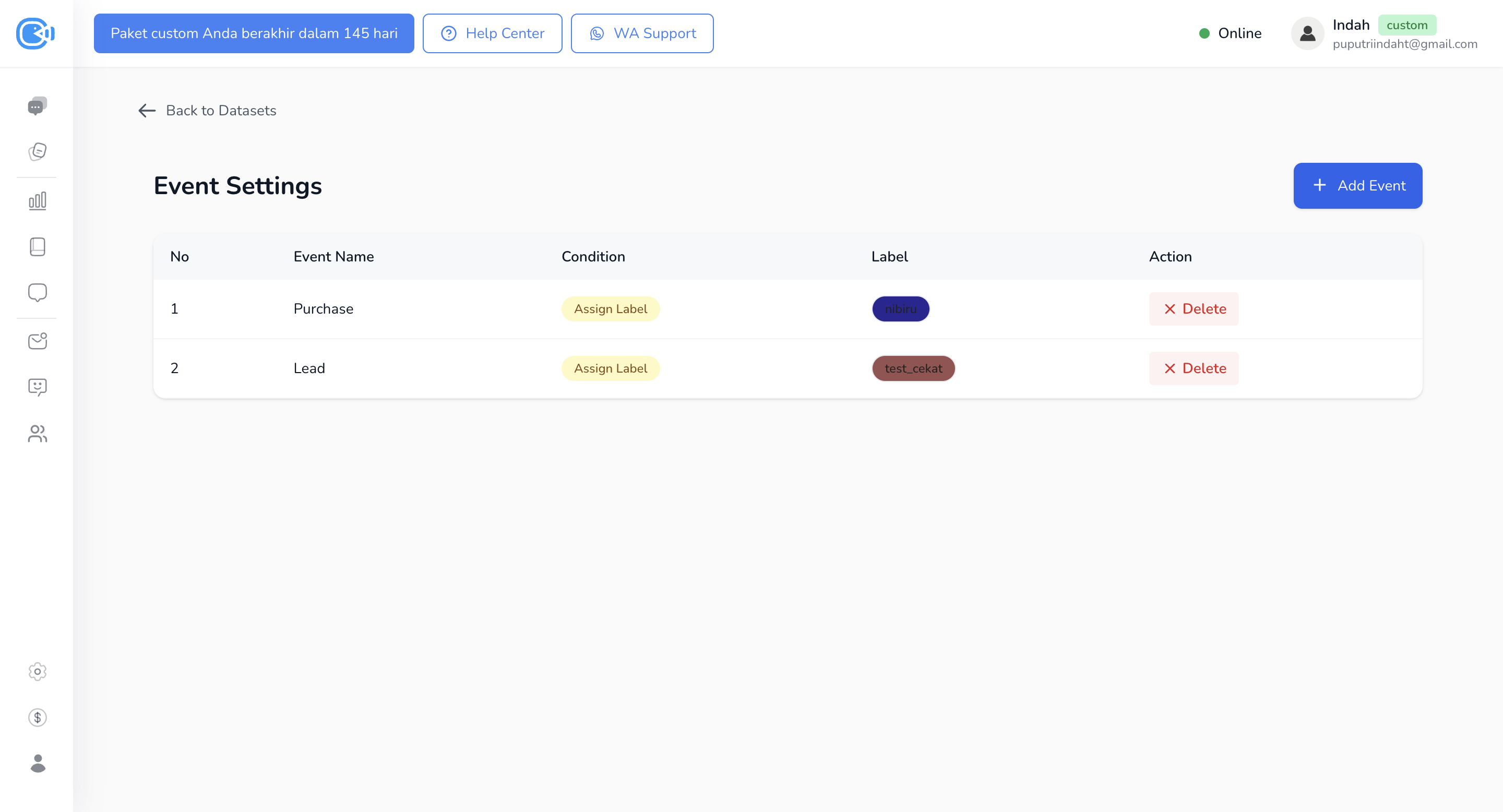
1. Click Edit Event
* Once the token is updated, click **Edit Event**.
2. Add a new event
* On the event settings page, click **Add Events**.
* Choose the **Event Name** you need, such as *Lead*, *Purchase* or *Add to Cart*.
3. Choose when the event fires
* There are two conditions to choose from:
* **Create Conversation**: the event is recorded when a new conversation comes in from an ad.
* **Add Label**: the event is recorded when a specific label is added to a conversation.
* If you choose this option, you'll also need to pick which label to use.
4. Save the event
* When everything's set, click **Save**.
### C. Label conversations for tracking
1. Add a label to the conversation
* While you're on the **Conversation** page, you can add any label that's linked to a Meta event.
* Labels linked to Meta have a **Facebook icon** on their right.
2. Enter the price
* If the label is for a **Purchase** event, you'll need to **enter the price of the product or service when you add the label**.
If anything's still unclear, watch the video tutorial below to see each step in action.
{% embed url="" %}