> For the complete documentation index, see [llms.txt](https://docs.cekat.ai/llms.txt). Markdown versions of documentation pages are available by appending `.md` to page URLs; this page is available as [Markdown](https://docs.cekat.ai/en/chat/whatsapp-call/how-to-use-whatsapp-call.md).
# How to Use WhatsApp Call
Before you can call a customer, you'll need to send an *Initiate Call Request* first.
1. On the Chat page, click the **Call** dropdown and choose **Initiate Call Request**.
2. The *Initiate Call Request* pop-up will open.
3. You'll see two **Call Type** options:
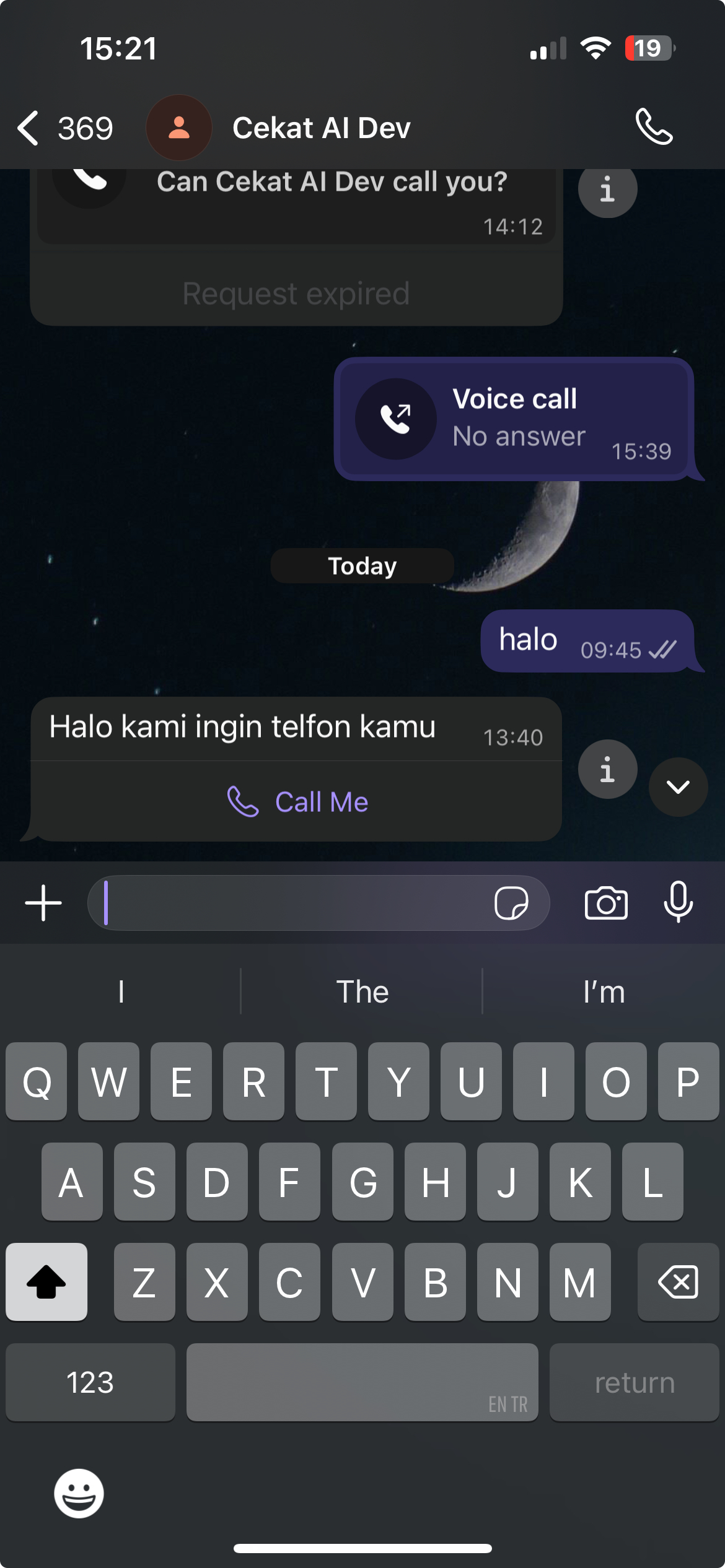
* **Business Initiated Call**: you send the customer a permission request. If they choose Allow, you can call them directly.
* The customer receives a call request message and can choose **Allow** or **Not Allow**.
* **Customer Initiated Call**: you send a message with a call button. When the customer taps it, they call your business directly.
* The customer receives a message with a **Voice Call** button.
4. Next, choose a **Message Type**:
* **Custom Message**: write any message you like, as long as the conversation is still active (within 24 hours).
* **Template**: if it's been more than 24 hours, you'll need to use a template you've already created on the WhatsApp Call Settings page.
5. Once you've chosen a template or written your message, check the preview on the right.
6. When everything looks good, click **Send** to send the call request.
***
### Making a call
1. When you're **available** to make calls, the **Call** button is **green**.
2. When you're **not available**, the **Call** button is **red**.
3. The button color works as a status indicator, so your team can see at a glance who's ready to take calls.


.jpeg?alt=media&token=1ede731f-14fc-418f-b37d-69d1d64904e6)