> For the complete documentation index, see [llms.txt](https://docs.cekat.ai/llms.txt). Markdown versions of documentation pages are available by appending `.md` to page URLs; this page is available as [Markdown](https://docs.cekat.ai/en/chat/ticket/ticket-integration.md).
# Ticket Integration
### Label integration
Label integration lets you add or remove labels automatically whenever a ticket changes. It helps keep your tickets organized with less effort.
#### How to set up label integration for tickets:
1. **Go to Ticket Setting**
* Open the ticket settings from the menu.
2. **Choose a template**
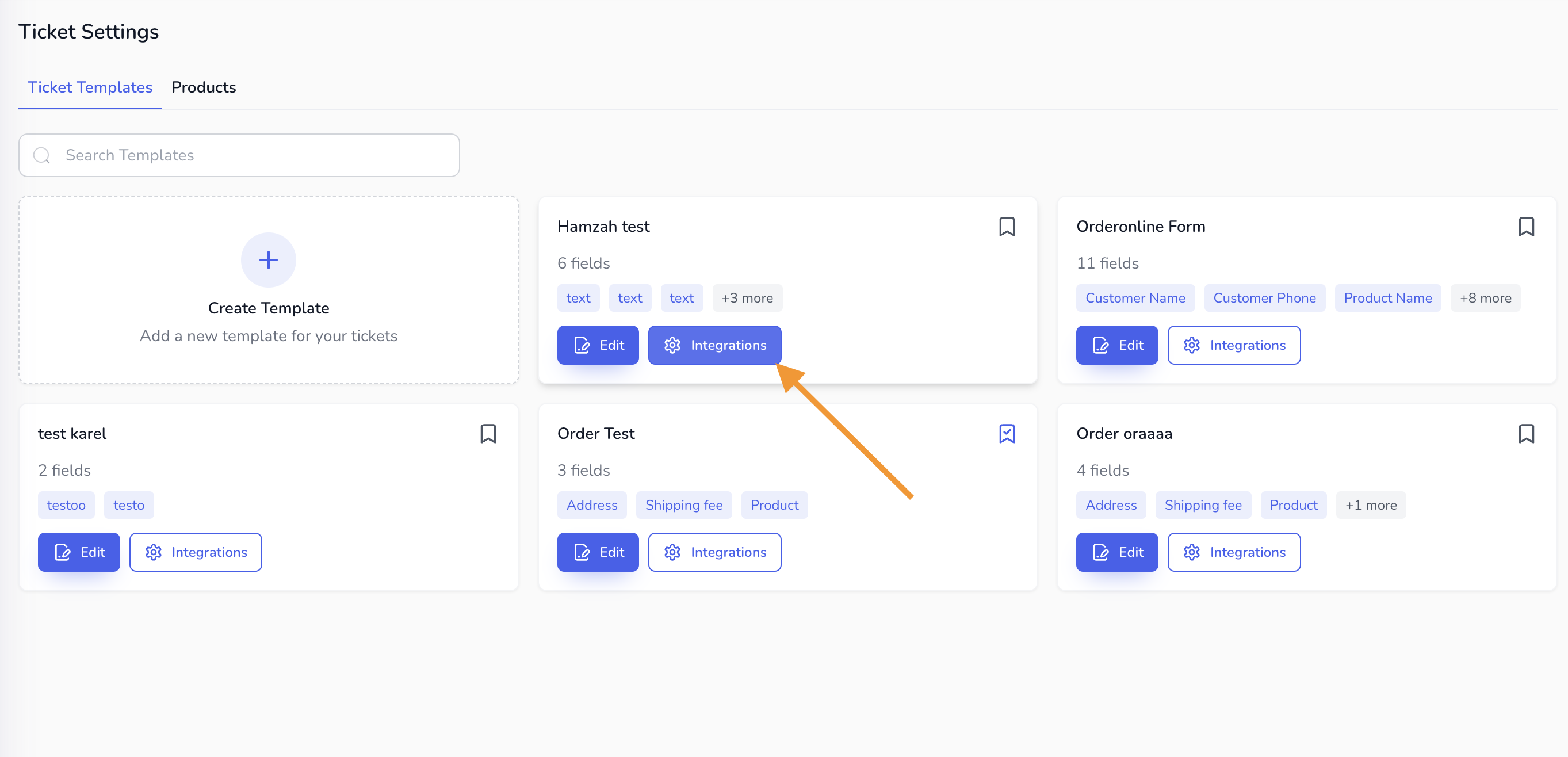
* On the **Ticket Template** page, choose the template you want to set up, then click **Integration**.
3. **Turn on Label**
* Choose **Label**, then click **Active**. Then click **Setting** to continue.
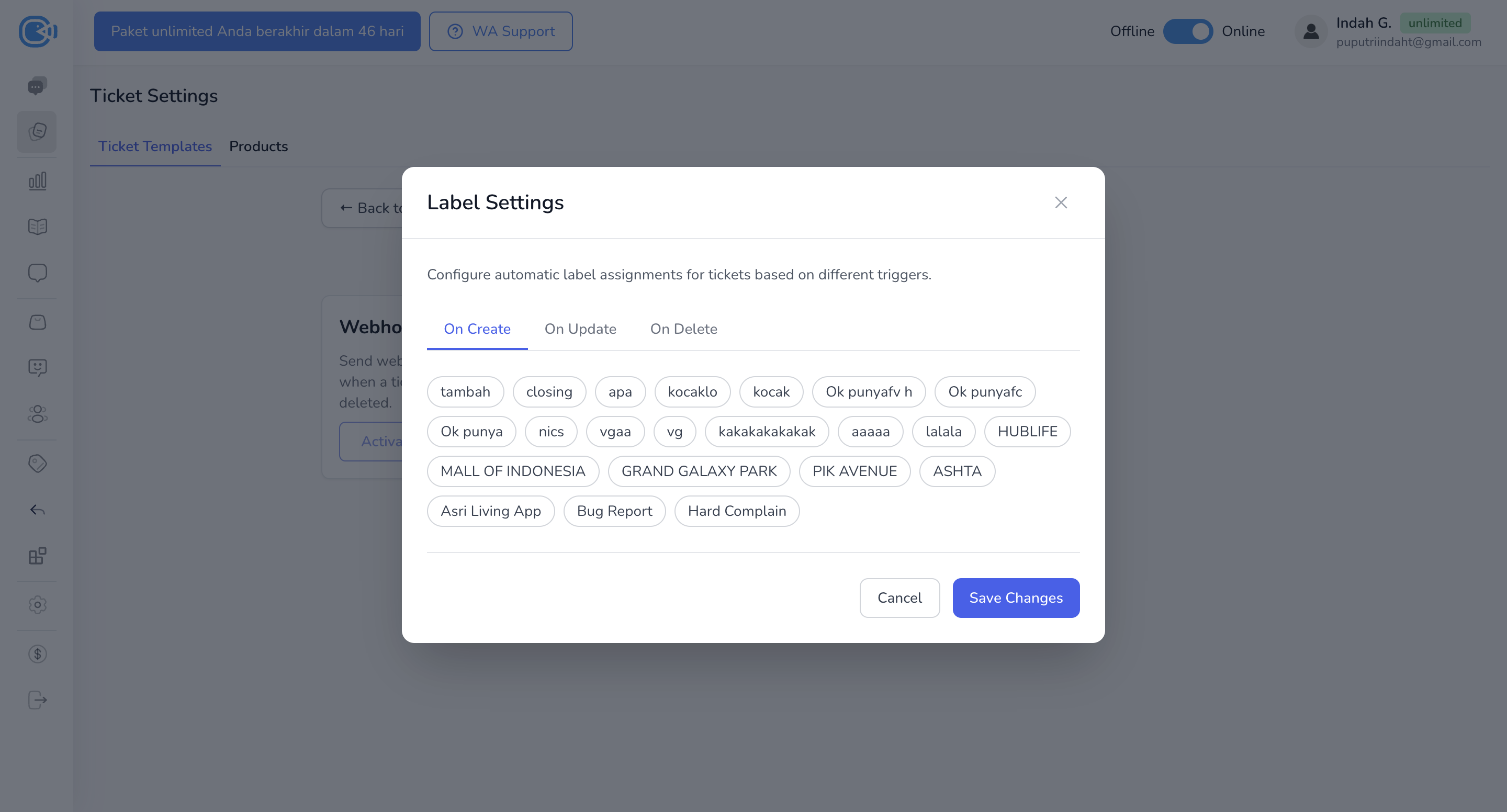
4. **The Label Setting page**
* On the **Label Setting** page, you can set labels to be applied automatically based on different triggers:
* **On Create**: when a ticket is created, the labels you choose are added automatically.
* **On Update**: when a ticket is updated, the labels you choose are added automatically.
* **On Delete**: when a ticket is deleted, the labels you choose are removed automatically.
5. **Choose labels**
* For each trigger (On Create, On Update, On Delete), choose which labels to add or remove.
6. **Save your changes**
* When you're done, click **Save Changes** to save your settings.