> For the complete documentation index, see [llms.txt](https://docs.cekat.ai/llms.txt). Markdown versions of documentation pages are available by appending `.md` to page URLs; this page is available as [Markdown](https://docs.cekat.ai/en/chat/ticket/ticket-board/multiple-board.md).
# Multiple Boards
This feature lets you create **more than one board**, so you can group tickets by division, project or workflow. With multiple boards, managing tickets becomes more flexible and organized, especially for teams juggling several lines of work at once.
Each board has its **own ticket templates**, so you can tailor the ticket format and information to what each board needs.
### A. Adding a new board
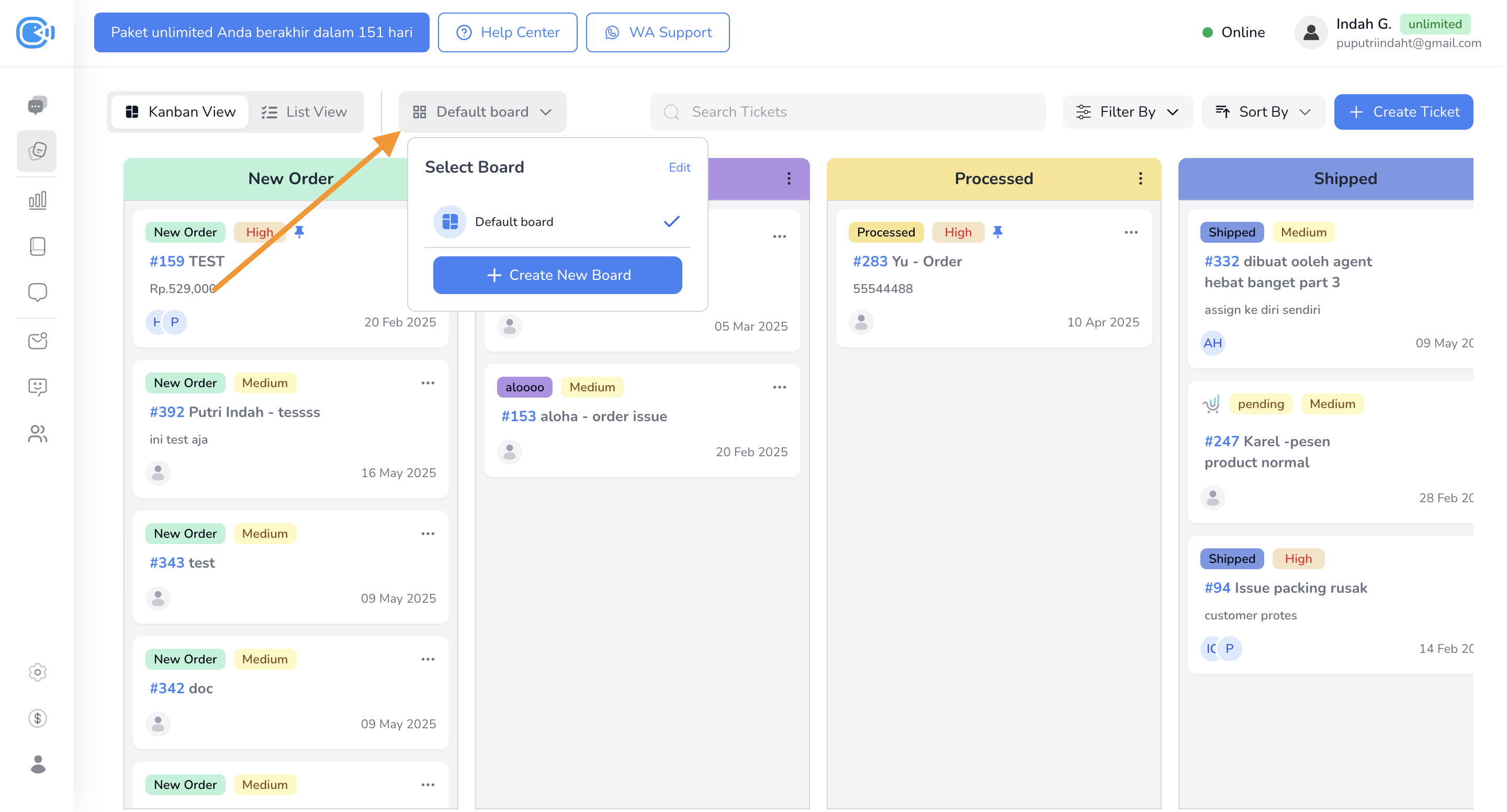
1. On the **Ticket Board** page, to the left of the search field, there's a dropdown showing the current board.
2. By default, your first board is called **"Default Board"**.
3. To create a new board:
* Click the board dropdown.
* Choose **Create New Board**.
* Name the board, then click **Create**.
* Your new board is created and ready to use.
### B. Switching between boards
* To switch boards:
* Click the board dropdown and choose the board you want.
### C. Editing or deleting a board
1. Click the board dropdown and choose **Edit**.
2. On the edit screen, you can:
* **Rename** the board.
* **Delete** a board you no longer need.
3. When you're done, click **Save**.
### D. Setting ticket templates per board
1. Go to **Setting**, then choose **Ticket Setting**.
2. At the top left (to the left of the search field), there's a **board dropdown**.
3. Choose the board you want to set up.
4. Once it's selected, you can:
* **Create a new template** just for that board.
* **Set the default template** used when creating tickets on that board.