> For the complete documentation index, see [llms.txt](https://docs.cekat.ai/llms.txt). Markdown versions of documentation pages are available by appending `.md` to page URLs; this page is available as [Markdown](https://docs.cekat.ai/en/chat/ticket/ticket-board.md).
# Ticket Board
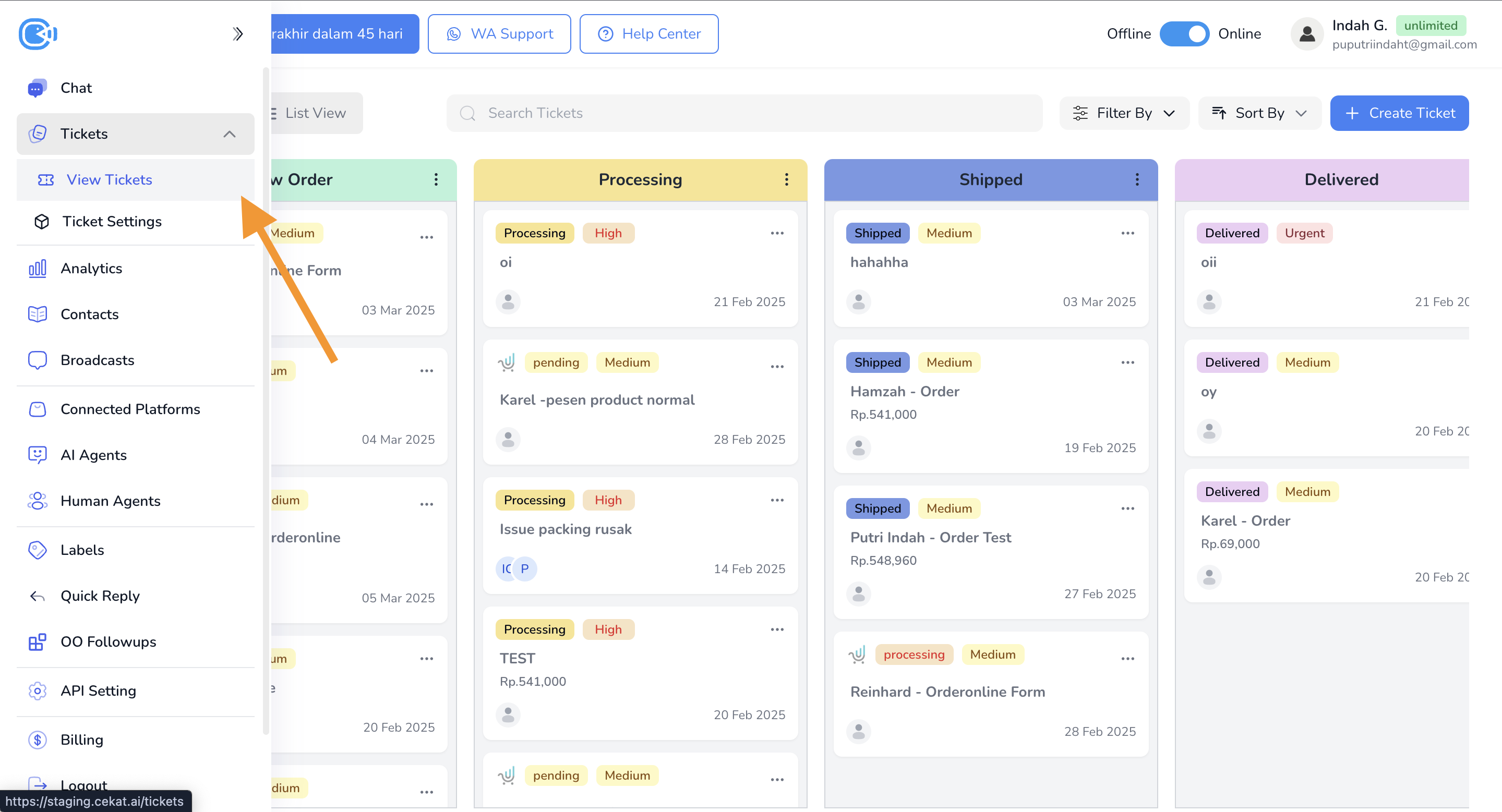
The Ticket Board is a visual tool for managing and tracking tickets more efficiently. Its kanban view shows ticket status in real time, makes it easier for teams to work together, and helps make sure every ticket is handled in order of priority. The board helps you:
* **Organize tickets**: tickets are grouped by status, so you can quickly see which ones are in progress, waiting or done.
* **Prioritize work**: with clear priority information, you can focus on the most urgent tickets and make sure customer issues are dealt with quickly.
* **Track activity**: see the update history and comments from other team members, so everyone stays up to date.
* **Add and change statuses**: easily add new statuses, rename existing ones or remove ones you don't need, for flexible ticket management.
***
### **#1 Filter, sort & search**
* **Filter**: filter tickets by:
* Created Date
* Priority
* Created By
* Assignee
* **Sort**: sort tickets by:
* Newest Created Date
* Oldest Created Date
* Update Recently
* Urgent First
* **Search**: find a specific ticket.
### **#2 Ticket cards**
Each ticket card shows:
* **Priority**: the ticket's priority level.
* **Pin Message**: marked with a blue pin icon. Pinned cards sit at the top of their status column.
* **Created date**: when the ticket was created.
* **Assigned human agent**: the name of the agent handling the ticket.
* **Total price**: the total (products + price-type fields). It only appears if the ticket includes products.
### **#3 Ticket details**
* Click any ticket card to open its detail page.
* **Pin Chat**: click the pin icon to the right of the title. When it's on, the icon turns blue.
* **Add products or attachments**: click **Add** below the title.
* **Activity**: at the bottom left, you'll see activity grouped into:
* **Comment**: comments from other human agents.
* **History**: the ticket's update history.
* **Order Details**: on the right, you'll see the order details, including the products on the ticket, price types and the grand total.
* **More Details**: extra information, including:
1. **Created By**: who created the ticket.
2. **Assign To**: the human agent handling the ticket.
3. **Link Conversation**: the customer's name and phone number, plus a **View Conversation** button that takes you to your conversation with them.
### **#4 Statuses**
* **Add a status**: scroll to the far right and click the last button. Enter a name for the status, and change its color by clicking the color icon to the left of the title if you like. Then click **Add**.
* **Rename a status**: click the status title to rename it. To change the color, click the three-dot menu and choose **Change Colour**. To delete it, click the three-dot menu and choose **Delete**.
* **Reorder statuses**: drag and drop a status title to where you want it.
### **#5 Board view**
* You can switch the board to **List View** with the **List View** button.
* In list view, each ticket shows much the same information as on the kanban board, plus **Last Update** next to the created date.
* You can change how many tickets appear per page (10, 25 or 50; the default is 10). Click **Showing** at the bottom left to change it.
### **#6 Quick-updating a ticket**
1. **Find the ticket card**
* Find the ticket you want to update in the list.
2. **Hover over it**
* Hover over the part you want to change, such as status, priority or assignee.
3. **Click and choose**
* Click to open the options.
* Choose the change you want from the menu.
***
#### Watch the video tutorial below to see each step in action.
{% embed url="" %}