> For the complete documentation index, see [llms.txt](https://docs.cekat.ai/llms.txt). Markdown versions of documentation pages are available by appending `.md` to page URLs; this page is available as [Markdown](https://docs.cekat.ai/en/chat/ticket/create-ticket.md).
# Create Ticket
There are two ways to create a ticket: from a **Conversation**, which lets you create one quickly right from the chat, or from the **Board**, which gives you a more structured way to manage tickets.
## #1 From a conversation: Quick Create
How to create a ticket with Quick Create:
1. **Open the conversation**
* Open the conversation you're working on.
2. **Click the Create Ticket tab**
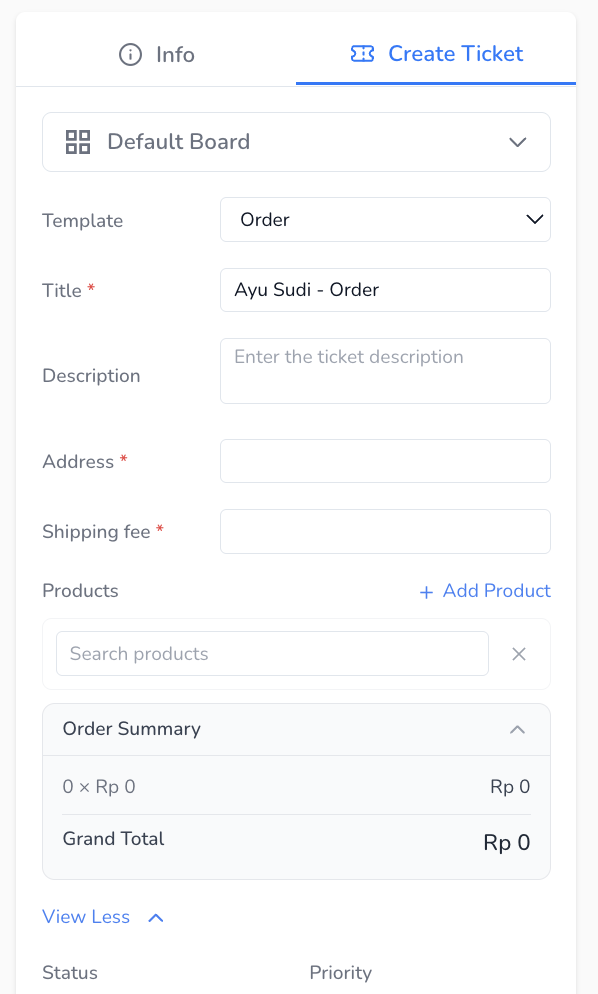
* On the right, find and click the **Create Ticket** tab.
3. **Create template button**
* If you don't have a template yet, you'll see a create template button.
* Clicking it takes you to the template page so you can create one.
4. **Fill in the fields**
* **Template**:
* The default template is selected automatically and shown in a dropdown.
* To change it, click the dropdown and choose another template.
* **Ticket title**:
* The title is filled in automatically as "customer name - template name".
* For example, if the customer is Hamzah and you're using the Order template, the title will be "Hamzah - Order".
* **Description**:
* This field is optional.
* **Other fields**:
* The fields shown depend on the template you're using.
5. **Add products**
* **Product field**:
* This field only appears once you've added at least one product in the Product feature.
* The dropdown lists the products you've created.
* Once you choose a product, **Price** and **Quantity** fields appear.
* **Price**: you can change it. If it differs from the price set in the Product feature, the original is shown crossed out.
* **Quantity**: set to 1 by default.
* **Adding more products**:
* Click **Add Product** to add another product.
* **Order Summary**:
* Once you've chosen products, an order summary appears with the product names, quantities, any price-type fields from the template, and the grand total.
6. **See more details**
* Click **View More** to see other details you can change on the ticket.
* **Additional details**:
* **Status**: defaults to the leftmost status on your kanban board.
* **Priority**: low, medium, high or urgent. Defaults to medium.
* **Assign To**: the human agent assigned to the ticket (optional).
* **Attachment**: optional.
7. **Use Fill by AI**
* You can skip the manual steps above with **Fill by AI**.
* The AI fills in every field using information from the conversation.
8. **Reset everything**
* If you need to, click the trash icon to clear everything you've entered.
9. **Click Create**
* Once everything's filled in and looks right, click **Create**.
10. **Ticket preview**
* A preview of your new ticket appears at the bottom of the quick create panel in that conversation.
* You can also see the ticket on the board through the **View Ticket** tab.
## #2 From the Ticket Board
How to create a ticket from the board:
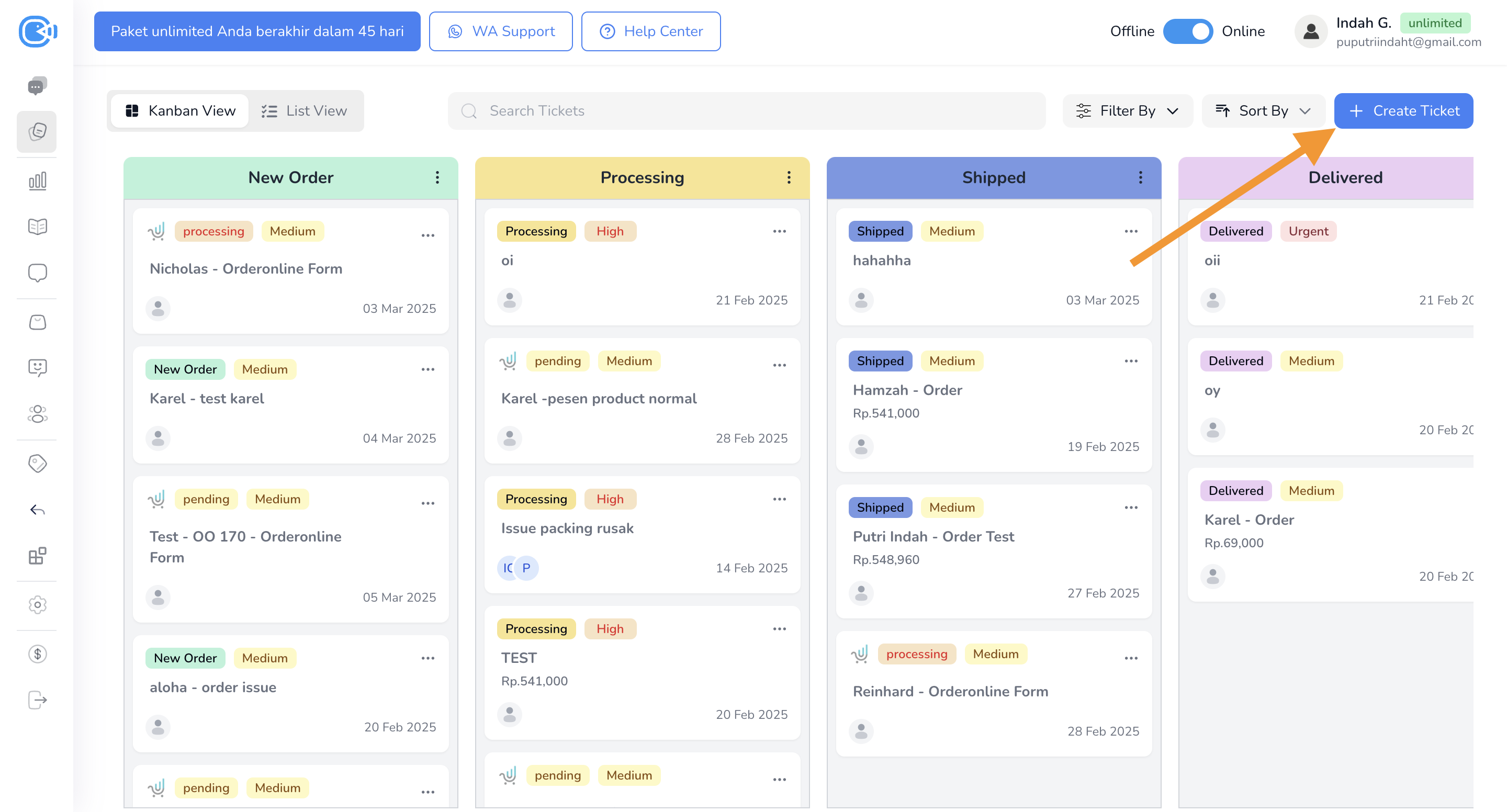
1. **Open the Ticket tab**
* Click the **Ticket** tab in the left navbar. You'll see a few options: **View Ticket**, **Template** and **Product**. Choose **View Ticket**.
2. **Click Create Ticket**
* On the View Ticket page, click **Create Ticket**.
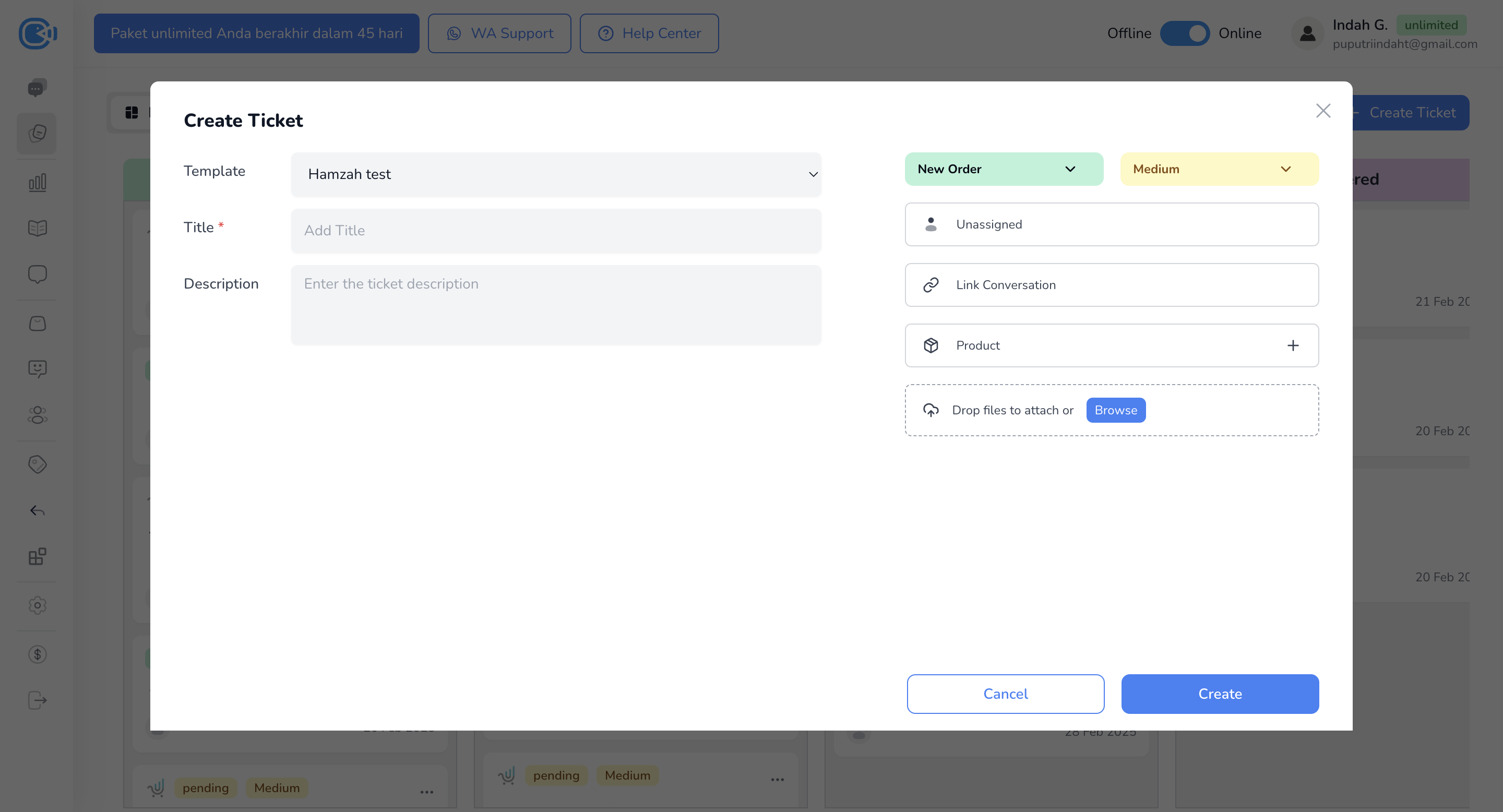
3. **Fill in the fields on the left**
* **Template**:
* Filled in with your default template, but you can change it if you need to.
* **Ticket title**:
* Required.
* **Description**:
* Optional.
* **Other fields**:
* The fields shown depend on the template you're using.
4. **Fill in the fields on the right**
* **Status**:
* Defaults to the leftmost status on your kanban board.
* **Priority**:
* Low, medium, high or urgent. Defaults to medium.
* **Link Conversation**:
* Click and choose which chat to link. You can search to find the one you want.
* **Product**:
* Click **+ Product** and choose the product you want to add.
* Once it's added, you can change the **Price** and **Quantity**.
* To remove a product, click the **X** next to it.
* **Attachment**:
* Drag and drop a file, or browse to choose one from your device.
5. **Click Create**
* Once everything's filled in, click **Create** to save the ticket.
6. **Your ticket appears on the board**
* Once it's created, the ticket shows up on your board, where you can manage it and track its status.
#### Watch the video tutorial below to see each step in action.
{% embed url="" %}