> For the complete documentation index, see [llms.txt](https://docs.cekat.ai/llms.txt). Markdown versions of documentation pages are available by appending `.md` to page URLs; this page is available as [Markdown](https://docs.cekat.ai/en/chat/old-analytics/ai-agent-analytics/business-report-analysis.md).

# Business Report Analysis

<figure><img src="https://3693109682-files.gitbook.io/~/files/v0/b/gitbook-x-prod.appspot.com/o/spaces%2FZNZlvyOVkZXyd3pz2Cql%2Fuploads%2FNAKXnpHSxdZQG68jHv5T%2FScreenshot%202025-05-27%20at%201.46.11%E2%80%AFPM.png?alt=media&#x26;token=f3d96703-8d6c-4d89-a015-b80c66e6dd47" alt=""><figcaption></figcaption></figure>

#### Steps:

1. Go to the **Analytics** page.
2. Choose the **AI Agent** tab.
3. Scroll down to the **Business Report Analysis** section.
4. Click **Generate Analytics**.
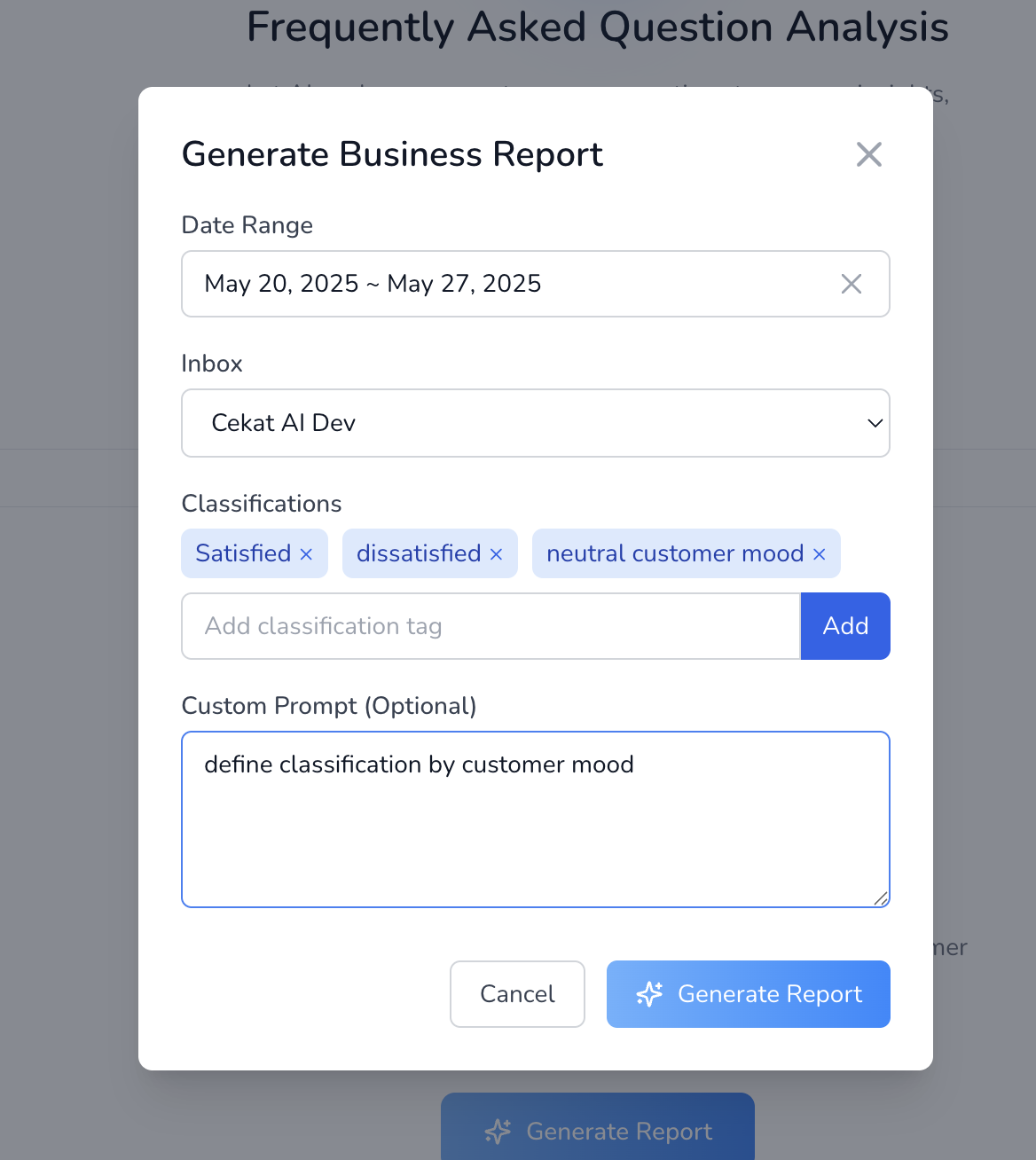
5. In the pop-up, fill in:

   <figure><img src="https://3693109682-files.gitbook.io/~/files/v0/b/gitbook-x-prod.appspot.com/o/spaces%2FZNZlvyOVkZXyd3pz2Cql%2Fuploads%2FsskT0BF2LD121BPnagOo%2FScreenshot%202025-05-27%20at%201.23.44%E2%80%AFPM.png?alt=media&#x26;token=c0bca430-7104-4930-b74f-9ee32f9a785a" alt="" width="375"><figcaption></figcaption></figure>

   * **Date**: the date range of conversations you want to analyze.
   * **Inbox**: the inbox you want to analyze.
   * **Classification (analysis category)**: the words or categories you want the AI to analyze, for example:\
     `"satisfied"`, `"dissatisfied"`, `"neutral"`
   * **Custom Prompt (optional)**: extra instructions for the AI, such as:\
     `"Define classification by customer mood"`
6. Click **Generate**, and your report will be created based on what you entered.
7. Once you click **Generate**, the system processes the analysis. When it's done, click **View** to see your report.

   <figure><img src="https://3693109682-files.gitbook.io/~/files/v0/b/gitbook-x-prod.appspot.com/o/spaces%2FZNZlvyOVkZXyd3pz2Cql%2Fuploads%2Fngewkf7YrJguPxtf5GT7%2FScreenshot%202025-05-27%20at%201.25.17%E2%80%AFPM.png?alt=media&#x26;token=2c5100dc-620b-4658-8892-b679d38a164c" alt=""><figcaption></figcaption></figure>
8. You can also download the report by clicking **Export**.

   <figure><img src="https://3693109682-files.gitbook.io/~/files/v0/b/gitbook-x-prod.appspot.com/o/spaces%2FZNZlvyOVkZXyd3pz2Cql%2Fuploads%2FDAwzw7Ez7KZWchBgvN4M%2FScreenshot%202025-05-27%20at%201.25.49%E2%80%AFPM.png?alt=media&#x26;token=57c9e05c-28a9-4184-8103-e945796476fa" alt=""><figcaption></figcaption></figure>