> For the complete documentation index, see [llms.txt](https://docs.cekat.ai/llms.txt). Markdown versions of documentation pages are available by appending `.md` to page URLs; this page is available as [Markdown](https://docs.cekat.ai/en/chat/flow.md).
# Flow
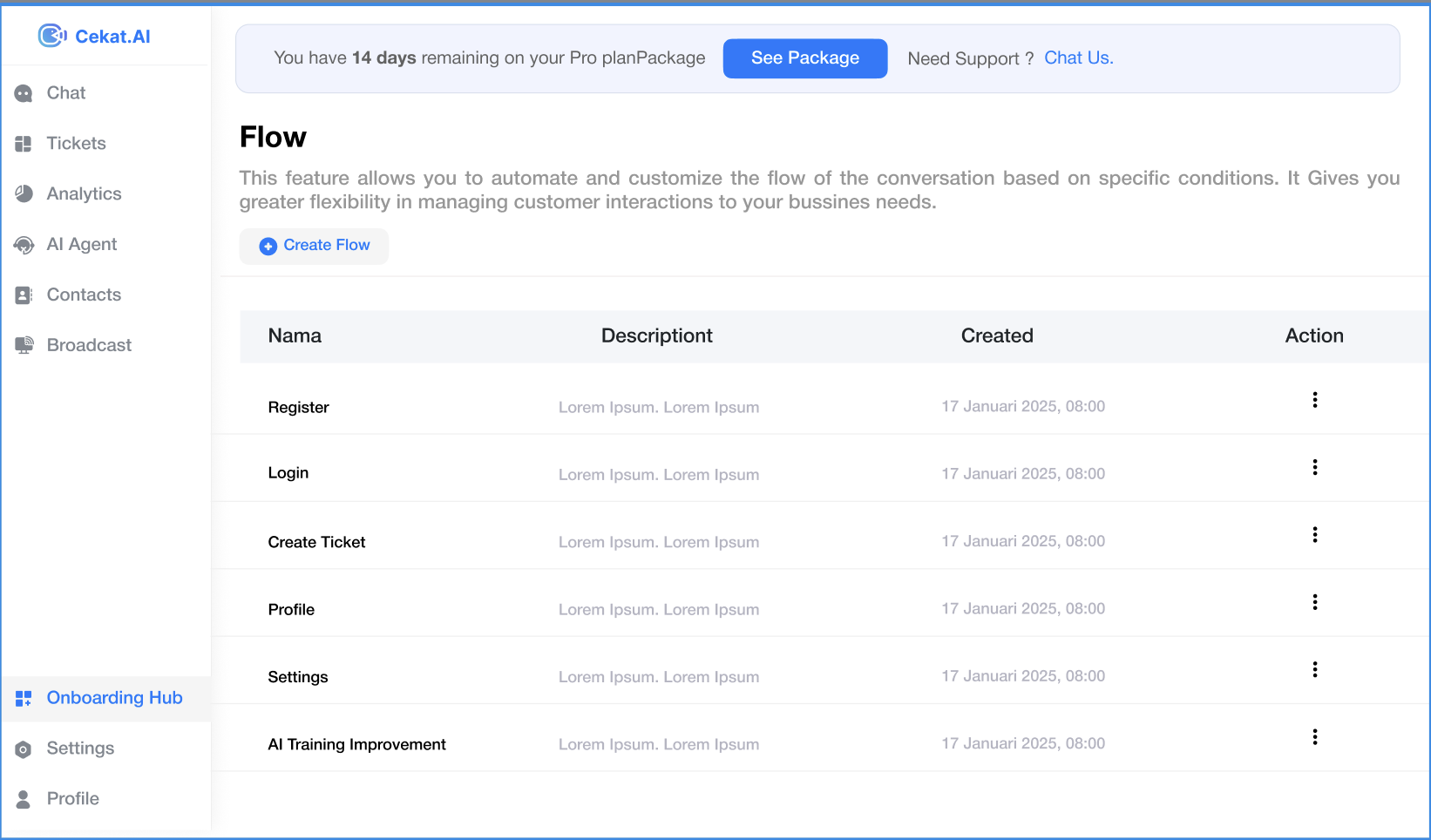
**Conversation Mode Flow** lets you automate how conversations unfold, giving you more control over how you handle customers. You can build complex conversation flows based on the conditions you set.
### Setting up a flow
1. Go to Settings
* Open the **Setting** menu, then choose **Flow**.
2. Click Create Flow
* In the **Flow** tab, click **Create Flow** to build a new flow.
3. The Start Point
* You'll see a single card called **Start Point**, where your conversation flow begins.
4. Add conditions
* Click the **plus (+)** button to add a new condition.
* You can add as many conditions as you need.
* Available conditions include:
* **First Message Text**: checks whether the first message contains certain text. Enter the phrases you're looking for.
* **Use `|` to separate several phrases.**\
For example: `hello | how are you | what products`
* **First Message Time**: checks whether the first message was sent within a certain time range. Enter the times you want.
5. Flow cards
* Once you choose a condition, the system automatically creates two cards:
* A **condition card** (for example, First Message Text)
* An **Else card** (for when the condition isn't met)
6. Choose what happens next
* After creating a condition, you can choose the next step:
* **Action**:
* **Label Conversation**: add a label to the conversation.
* **Add Collaborator**: add a collaborator to the conversation.
* **Send Message**: send an automatic message.
* **Jump to Action**: jump to another action in the flow.
* **Condition**: add another condition to create a branch.
* ⚠️ *Note that conditions are prioritized from left to right, based on their position in the flow.*
* So if more than one condition is met, **only the leftmost one** runs first. Make sure your conditions are positioned to match the logic you want.
* **Message with Button**: show a message with button options in WhatsApp.
* **End Flow > Assign to AI Agent**: end the flow by assigning the conversation to an AI Agent. You can add more than one human agent too.
* **End Flow > Assign to Human Agent**: end the flow by assigning the conversation to a human agent (you can choose more than one).
* **Extra features:**
* **Assign by Team**
* Choose a **Team** you've already created.
* When you choose a team, every human agent in it is added automatically, so you don't have to pick them one by one.
* **Adding a name or phone number to a message**
* To show a contact's name or phone number in an automatic message (such as *Send Message* or *Message with Buttons*), add these variables to the message:
* `{{contact.display_name}}` → replaced automatically with the contact's name
* `{{contact.phone_number}}` → replaced automatically with the contact's WhatsApp number\
Example:
* **Skip Last AI Agent Response**
* When this is **turned on**, the AI Agent **won't reply to the user's last message** before the flow ends.
* It's useful when you want to avoid an irrelevant automatic reply at the end of a flow.
7. Save the flow
* When your flow is ready, click **Save**.
8. Turn on the flow for an inbox
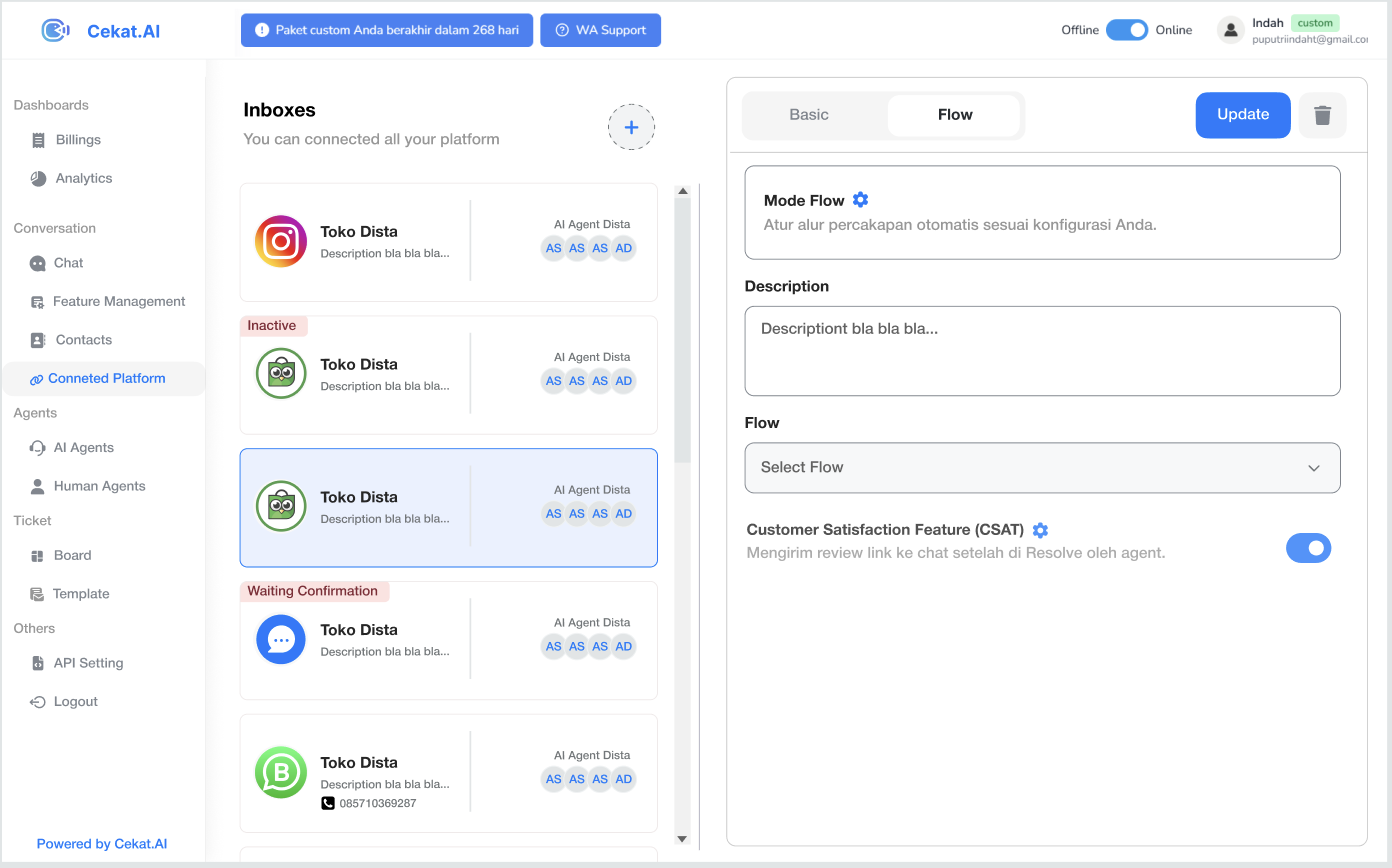
* Go to the **Inbox** page and choose the inbox you want to use the flow on.
* At the top of the inbox page, click **Flow**.
* In the **Flow** tab, under **Select Flow**, choose the flow you created, then click Update.
* The flow is now active for that inbox.
### What happens when a conversation is resolved
When a **conversation is resolved** and the customer messages again, the **flow starts over from the beginning** (the Start Point).\
This means an old conversation is treated as a new session and still follows the flow logic you've set up.
#### Still not sure about something? Watch the video tutorial below to see each step in action.
{% embed url="" %}