> For the complete documentation index, see [llms.txt](https://docs.cekat.ai/llms.txt). Markdown versions of documentation pages are available by appending `.md` to page URLs; this page is available as [Markdown](https://docs.cekat.ai/en/chat/customer-satisfaction-score-csat.md).

# Customer Satisfaction Score (CSAT)

This feature lets you automatically send customers a review link once an agent resolves their conversation. With CSAT turned on, collecting customer feedback is easy.

### Turning on CSAT

1. Go to the Inbox page
   * Open the **Inbox** page from the main menu.
2. Choose an inbox
   * Choose the inbox you want to turn CSAT on for.
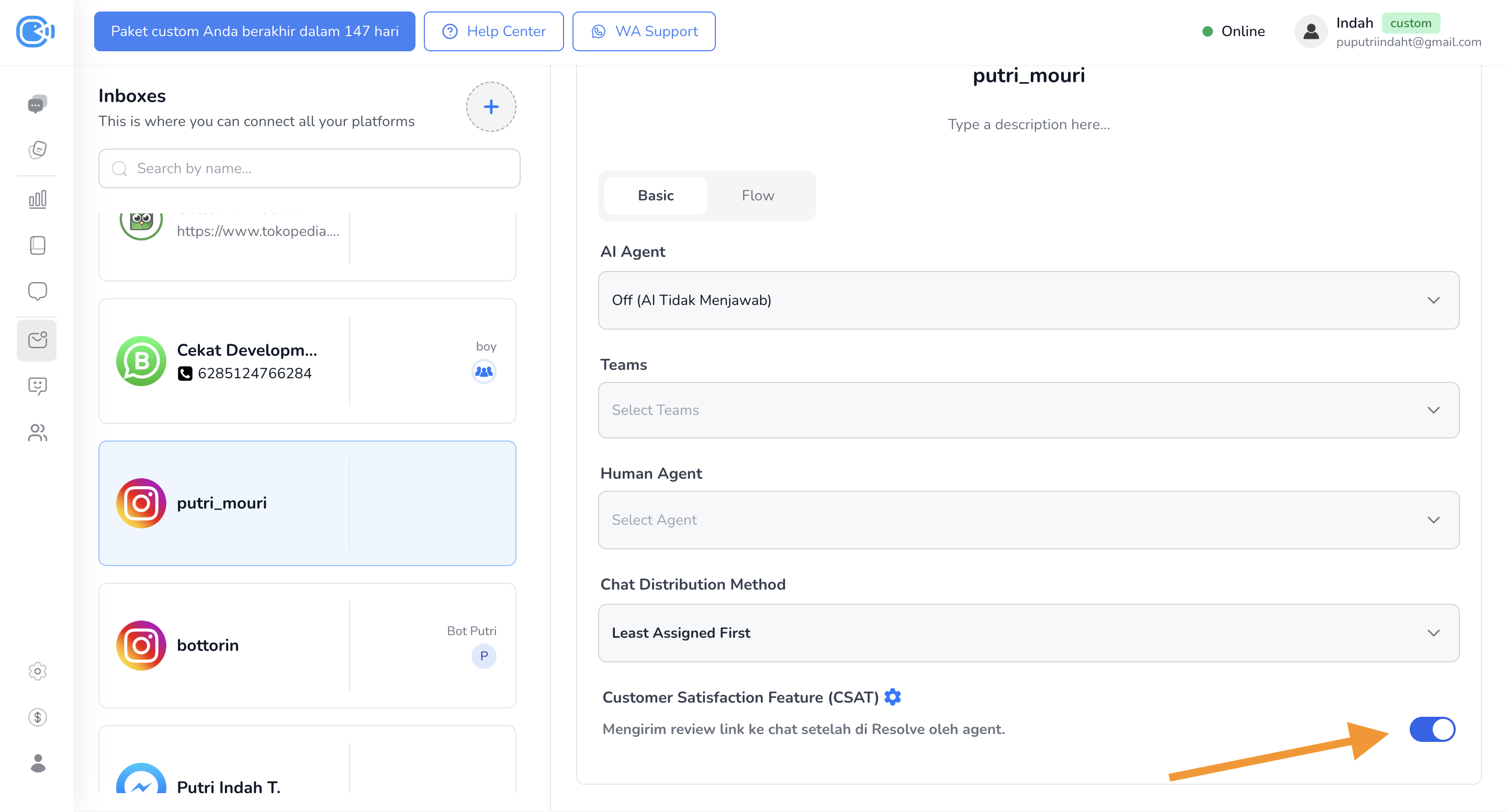
3. Turn on the CSAT toggle
   * Scroll to the very bottom until you find the **CSAT** option.
   * Turn on the toggle.

     <figure><img src="https://3693109682-files.gitbook.io/~/files/v0/b/gitbook-x-prod.appspot.com/o/spaces%2FZNZlvyOVkZXyd3pz2Cql%2Fuploads%2FQn5KO1T1nWOLpWn6QEju%2FScreenshot%202025-05-06%20at%2011.20.48%E2%80%AFAM.png?alt=media&#x26;token=d1b2e486-b5e8-4d2b-bdbb-337f5c166b34" alt="" width="375"><figcaption></figcaption></figure>
4. Click Update
   * Once the toggle is on, click **Update** to save your changes.

### CSAT settings

1. Go to Settings
   * Open the **Setting** menu from the main dashboard.
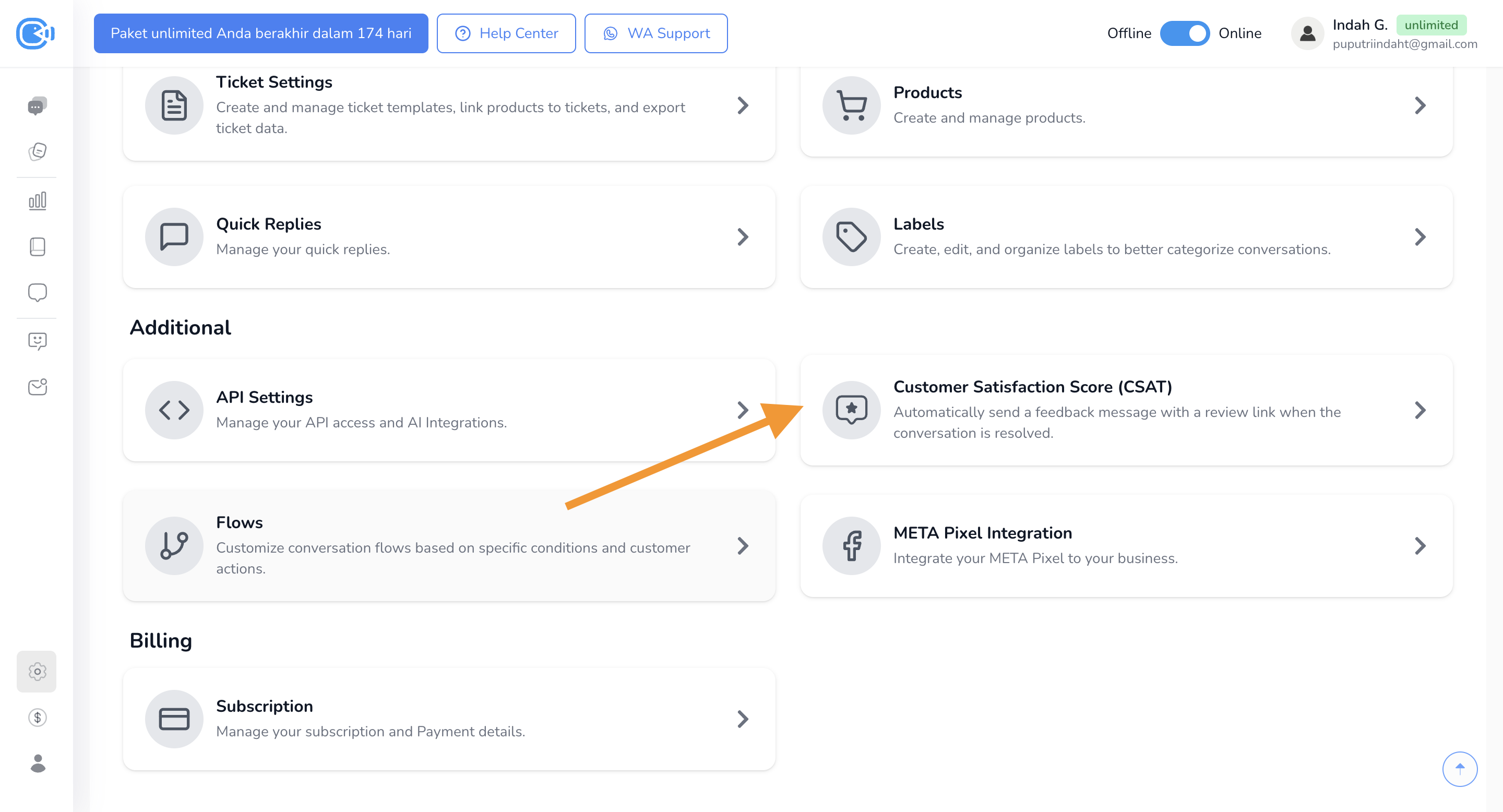
2. Choose CSAT
   * In Settings, choose the **CSAT** tab.

     <figure><img src="https://3693109682-files.gitbook.io/~/files/v0/b/gitbook-x-prod.appspot.com/o/spaces%2FZNZlvyOVkZXyd3pz2Cql%2Fuploads%2FniEaaPNoqRrKwjW3IiZB%2FScreenshot%202025-04-28%20at%201.21.46%E2%80%AFPM.png?alt=media&#x26;token=c1b1c5de-a5a4-4fad-b12b-99ce9e0eebf9" alt=""><figcaption></figcaption></figure>
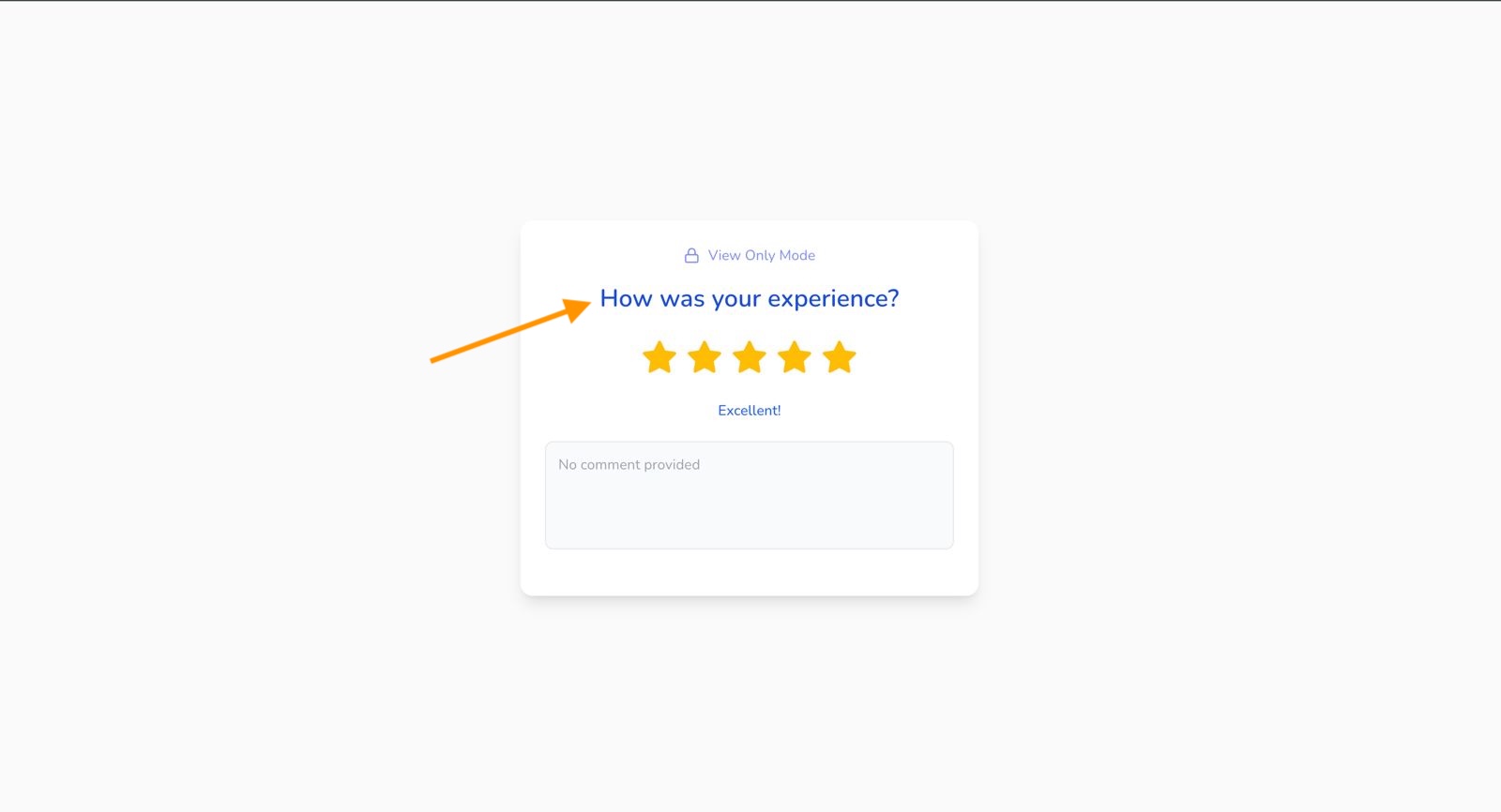
3. Change the CSAT page message
   * The default message is **"How was your experience?"**.

     <figure><img src="https://3693109682-files.gitbook.io/~/files/v0/b/gitbook-x-prod.appspot.com/o/spaces%2FZNZlvyOVkZXyd3pz2Cql%2Fuploads%2FqkQM79Ko0DFE3yvLsJJR%2FWhatsApp%20Image%202025-04-25%20at%2016.13.17.jpeg?alt=media&#x26;token=73649618-e310-4081-9bce-920aa3d2437c" alt="" width="375"><figcaption></figcaption></figure>
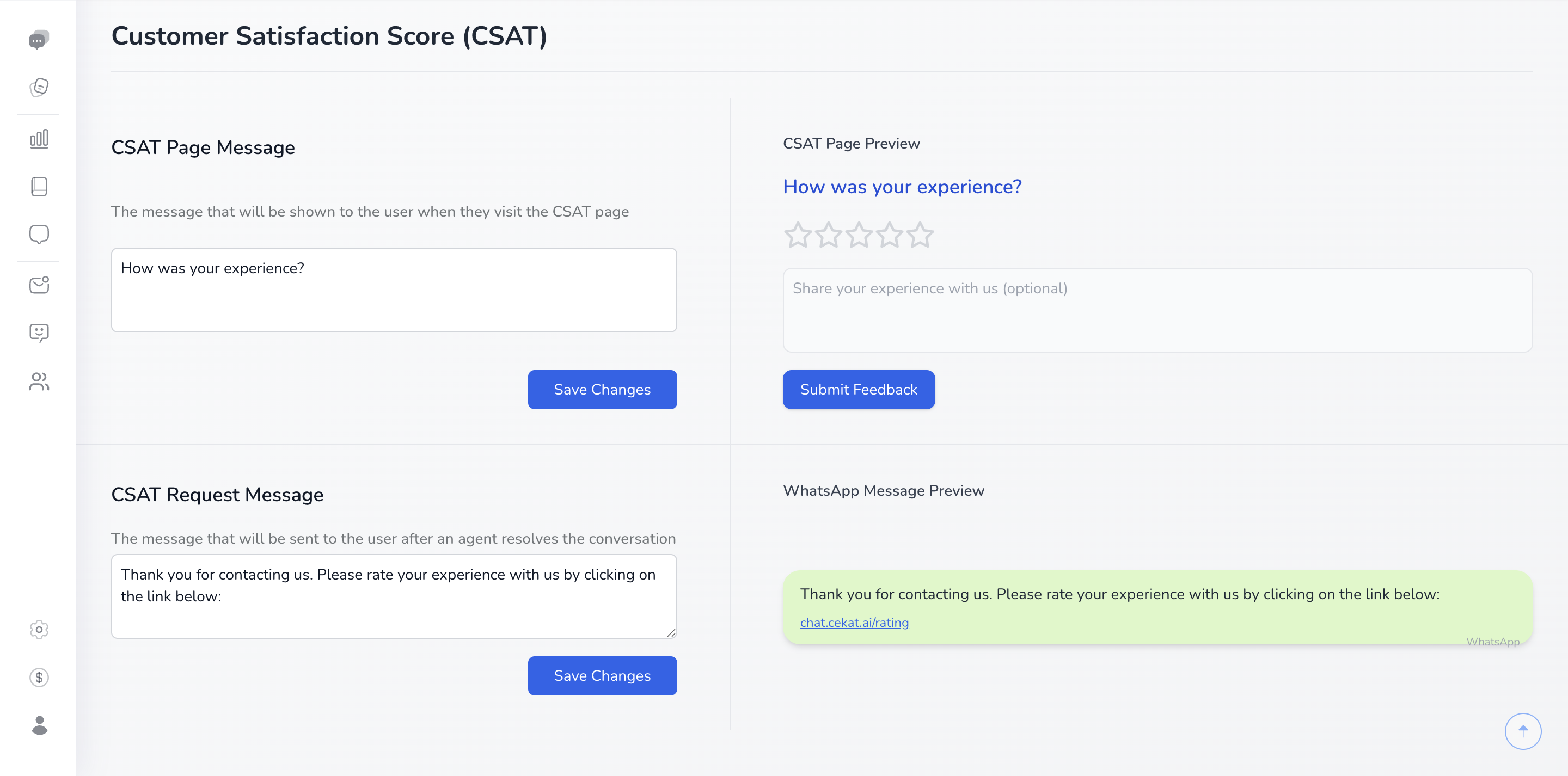
   * To change it, edit the text box directly.

     <figure><img src="https://3693109682-files.gitbook.io/~/files/v0/b/gitbook-x-prod.appspot.com/o/spaces%2FZNZlvyOVkZXyd3pz2Cql%2Fuploads%2FzmmOnt6STpq9xBP5mx3q%2FScreenshot%202025-05-06%20at%2011.17.56%E2%80%AFAM.png?alt=media&#x26;token=764b6912-88d9-47cc-aa89-c63b990fe184" alt="" width="375"><figcaption></figcaption></figure>
   * The Feedback Page Message lets you **customize the message shown on the rating page** after the customer clicks the review link.
4. Change the request message
   * The default message is **"Thank you for contacting us. Please rate your experience with us by clicking on the link below."**
   * You can change the message sent to customers. The CSAT review link is added below it automatically.

     <figure><img src="https://3693109682-files.gitbook.io/~/files/v0/b/gitbook-x-prod.appspot.com/o/spaces%2FZNZlvyOVkZXyd3pz2Cql%2Fuploads%2FzmmOnt6STpq9xBP5mx3q%2FScreenshot%202025-05-06%20at%2011.17.56%E2%80%AFAM.png?alt=media&#x26;token=764b6912-88d9-47cc-aa89-c63b990fe184" alt="" width="375"><figcaption></figcaption></figure>

* This message is **sent automatically when a human agent resolves the conversation within 24 hours**.

#### Still not sure about something? Watch the video tutorial below to see each step in action.

{% embed url="<https://www.youtube.com/watch?v=6Ae8TeKXXys>" %}