> For the complete documentation index, see [llms.txt](https://docs.cekat.ai/llms.txt). Markdown versions of documentation pages are available by appending `.md` to page URLs; this page is available as [Markdown](https://docs.cekat.ai/en/chat/broadcast-template-authentication-otp.md).
# Broadcast Template Authentication (OTP)
If you offer logins, account verification or OTP codes over WhatsApp, you'll need to use an **authentication template**. WhatsApp provides this template specifically to keep verification secure and efficient.
### What is an authentication template?
An authentication template is a type of template message used to send **one-time verification codes (OTP)** to users. It comes with a **copy code button**, so users can copy their code with a single tap.
## How to use an authentication template
### A. Creating an authentication template
1. Go to the Broadcast page
* Open the **Broadcast** menu and choose the **Template** tab.
2. Create a new template
* Click **Add Template** to create a new template.
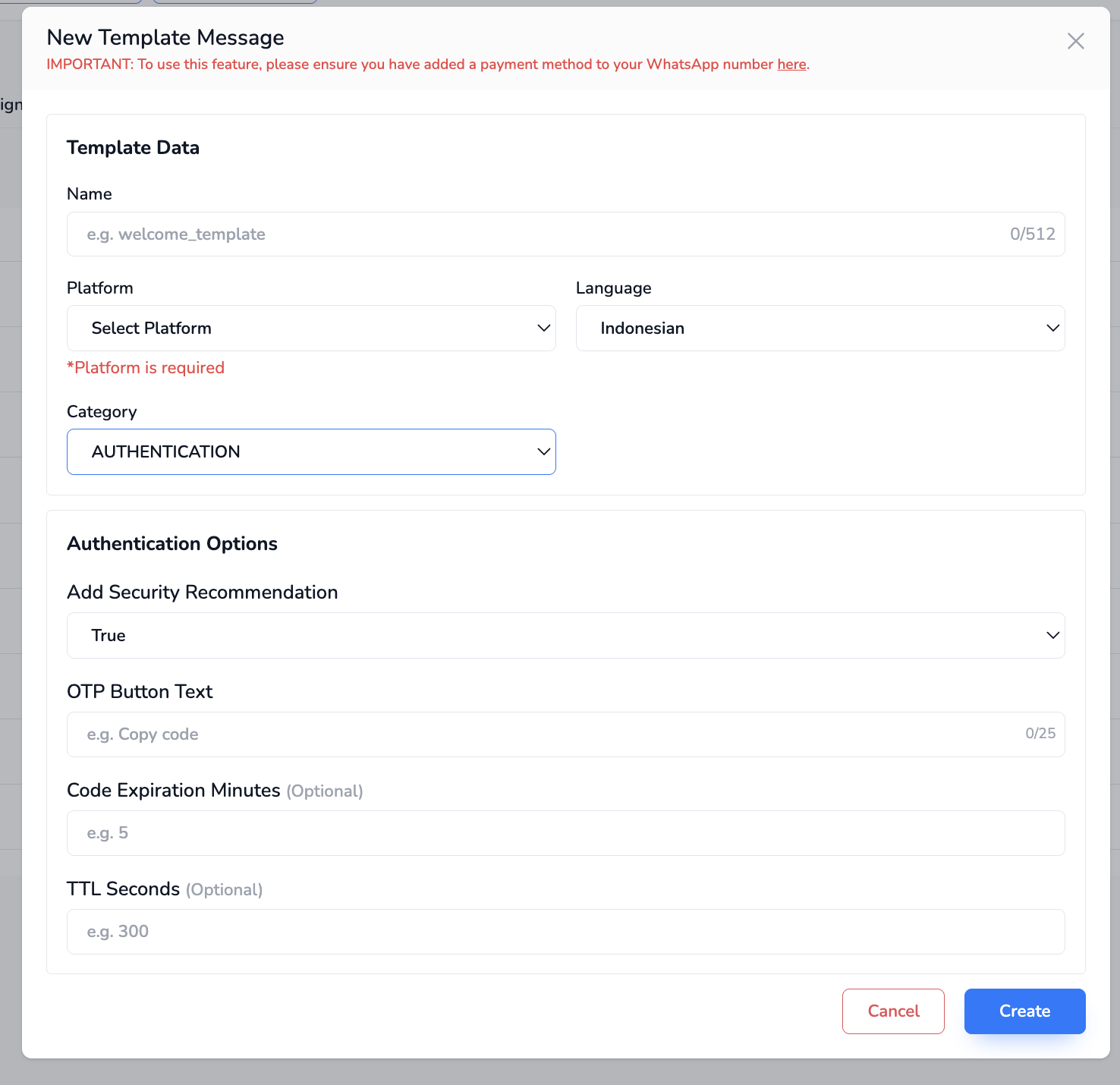
3. Fill in the template data
* Fill in the usual details (template name, language and so on).
* Under **Category**, choose **Authentication**.
4. Set the authentication options
* **Add Security Recommendation**:\
When turned on (`true`), this adds a line such as: *"For your security, do not share this code."*
* **OTP Button Text**:\
The text on the copy OTP button, for example: *"Copy OTP"*
* **Code Expiration Minutes (optional)**:\
How long the OTP stays valid. If you leave it blank, no expiry information is shown.
* **TTL Seconds (optional)**:\
Time-to-live in seconds, which you can set as needed.
### B. Sending an authentication template (API)
You can send the template through the API using Postman, cURL or a similar tool, with the **POST** method.
* **Endpoint URL**:\
`https://api.cekat.ai/templates/send`
* **Request body**:
```json
{
"wa_template_id": "",
"template_body_variables": [],
"otp_code": "552345",
"inbox_id": "",
"phone_number": "",
"phone_name": ""
}
```
#### Parameters:
* **wa\_template\_id**: the ID of the template you created. You'll find it on the template's detail page.
* **template\_body\_variables**: fill this in if your template uses variables in the body.
* **otp\_code**: the OTP code you want to send (up to 15 characters).
* **inbox\_id**: the ID of the WhatsApp inbox used to send the message. You can get it from the **GET inbox** endpoint.
* **phone\_number**: the recipient's phone number.
* **phone\_name**: the name linked to that number (optional, for display or logging).