> For the complete documentation index, see [llms.txt](https://docs.cekat.ai/llms.txt). Markdown versions of documentation pages are available by appending `.md` to page URLs; this page is available as [Markdown](https://docs.cekat.ai/en/ai-and-platform/connected-platforms/whatsapp/whatsapp-inbox-existing-number.md).

# WhatsApp Inbox (Existing Number)

1. Go to the Connect Platform page
   * Open the **Connect Platform** page from the **navbar** or the **Settings menu**.

     <figure><img src="https://3693109682-files.gitbook.io/~/files/v0/b/gitbook-x-prod.appspot.com/o/spaces%2FZNZlvyOVkZXyd3pz2Cql%2Fuploads%2FDtQBATKrlIxOsA7y4cGa%2FScreenshot%202025-04-28%20at%2012.44.11%E2%80%AFPM.png?alt=media&#x26;token=511d80b5-0c49-4d24-b47c-792f3931c2a0" alt=""><figcaption></figcaption></figure>
2. Click the plus button to add a new inbox or platform
   * Click the **"+"** button to the right of **Inboxes** to add a new inbox or platform.

     <figure><img src="https://3693109682-files.gitbook.io/~/files/v0/b/gitbook-x-prod.appspot.com/o/spaces%2FZNZlvyOVkZXyd3pz2Cql%2Fuploads%2FHca4UkUEpZsD1E5YgrSv%2FScreenshot%202025-04-28%20at%2012.45.50%E2%80%AFPM.png?alt=media&#x26;token=d81ff8d5-5f41-492f-90b0-34c2c3fbe226" alt=""><figcaption></figcaption></figure>
3. **Choose WhatsApp Business**

   * Select the **WhatsApp Business** option.

   <figure><img src="https://3693109682-files.gitbook.io/~/files/v0/b/gitbook-x-prod.appspot.com/o/spaces%2FZNZlvyOVkZXyd3pz2Cql%2Fuploads%2F8uhqvbOxaSCypSQtbiL4%2FConnected%20Platform.jpg?alt=media&#x26;token=f412e5d3-20db-4b55-a2e9-c1dd22dd48e6" alt=""><figcaption></figcaption></figure>
4. Log in to Meta/Facebook
   * Sign in with your Meta or Facebook account.
5. Create a Business Portfolio
   * If you don't have a portfolio yet, fill in:
     * Business name
     * Business website
     * Country
   * Click Continue.
6. Connect your WhatsApp Business account
   * If you already have an account, select it.
   * If you don't, choose Create a new WhatsApp Business account and Create a new business profile.
7. Fill in your business profile
   * Enter your WhatsApp Business account name.
   * Set your display name (this is what customers will see).
   * Choose your business category.
8. Add your phone number

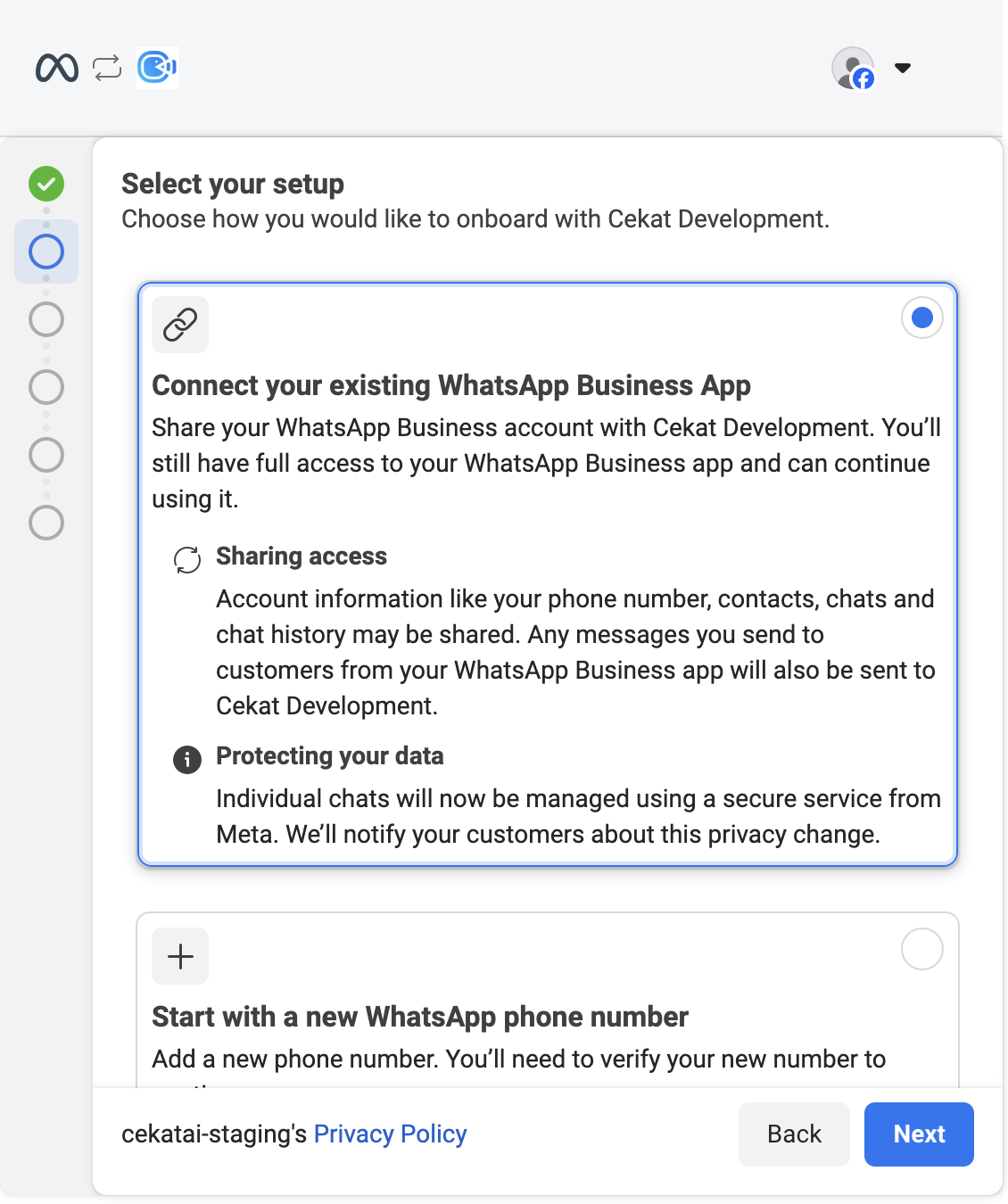
   * On the "Choose how you would like to onboard with Cekat Development" screen,
   * select "Connect your existing WhatsApp Business App".

   <figure><img src="https://3693109682-files.gitbook.io/~/files/v0/b/gitbook-x-prod.appspot.com/o/spaces%2FZNZlvyOVkZXyd3pz2Cql%2Fuploads%2FeDfg3BPEKP5agGLQu9TZ%2FScreenshot%202025-02-24%20at%2011.10.39%E2%80%AFAM.png?alt=media&#x26;token=5763ac07-a3a0-4894-9307-34fae0264709" alt="" width="375"><figcaption></figcaption></figure>

   * Enter the phone number that's already registered with WhatsApp Business.
9. Verify with the OTP code
   * Enter the OTP code sent to your phone number.
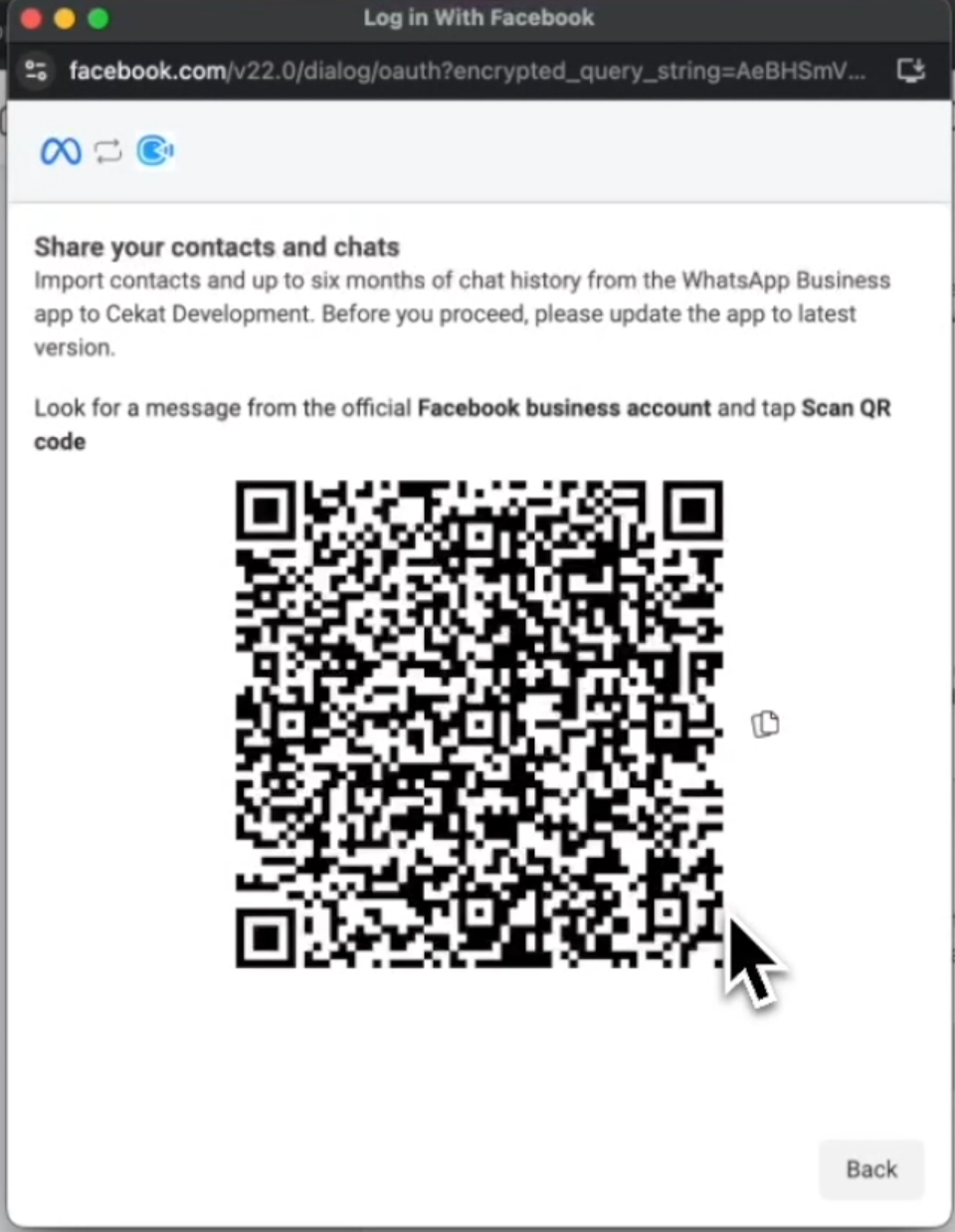
10. Wait for the QR code

    * Once you're verified, a QR code will appear on screen.

    <figure><img src="https://3693109682-files.gitbook.io/~/files/v0/b/gitbook-x-prod.appspot.com/o/spaces%2FZNZlvyOVkZXyd3pz2Cql%2Fuploads%2FERtwuP7WiRppb4tL9OLs%2FScreenshot%202025-02-24%20at%2011.11.02%E2%80%AFAM.png?alt=media&#x26;token=ba4ba8d4-a0e5-49b4-946a-dbd28bf7d395" alt="" width="188"><figcaption></figcaption></figure>
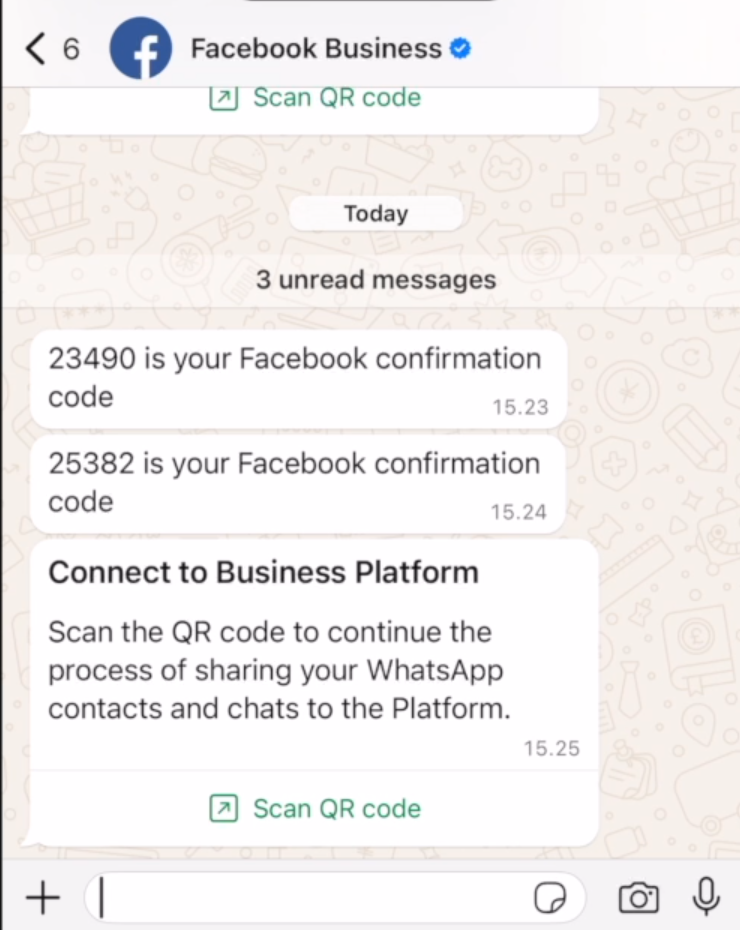
11. Open WhatsApp on your phone

    * Open the WhatsApp app on your phone.
    * You'll receive a message from Facebook Business.

    <figure><img src="https://3693109682-files.gitbook.io/~/files/v0/b/gitbook-x-prod.appspot.com/o/spaces%2FZNZlvyOVkZXyd3pz2Cql%2Fuploads%2FsFsosRKM6VxZnVal6Lwy%2FScreenshot%202025-02-24%20at%2011.11.17%E2%80%AFAM.png?alt=media&#x26;token=ab99a8db-c4cd-4bf3-be5c-0e9700fa8f31" alt="" width="185"><figcaption></figcaption></figure>
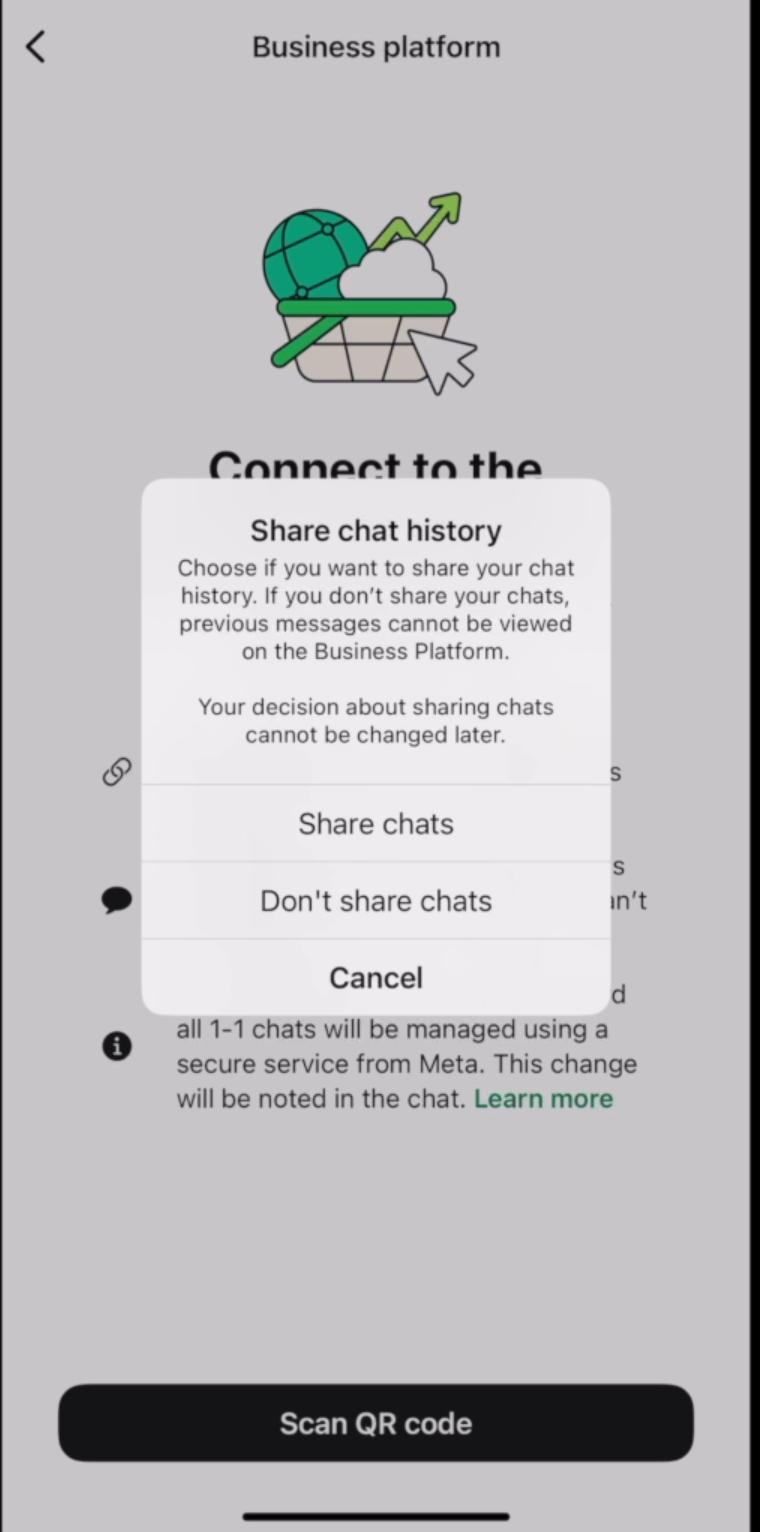
12. Scan the QR code

    * In that message, choose "Scan QR Code".
    * Decide whether you want to sync your chats. If you do, choose "Share Chat".

    <figure><img src="https://3693109682-files.gitbook.io/~/files/v0/b/gitbook-x-prod.appspot.com/o/spaces%2FZNZlvyOVkZXyd3pz2Cql%2Fuploads%2F6tpsBQ7eR0I0eK1oFAYd%2FScreenshot%202025-02-24%20at%2011.11.35%E2%80%AFAM.png?alt=media&#x26;token=eeb97cf5-8be9-4eb7-a21e-d37a9d8c313a" alt="" width="188"><figcaption></figcaption></figure>

    * Scan the QR code shown in your browser.
13. Confirm the connection
    * Once it works, you'll see the message "You connected to Cekat" in WhatsApp on your phone.
    * Tap "OK".
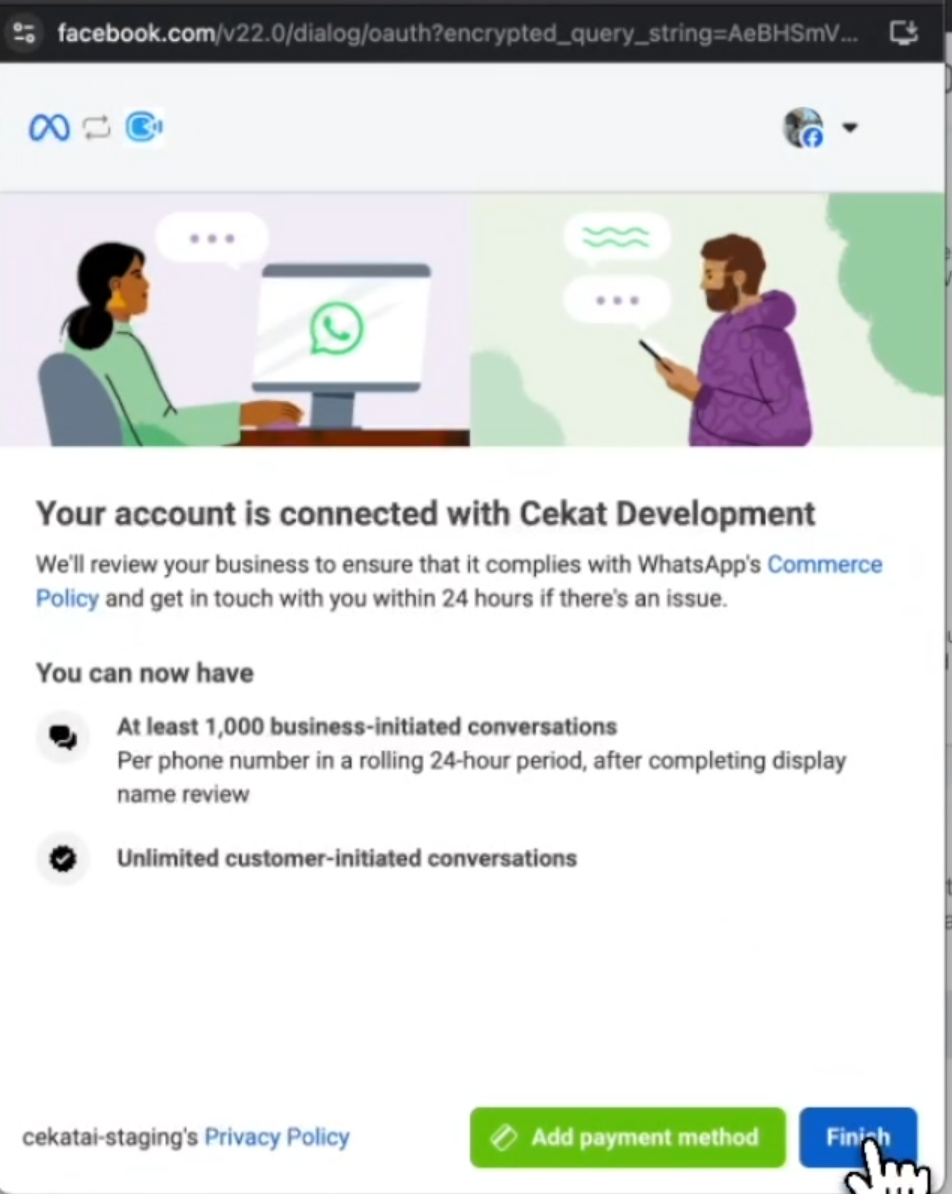
14. Finish connecting

    * In your browser, click "Finish".

    <figure><img src="https://3693109682-files.gitbook.io/~/files/v0/b/gitbook-x-prod.appspot.com/o/spaces%2FZNZlvyOVkZXyd3pz2Cql%2Fuploads%2FfYgR4AekMKZTwqjs3x7f%2FScreenshot%202025-02-24%20at%2011.12.04%E2%80%AFAM.png?alt=media&#x26;token=0ae96270-b848-4c6c-863e-d382674de462" alt="" width="188"><figcaption></figcaption></figure>

    * You're connected.

#### Still not sure about something? Watch the video tutorial below to see each step in action.

{% embed url="<https://www.youtube.com/watch?v=aMQvHuCHth8&t=10s>" %}