> For the complete documentation index, see [llms.txt](https://docs.cekat.ai/llms.txt). Markdown versions of documentation pages are available by appending `.md` to page URLs; this page is available as [Markdown](https://docs.cekat.ai/en/ai-and-platform/chat/chat-box.md).

# Chat Box

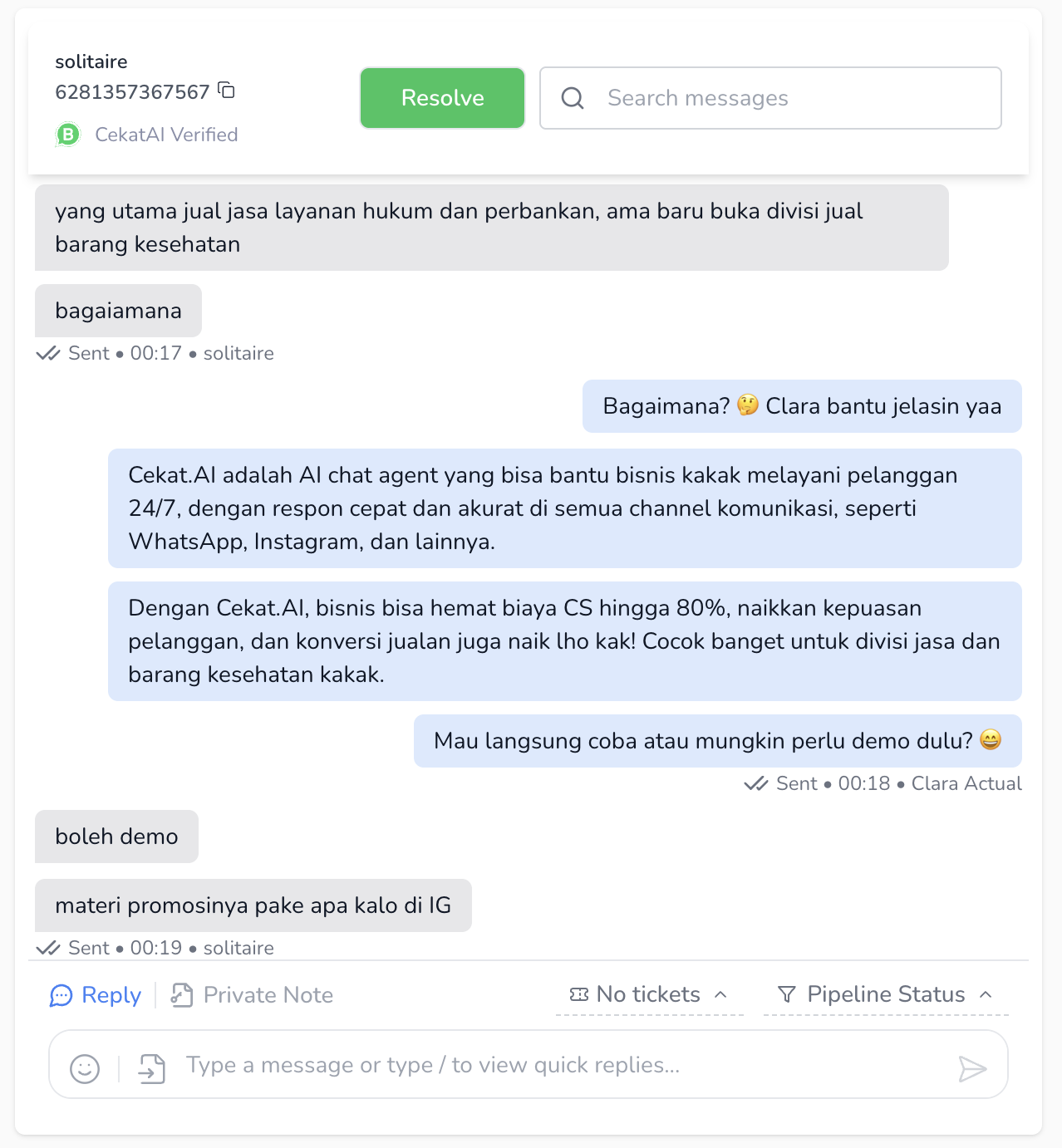
The **Chat Box** is where you talk with customers directly. Here you can reply to messages, chat with other agents through private notes, resolve conversations, and manage ticket and pipeline statuses.

<figure><img src="https://3693109682-files.gitbook.io/~/files/v0/b/gitbook-x-prod.appspot.com/o/spaces%2FZNZlvyOVkZXyd3pz2Cql%2Fuploads%2FPLpKXBrgMAcNHiPBE2Wv%2FScreenshot%202025-05-22%20at%2011.29.40%E2%80%AFAM.png?alt=media&#x26;token=3ab222ed-00d3-4c82-b085-7355540263cd" alt=""><figcaption></figcaption></figure>

### Main features:

<figure><img src="https://3693109682-files.gitbook.io/~/files/v0/b/gitbook-x-prod.appspot.com/o/spaces%2FZNZlvyOVkZXyd3pz2Cql%2Fuploads%2FYUHouhzq9BchRHM7nl8Q%2FScreenshot%202025-05-22%20at%2011.24.07%E2%80%AFAM.png?alt=media&#x26;token=767dde60-5441-42b4-a714-fabc29ff75ef" alt=""><figcaption></figcaption></figure>

1\. **Reply**

* Reply to customer messages directly.
* Type your message in the input field at the bottom, or use a **quick reply**.

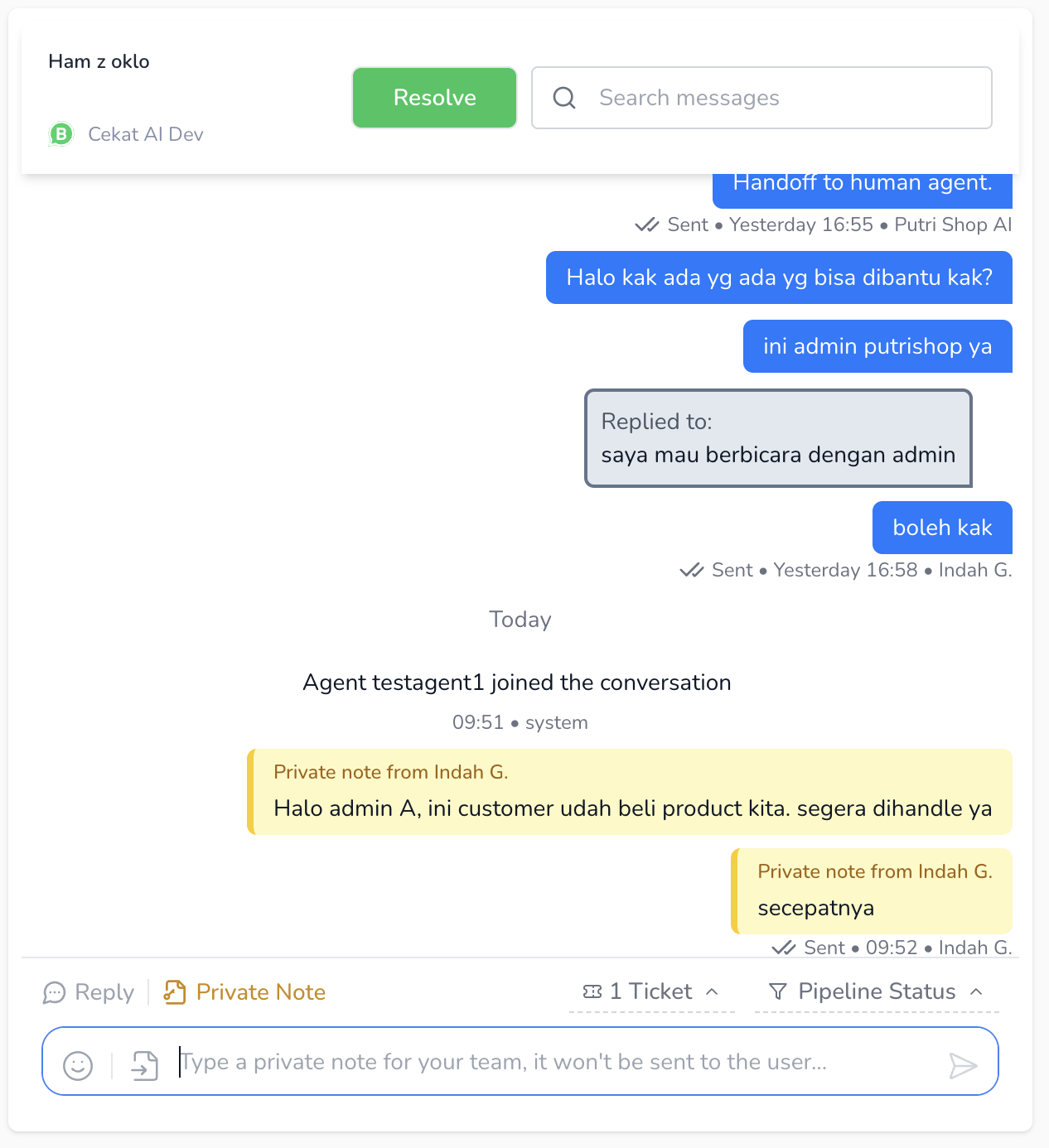
2\. **Private Note**

* This lets agents send a **chat message** that only other agents can read (customers can't see it).
* It's ideal for adding extra context, sharing internal information or leaving a note for a teammate.
* It stays in the chat flow, but it's styled differently from customer and AI messages.

  <figure><img src="https://3693109682-files.gitbook.io/~/files/v0/b/gitbook-x-prod.appspot.com/o/spaces%2FZNZlvyOVkZXyd3pz2Cql%2Fuploads%2FaN3BxFtPKOfcWRa6lq92%2FScreenshot%202025-05-23%20at%209.52.33%E2%80%AFAM.png?alt=media&#x26;token=7e69e022-b114-4872-8ae4-b9d96069c4f1" alt="" width="375"><figcaption></figcaption></figure>

3\. **Private note reminder mode (snooze)**

<figure><img src="https://3693109682-files.gitbook.io/~/files/v0/b/gitbook-x-prod.appspot.com/o/spaces%2FZNZlvyOVkZXyd3pz2Cql%2Fuploads%2FVReSgwDoH75HabLOqCCs%2FScreenshot%202025-09-03%20at%204.29.55%E2%80%AFPM.png?alt=media&#x26;token=604e915b-0eab-4f16-88aa-9c31d411bb74" alt=""><figcaption></figcaption></figure>

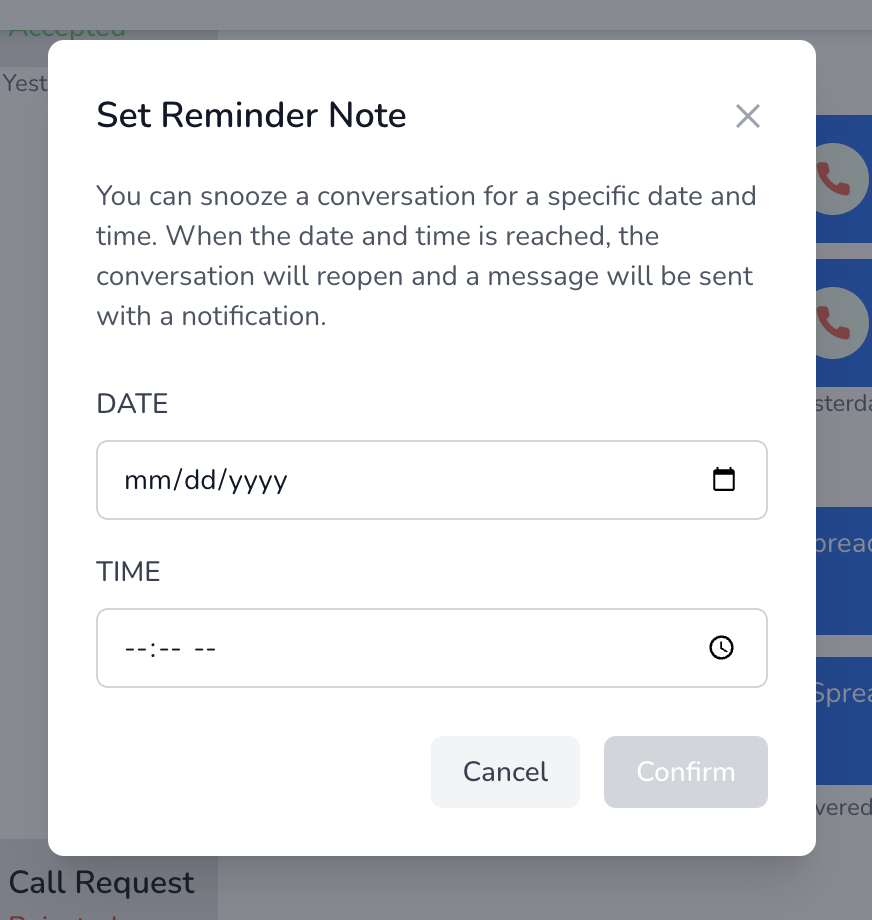
* When you write a *private note*, you can add a reminder before sending it to your team.
  * Click the ⏰ icon next to *Private Note*, then set the date and time in the **Set Reminder Note** pop-up.

    <figure><img src="https://3693109682-files.gitbook.io/~/files/v0/b/gitbook-x-prod.appspot.com/o/spaces%2FZNZlvyOVkZXyd3pz2Cql%2Fuploads%2FGuucBQvLisdySXD3qVGt%2FScreenshot%202025-09-03%20at%204.30.32%E2%80%AFPM.png?alt=media&#x26;token=5e8b3b66-b0d1-490b-a121-6cf1cd4eba64" alt="" width="375"><figcaption></figcaption></figure>
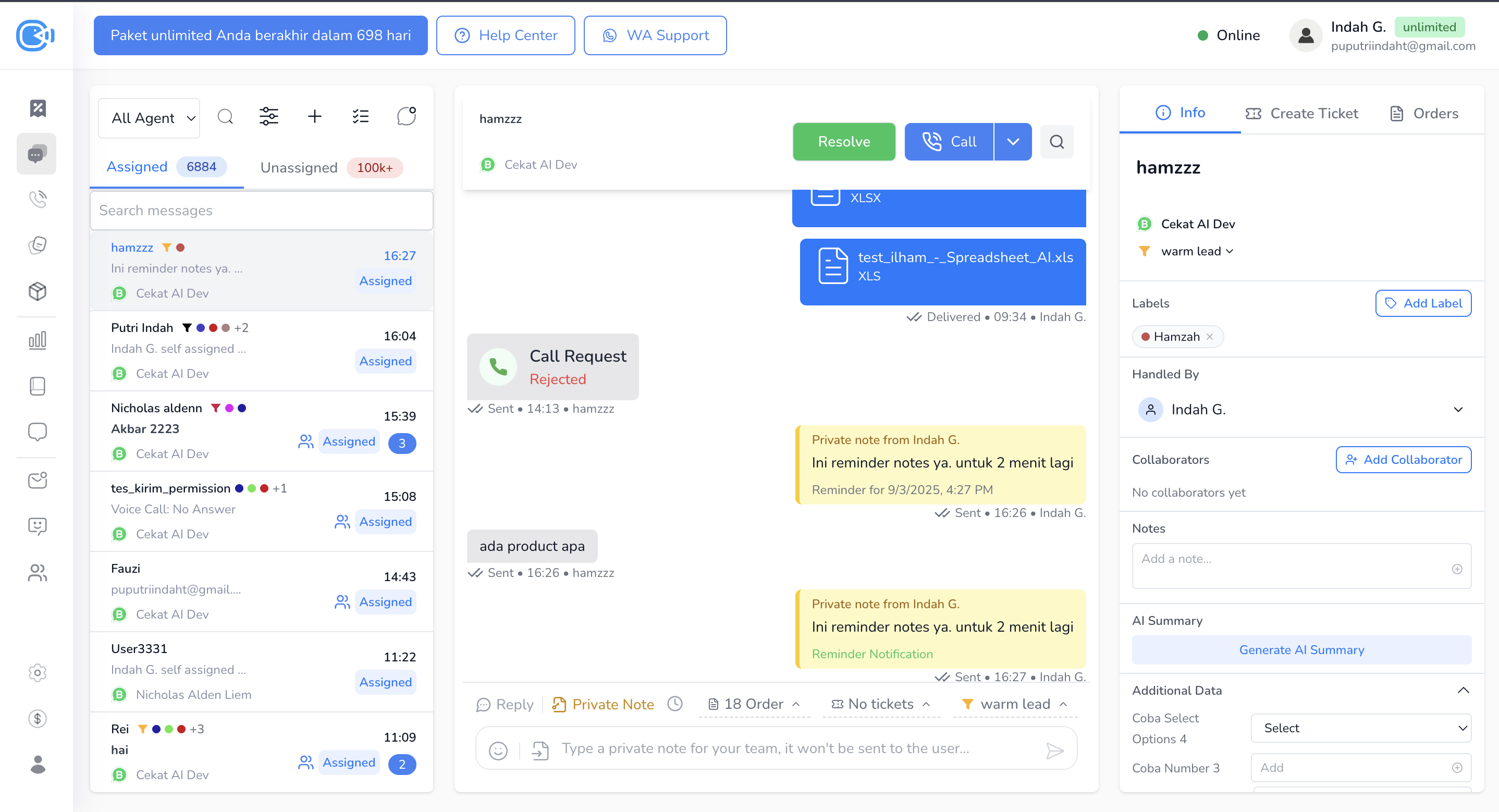
  * At the time you chose, the system resends the *private note* and reopens the conversation.

    <figure><img src="https://3693109682-files.gitbook.io/~/files/v0/b/gitbook-x-prod.appspot.com/o/spaces%2FZNZlvyOVkZXyd3pz2Cql%2Fuploads%2FDsHRXFwI6jnhVW496Hag%2FScreenshot%202025-09-03%20at%204.27.16%E2%80%AFPM.png?alt=media&#x26;token=5063ad89-620b-42cf-ac13-0f43a57408ba" alt=""><figcaption></figcaption></figure>

4\. **Ticket & Pipeline widget**

* At the bottom right of the input area, there's a widget for:
  * **Ticket**: see how many tickets are linked and open them directly.
  * **Pipeline Status**: see and change the current conversation's pipeline status.

5\. **Attachments & emoji**

* At the bottom left of the input field:
  * **Paperclip icon**: send files such as images or documents.
  * **Emoji icon**: add an emoji.

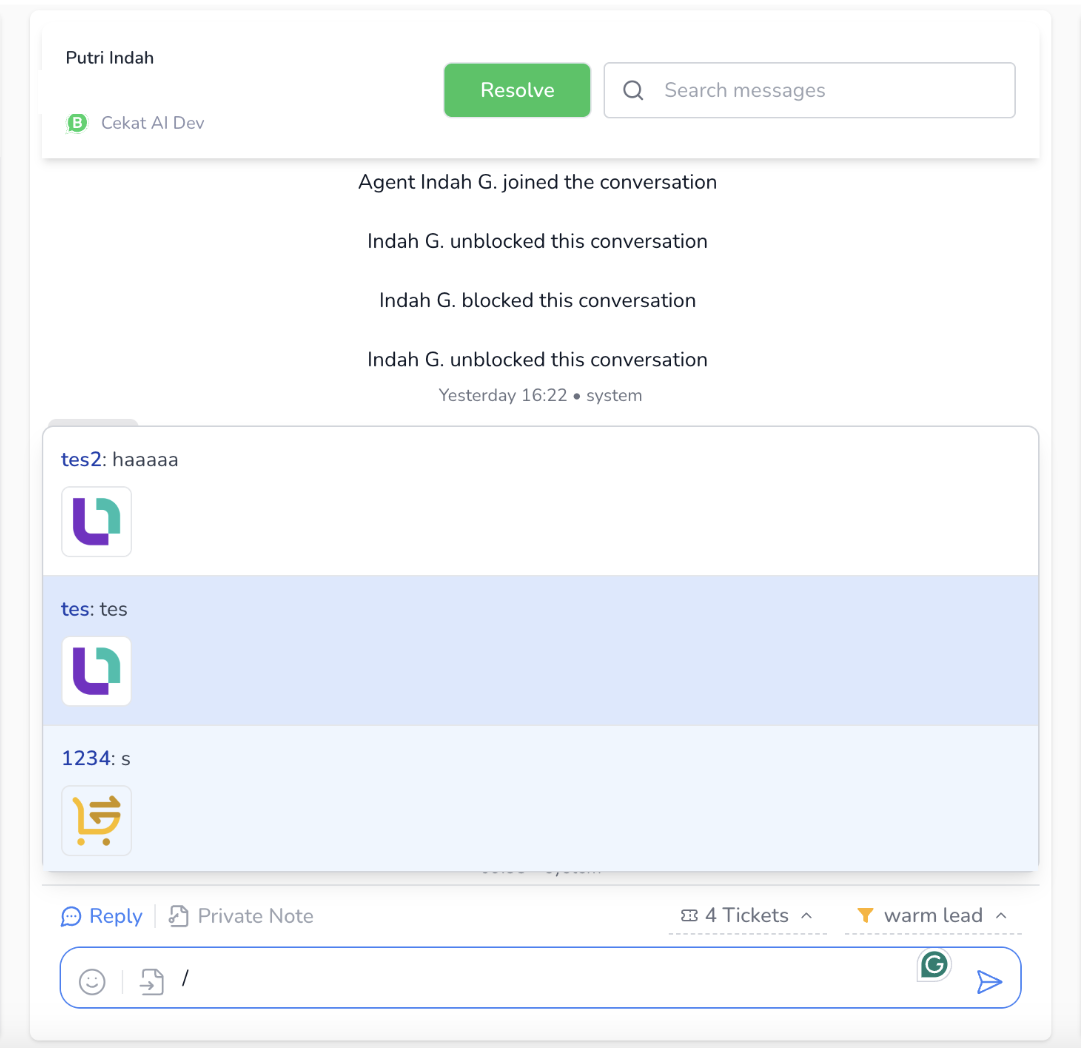
6\. **Quick reply shortcut**

* Type **"/"** to bring up your list of **quick replies**.
* You can search a quick reply by name straight away, for example `/tes`, to reply faster.

  <figure><img src="https://3693109682-files.gitbook.io/~/files/v0/b/gitbook-x-prod.appspot.com/o/spaces%2FZNZlvyOVkZXyd3pz2Cql%2Fuploads%2FY9EFoZ1SRcsEwH65mcb0%2FScreenshot%202025-05-23%20at%209.49.02%E2%80%AFAM.png?alt=media&#x26;token=575d6c3f-838b-48d6-81dd-a03d85255175" alt="" width="375"><figcaption></figcaption></figure>

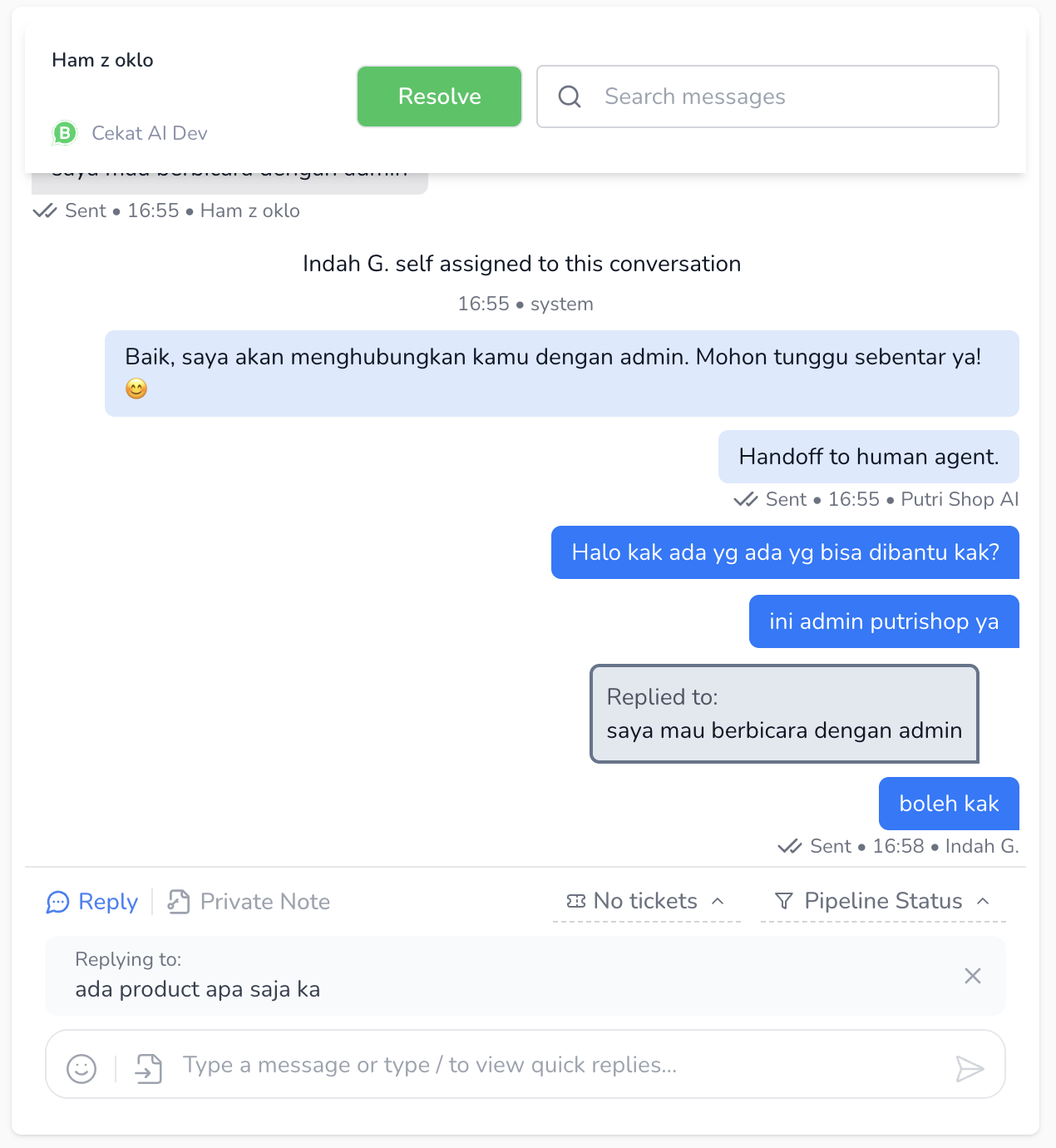
7. **Reply to a specific message**

<figure><img src="https://3693109682-files.gitbook.io/~/files/v0/b/gitbook-x-prod.appspot.com/o/spaces%2FZNZlvyOVkZXyd3pz2Cql%2Fuploads%2FLHm5f0oyG13s576zazuU%2FScreenshot%202025-05-22%20at%205.05.02%E2%80%AFPM.png?alt=media&#x26;token=a0e54237-02cc-4804-b61e-97f4762e03e8" alt="" width="375"><figcaption></figcaption></figure>

* You can reply to a specific customer message using the **Reply** feature.
* Just click **Reply** next to the chat bubble you want to respond to.
* A **preview of that message** appears above the input field.
* Once you send it, your reply keeps a **reference to the original message** in a "Replied to" box, as shown in the image.
* This helps keep things clear, especially in long conversations or when questions overlap.

### How chats look

<figure><img src="https://3693109682-files.gitbook.io/~/files/v0/b/gitbook-x-prod.appspot.com/o/spaces%2FZNZlvyOVkZXyd3pz2Cql%2Fuploads%2FMMxspJ463FjeMXHH3IUU%2FScreenshot%202025-05-22%20at%204.56.48%E2%80%AFPM.png?alt=media&#x26;token=94881088-8ece-4ef5-a9a9-3e1becca5861" alt="" width="375"><figcaption></figcaption></figure>

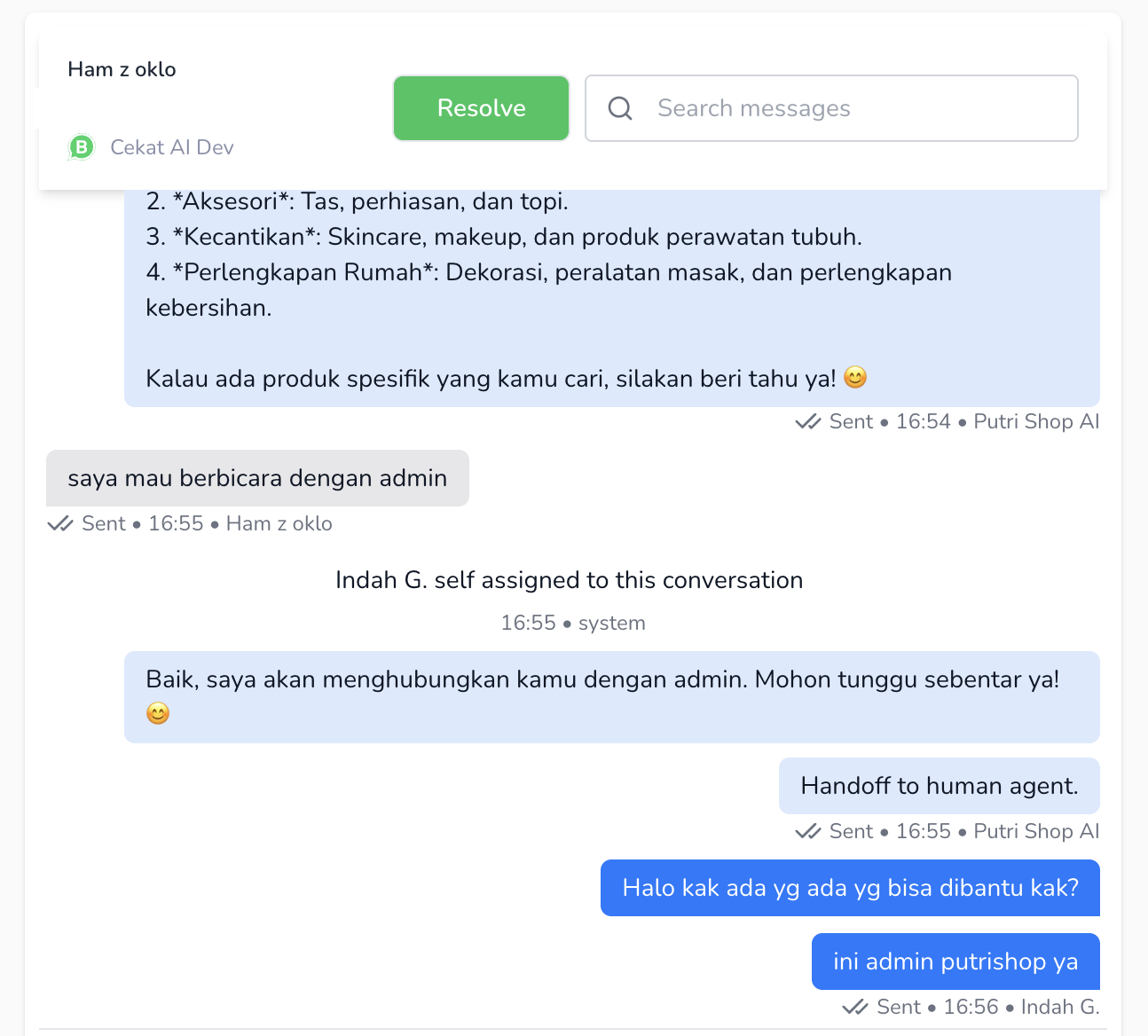
* **Bubble color** shows who replied:
  * **AI Agent** → light blue.
  * **Human agent** → dark blue.
* The sender's name (agent or AI) appears below each message bubble.