> For the complete documentation index, see [llms.txt](https://docs.cekat.ai/llms.txt). Markdown versions of documentation pages are available by appending `.md` to page URLs; this page is available as [Markdown](https://docs.cekat.ai/docs/features-and-content-management/working-hour.md).
# Working Hour
Fitur ini memungkinkan status agen berubah otomatis menjadi online atau offline berdasarkan jam kerja dan jadwal libur yang telah ditentukan.
**1. Akses Fitur Working Hours**
* Masuk ke halaman **Setting**.
* Pilih menu **Working Hours**.
* Aktifkan tombol toggle di bagian atas halaman untuk mulai menggunakan fitur ini.
**2. Weekly Hours**
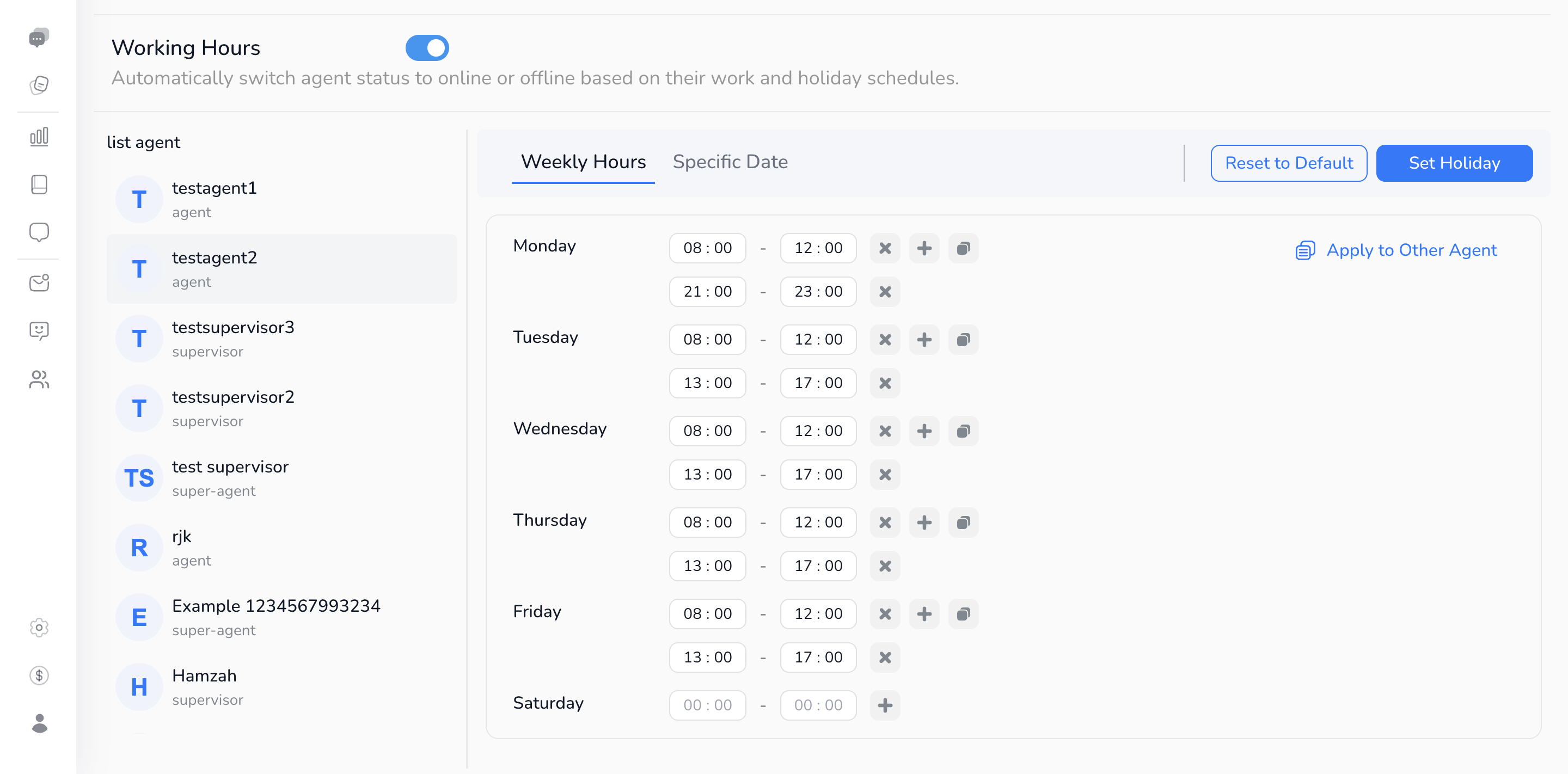
Pengaturan jam kerja mingguan untuk masing-masing agen:
* Jam default: Senin–Jumat pukul 09:00–12:00 & 13:00–17:00.
* Klik **X** untuk menghapus jam.
* Klik tombol **+** untuk menambahkan jam baru pada hari yang sama.
* Klik ikon **copy (📋)** untuk menyalin jam kerja ke hari lain.
* Bisa menambahkan lebih dari 1 blok waktu dalam sehari (contoh: 09:00–12:00 & 13:00–17:00).
* Setelah selesai mengatur satu agen, kamu dapat mengcopynya ke agent lain jika memiliki hari kerja yang sama dengan klik buttin **Apply to Other Agent** dan pilih agent yang kamu butuhkan.
**3. Specific Date**
Pengaturan jam kerja khusus di tanggal tertentu untuk override pengaturan weekly hour:
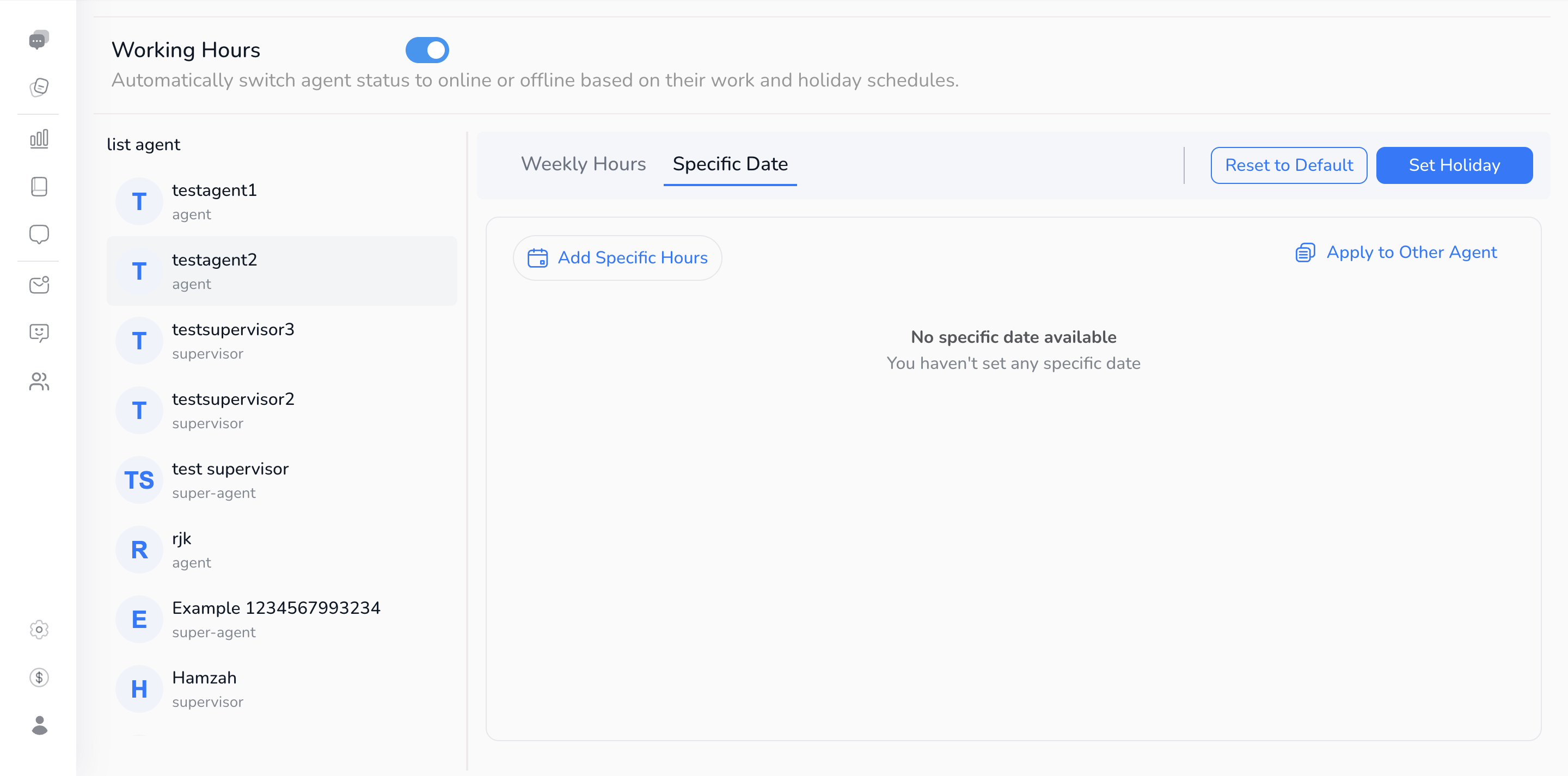
* Klik tab **Specific Date**.
* Klik **Add Specific Hours** untuk memilih tanggal dan atur jam kerja di tanggal tersebut.
* Cocok untuk lembur, shifting, atau penyesuaian hari kerja tertentu.
* Klik **Apply to Other Agent** untuk menyalin ke agen lain jika diperlukan.
**4. Holiday**
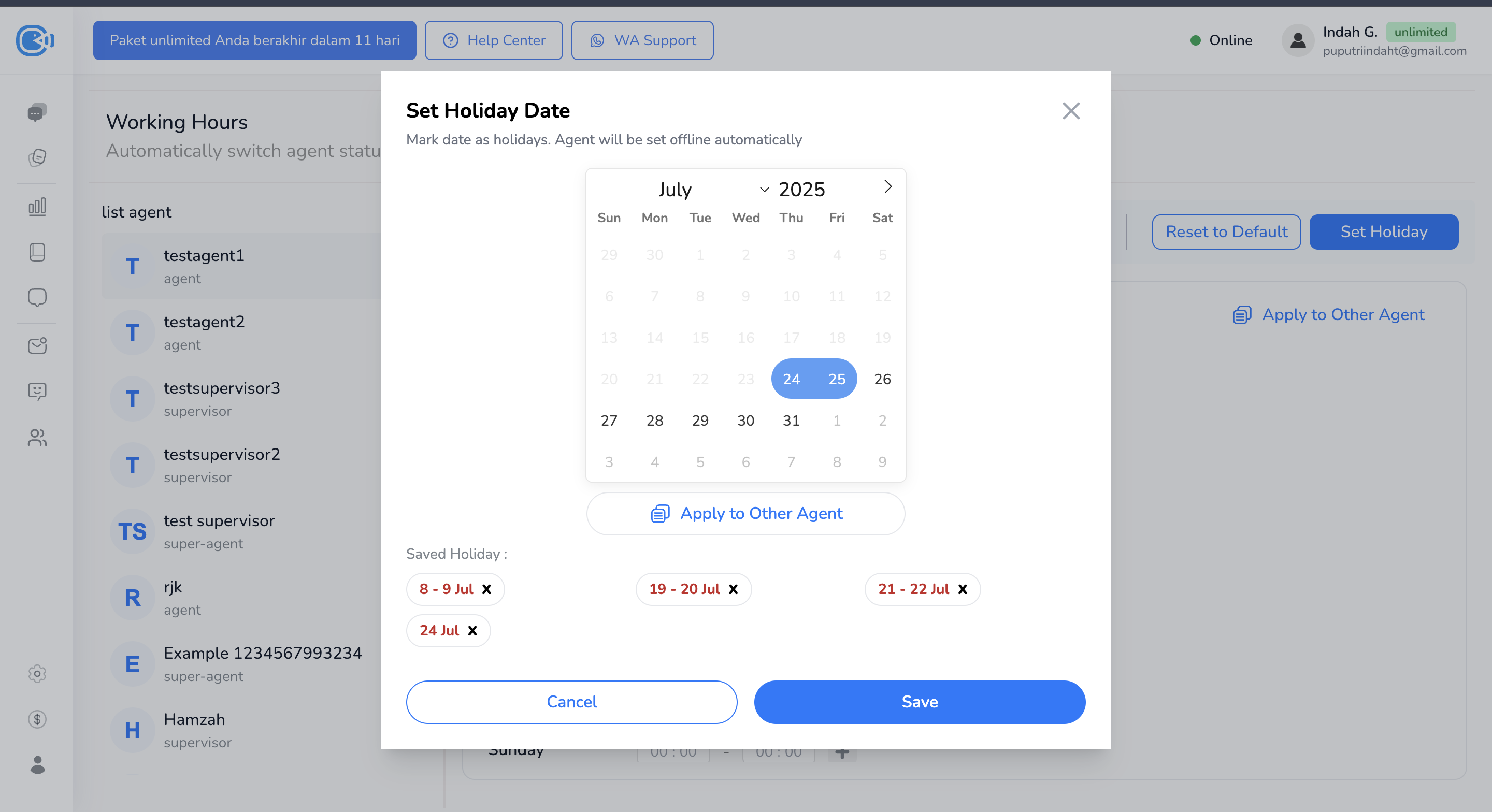
Menandai tanggal sebagai hari libur. Tanggal libur akan menimpa pengaturan jam kerja mingguan dan agent akan otomatis offline.
* Klik tombol **Set Holiday**.
* Pilih tanggal libur dan klik **Save**.
* Gunakan **X** untuk menghapus tanggal libur yang sudah disimpan.
* Klik **Apply to Other Agent** jika ingin menyalin ke agen lain.
**5. Reset ke Default**
Jika kamu ingin mengembalikan pengaturan jam kerja agent ke setelan awal.
* Klik tombol **Reset to Default** di kanan atas.
* Pengaturan akan otomatis di-reset ke default.