> For the complete documentation index, see [llms.txt](https://docs.cekat.ai/llms.txt). Markdown versions of documentation pages are available by appending `.md` to page URLs; this page is available as [Markdown](https://docs.cekat.ai/docs/features-and-content-management/whatsapp-call/setup-whatsapp-call.md).
# Setup WhatsApp Call
Setup WhatsApp Call
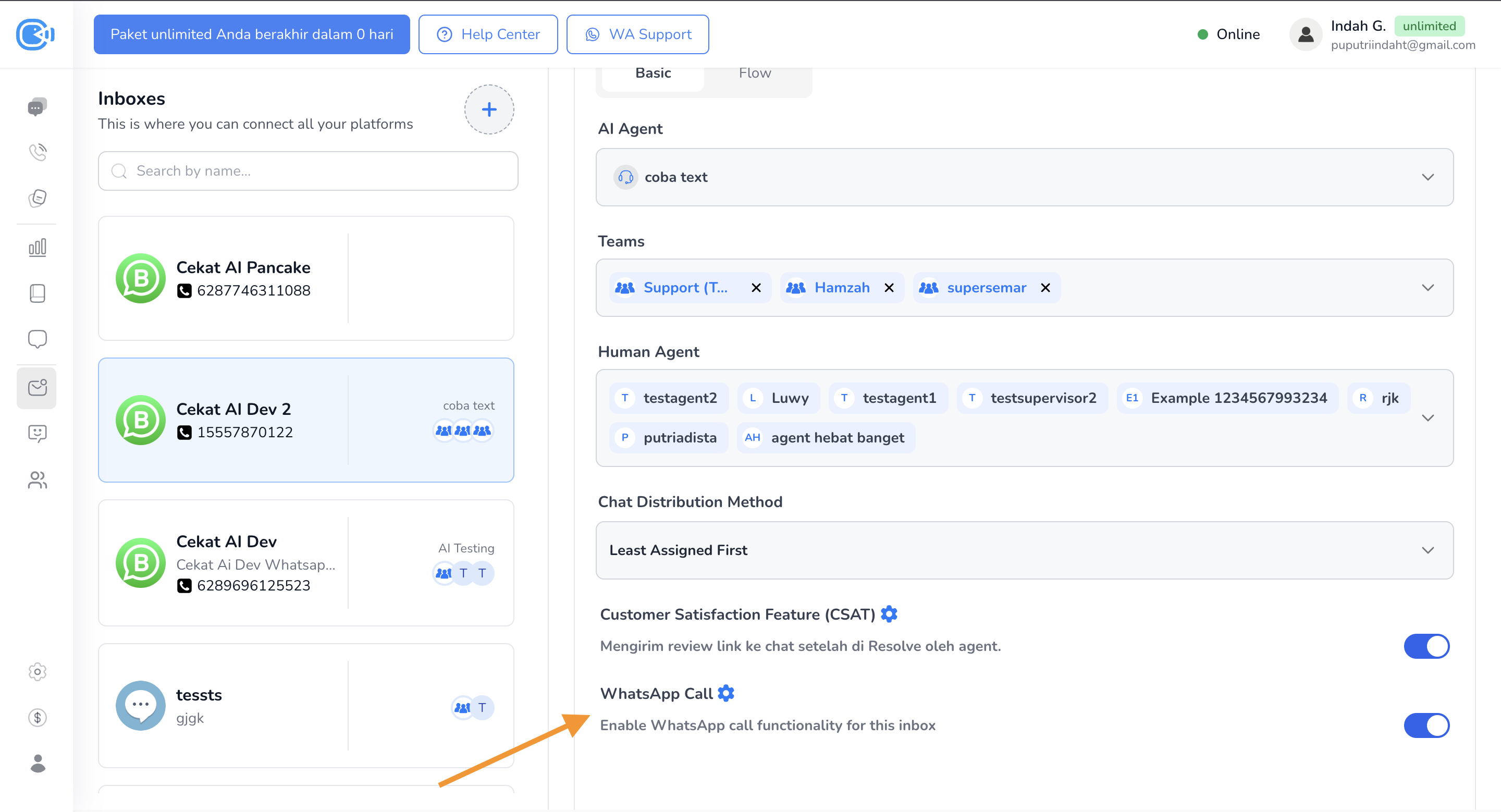
1. **Masuk ke Connected Platform**, lalu pilih **Inbox WhatsApp** dan scroll ke bagian paling bawah halaman.
2. Pada bagian tab **WhatsApp Call**, aktifkan fitur dengan mengklik toggle **Turn On**, lalu klik tombol **Update**.
3. Setelah itu, klik ikon **gear ⚙️** pada baris WhatsApp Call untuk masuk ke halaman pengaturan.
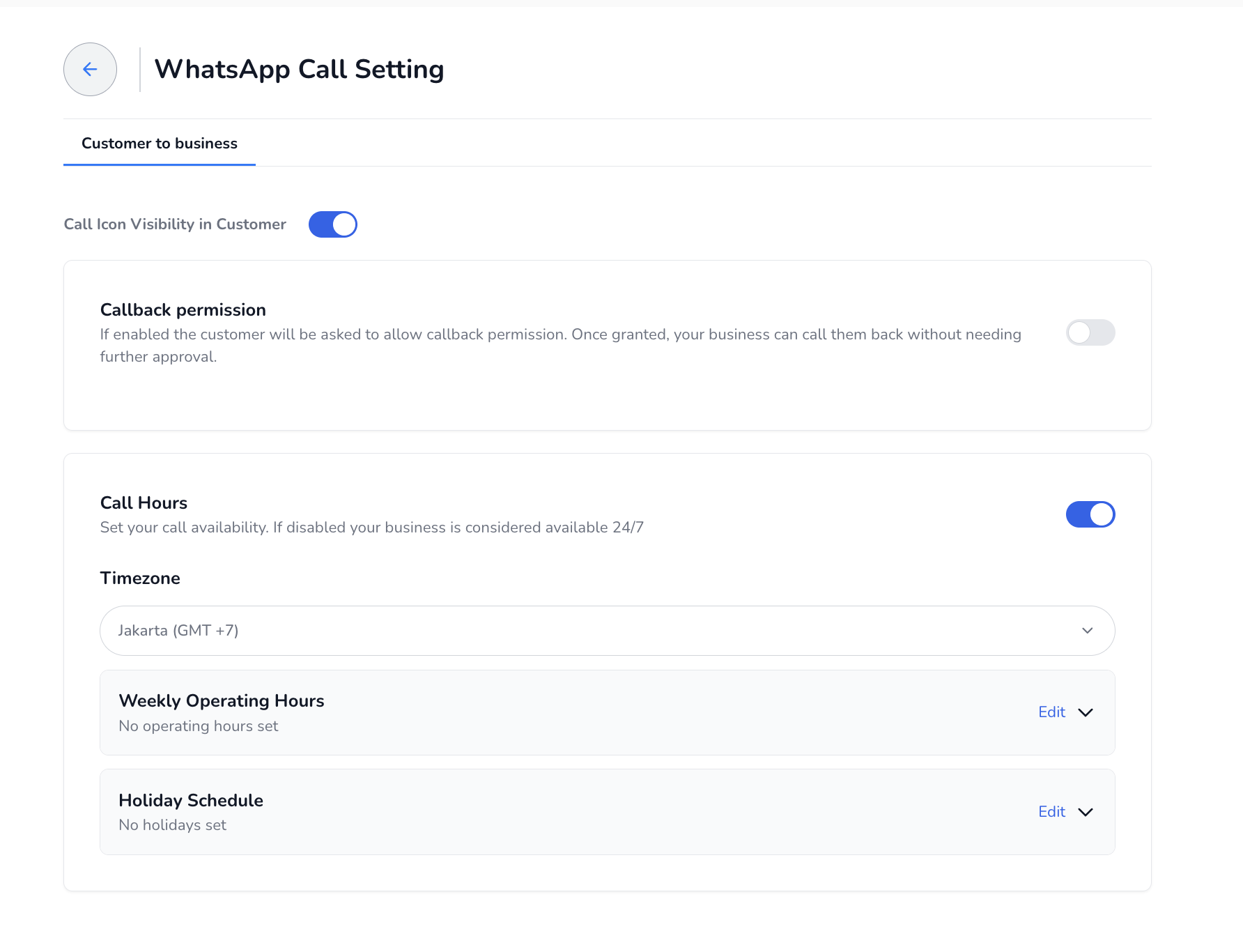
4. Kamu akan diarahkan ke halaman **WhatsApp Call Settings**. Aktifkan toggle **“Allow customer to reach your business via WhatsApp voice call”**.
5. Setelah toggle aktif, dua pengaturan tambahan akan muncul:\
a. **Callback Permission**\
Jika fitur ini diaktifkan, customer akan diminta memberikan izin untuk dihubungi kembali. Setelah izin diberikan, bisnis kamu dapat melakukan panggilan ulang tanpa perlu meminta persetujuan ulang.
b. **Call Hours**\
Atur waktu ketersediaan panggilan bisnis. Jika fitur ini **tidak diaktifkan**, maka bisnis akan dianggap **selalu tersedia (24/7)**.\
Saat diaktifkan, kamu bisa mengatur:
* Timezone
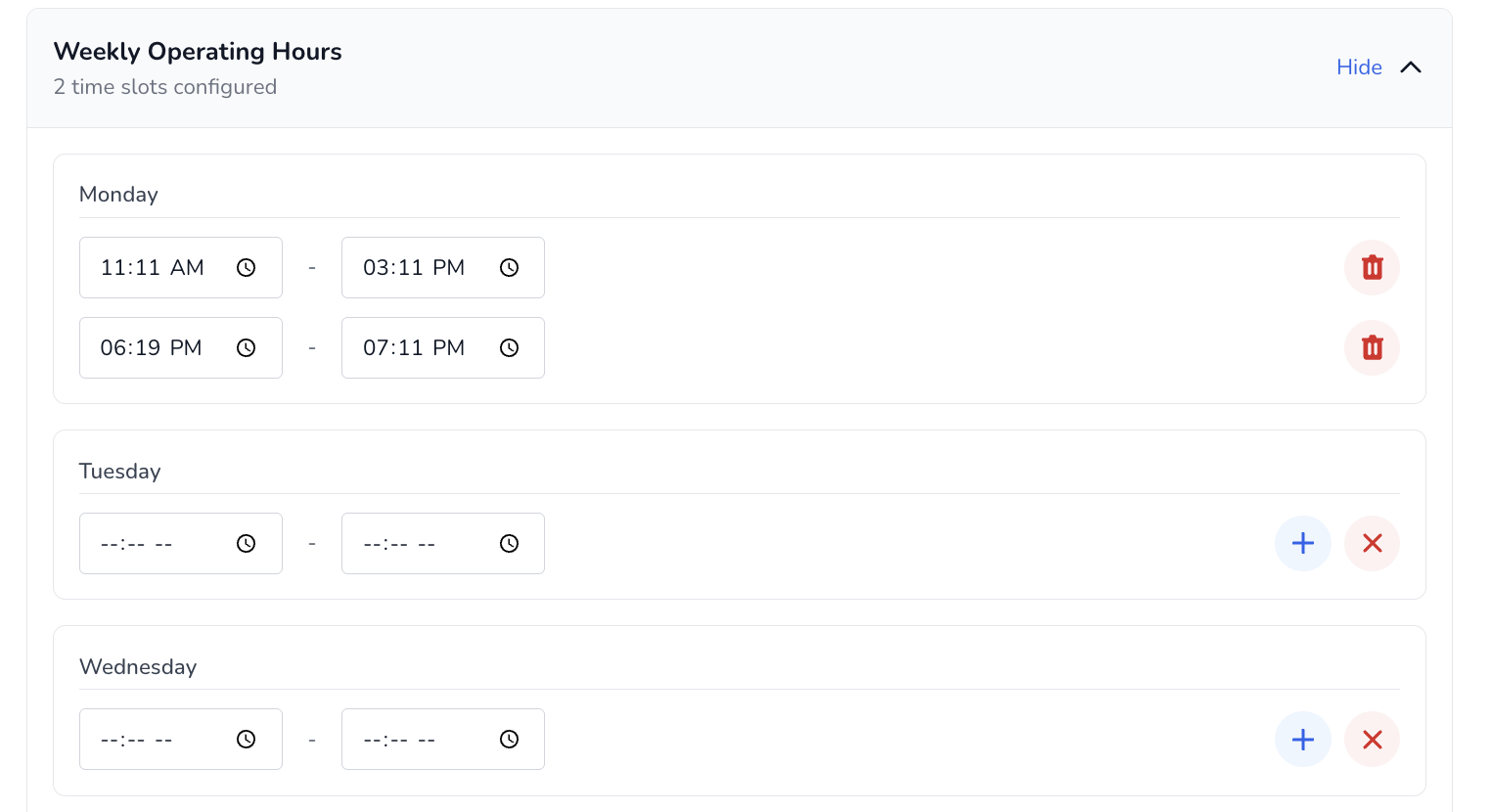
* Weekly call hours (maksimal 2 rentang waktu berbeda dalam satu hari)
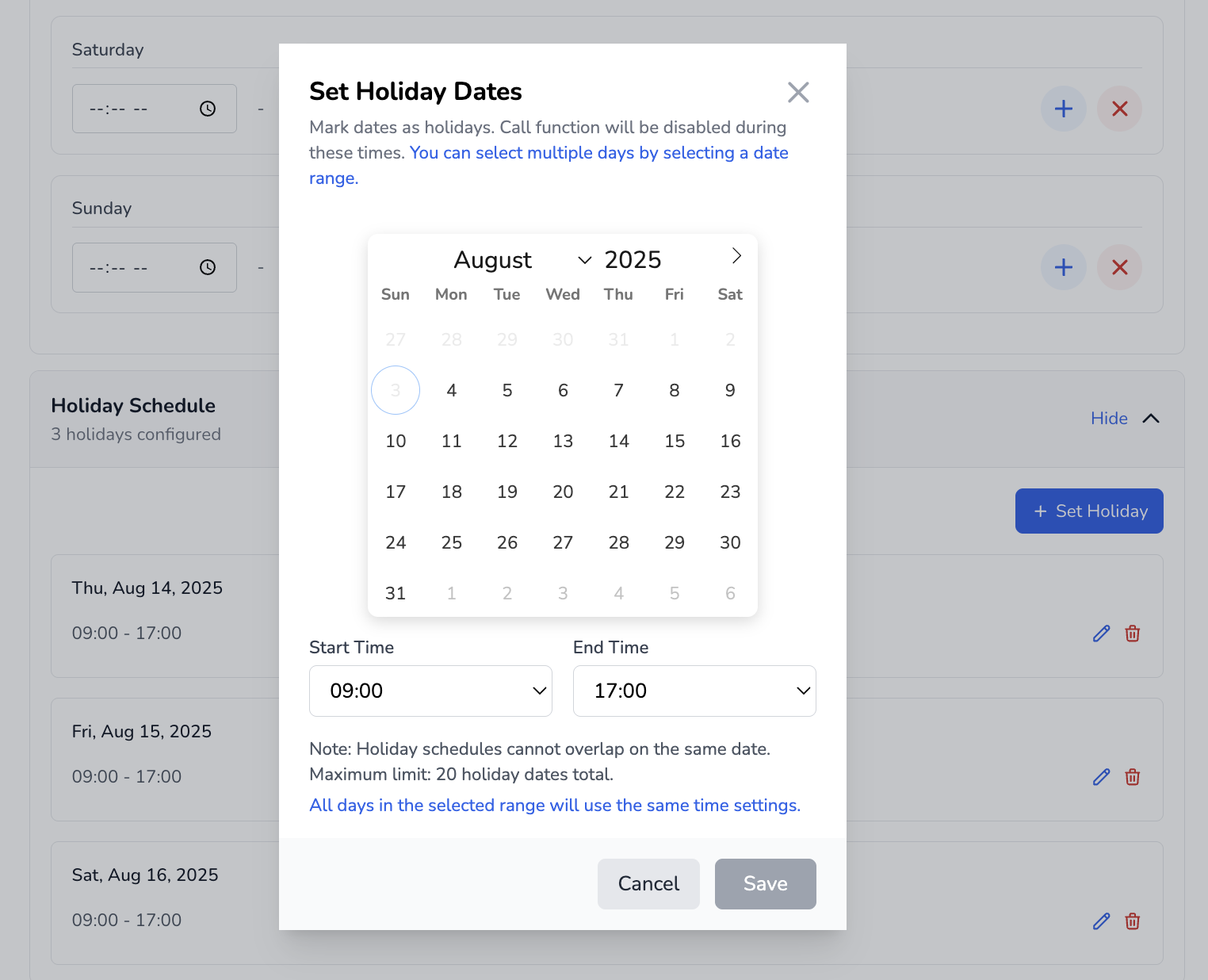
* Holiday schedule (maksimal 20 hari libur)