> For the complete documentation index, see [llms.txt](https://docs.cekat.ai/llms.txt). Markdown versions of documentation pages are available by appending `.md` to page URLs; this page is available as [Markdown](https://docs.cekat.ai/docs/features-and-content-management/whatsapp-call/how-to-use-whatsapp-call.md).
# How To Use WhatsApp Call
1. **Klik tombol Request Call di halaman chat**
* Tombol ini berada di atas area percakapan.
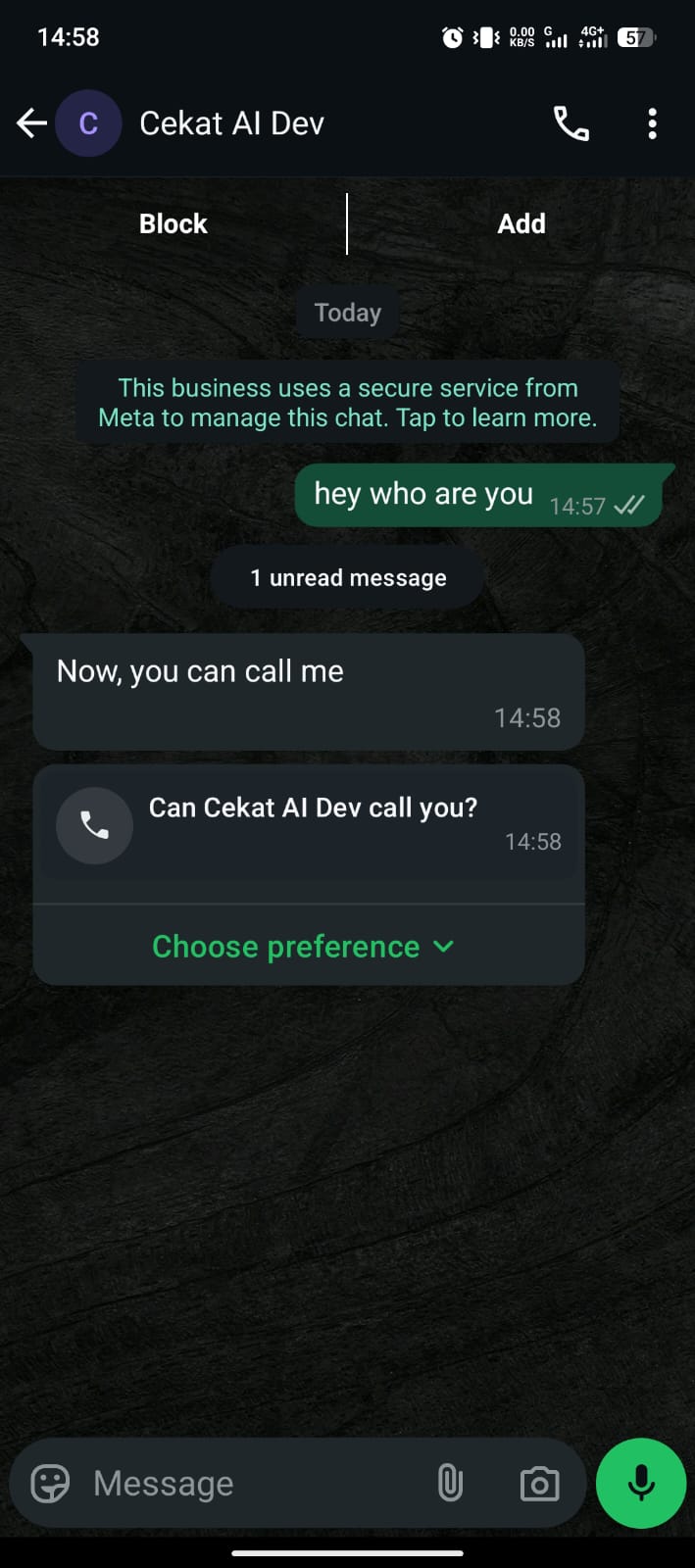
2. **Customer akan menerima pesan permintaan call**
* Customer bisa memilih untuk **Allow** atau **Not Allow**.
3. **Setelah customer merespons, tombol akan berubah menjadi tombol Call**
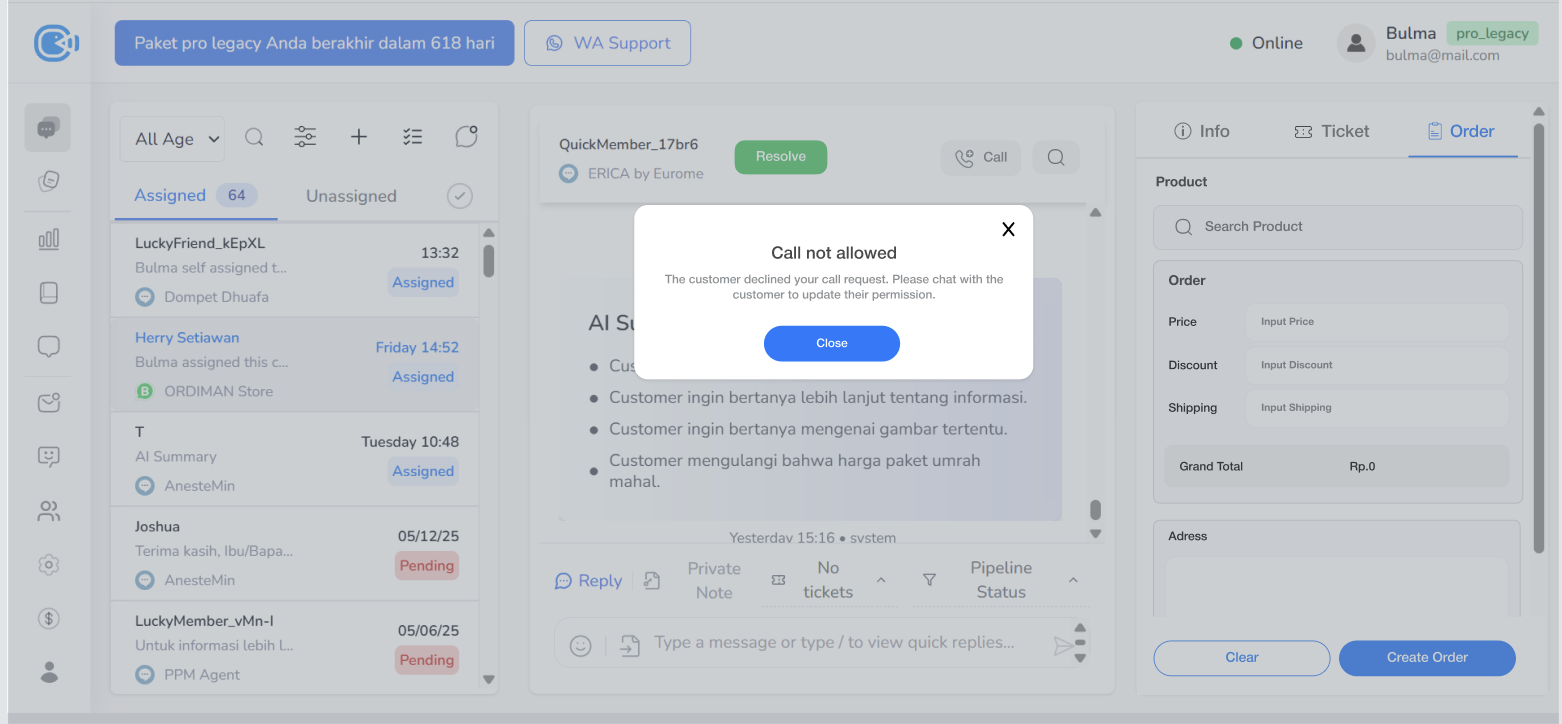
* **Not Allow**: tombol Call akan berwarna abu-abu. Jika diklik, akan muncul popup:\
*“The customer declined your call request. Please chat with the customer to update their permission.”*
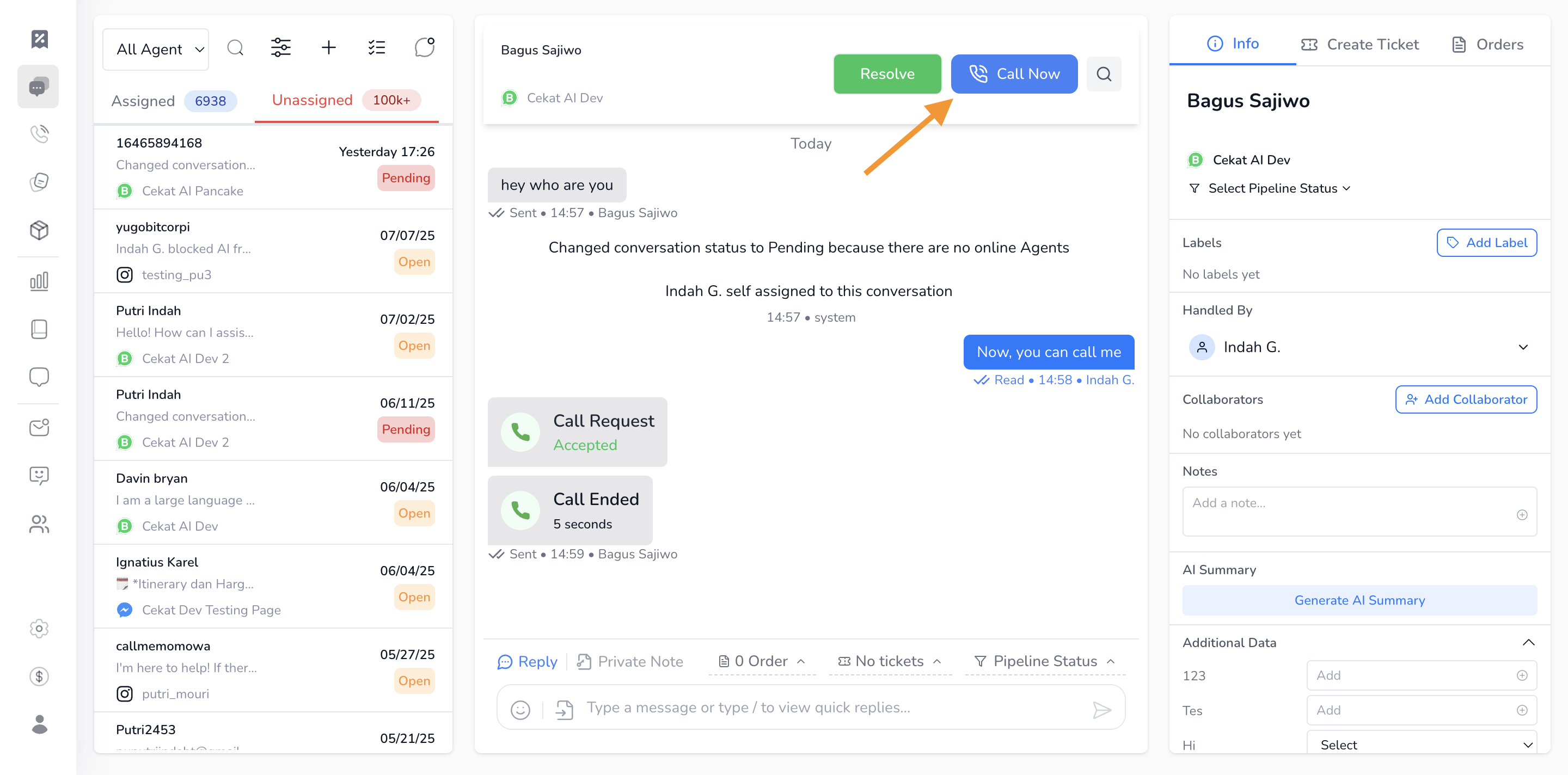
* **Allow**: tombol Call akan berubah menjadi biru, menandakan kamu bisa langsung melakukan call ke customer.
4. **Selama call berlangsung, kamu bisa melakukan beberapa hal**
* Melihat durasi call secara rx\`eal-time
* Menggunakan fitur **Mute/Unmute**
* Mengakhiri call kapan saja jika diperlukan
***
### Send Message for Customer-Initiated Call
Gunakan fitur ini untuk mengirim pesan ke customer dengan tombol **Voice Call**, agar mereka bisa memulai panggilan ke bisnis kamu.
#### Cara Membuat dan Mengirim Template Call
1. **Masuk ke halaman Broadcast**
* Pilih tab **Template**, lalu klik tombol **Create**
2. **Isi data template di pop-up Create Template**
* Lengkapi bagian **Template Data**, **Header**, dan **Body** sesuai kebutuhan
3. **Tambahkan tombol Voice Call**
* Pada bagian **Button**, pilih tipe **Voice Call**, lalu klik **Add Button**
4. **Atur teks tombol**
* Pada kolom **Button Text**, isi teks sesuai kebutuhan, misalnya: *"Call Us"*
* Klik **Create Button** untuk menyimpan
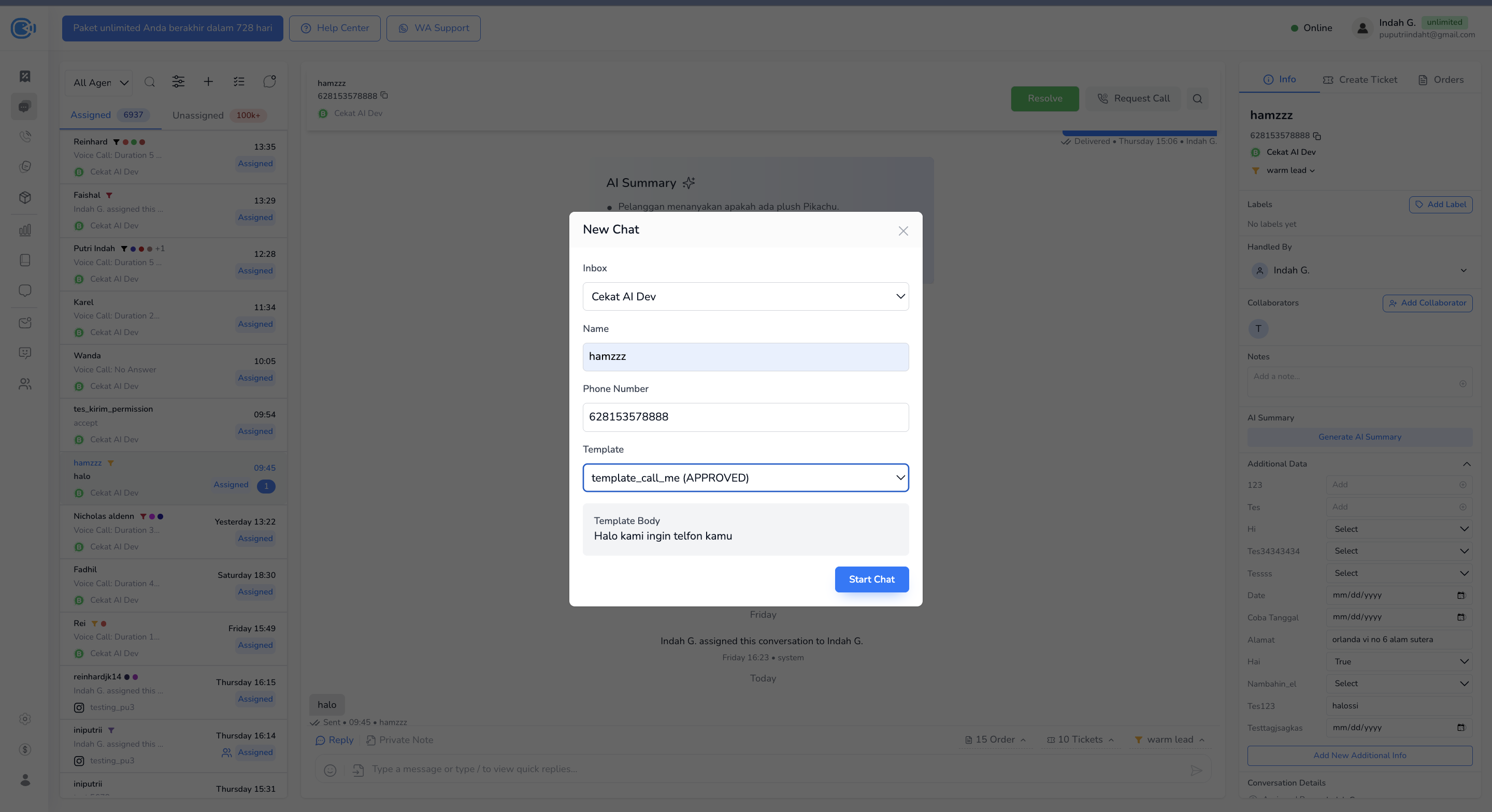
5. **Kirim template melalui fitur New Chat**
* Masuk ke halaman **New Chat**
* **Masukkan nomor WhatsApp customer yang ingin kamu hubungi**
* **Pilih template yang sudah kamu buat tadi**
* **Lalu klik button start chat**
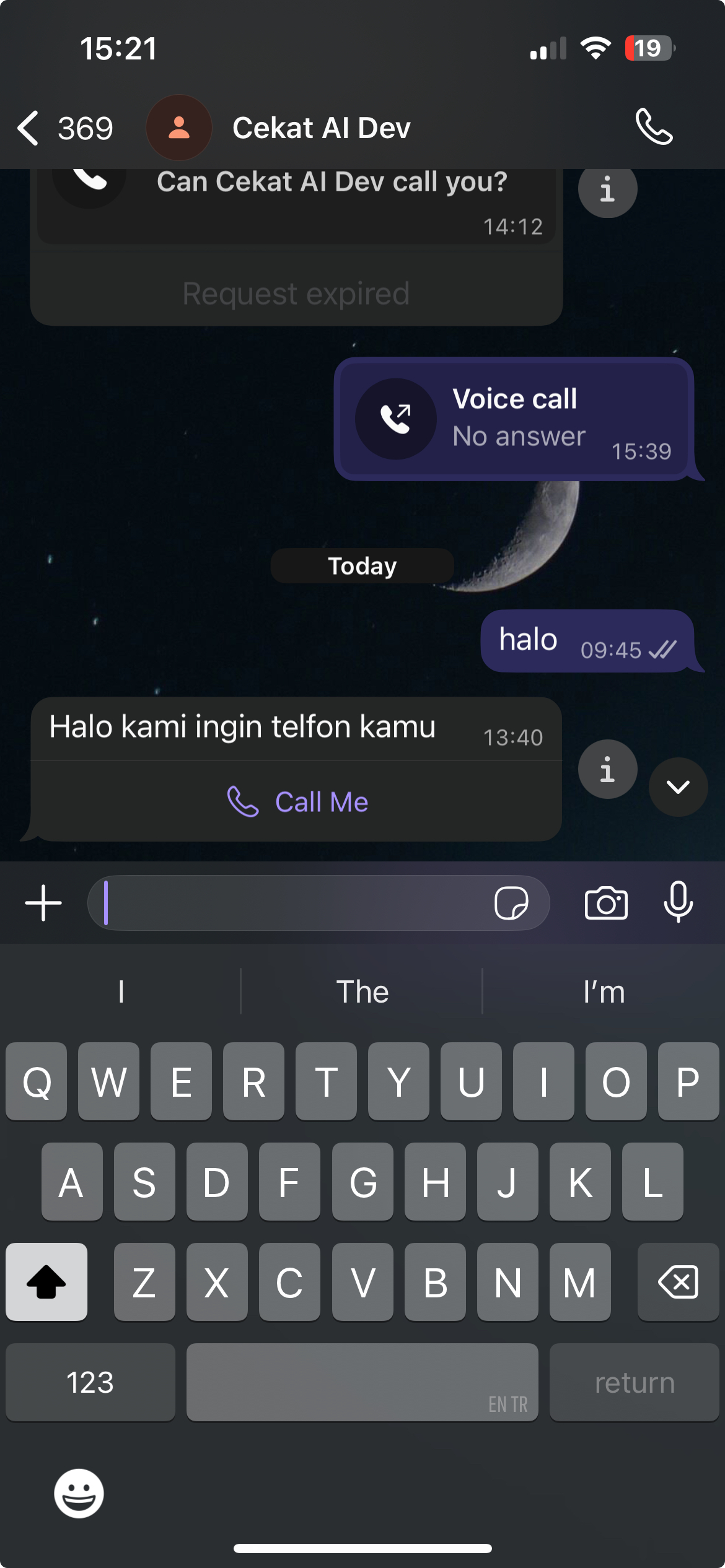
6. **Menunggu Customer Melakukan Call**
* Setelah template berhasil dikirim, customer akan menerima pesan berisi tombol **Voice Call**

.jpeg)