> For the complete documentation index, see [llms.txt](https://docs.cekat.ai/llms.txt). Markdown versions of documentation pages are available by appending `.md` to page URLs; this page is available as [Markdown](https://docs.cekat.ai/docs/ai-and-platform/connected-platforms/web-livechat-inbox.md).
# Web Livechat Inbox
### Langkah-langkah Menghubungkan Web Livechat Inbox
### **Step 1: Membuat Web Livechat Inbox**
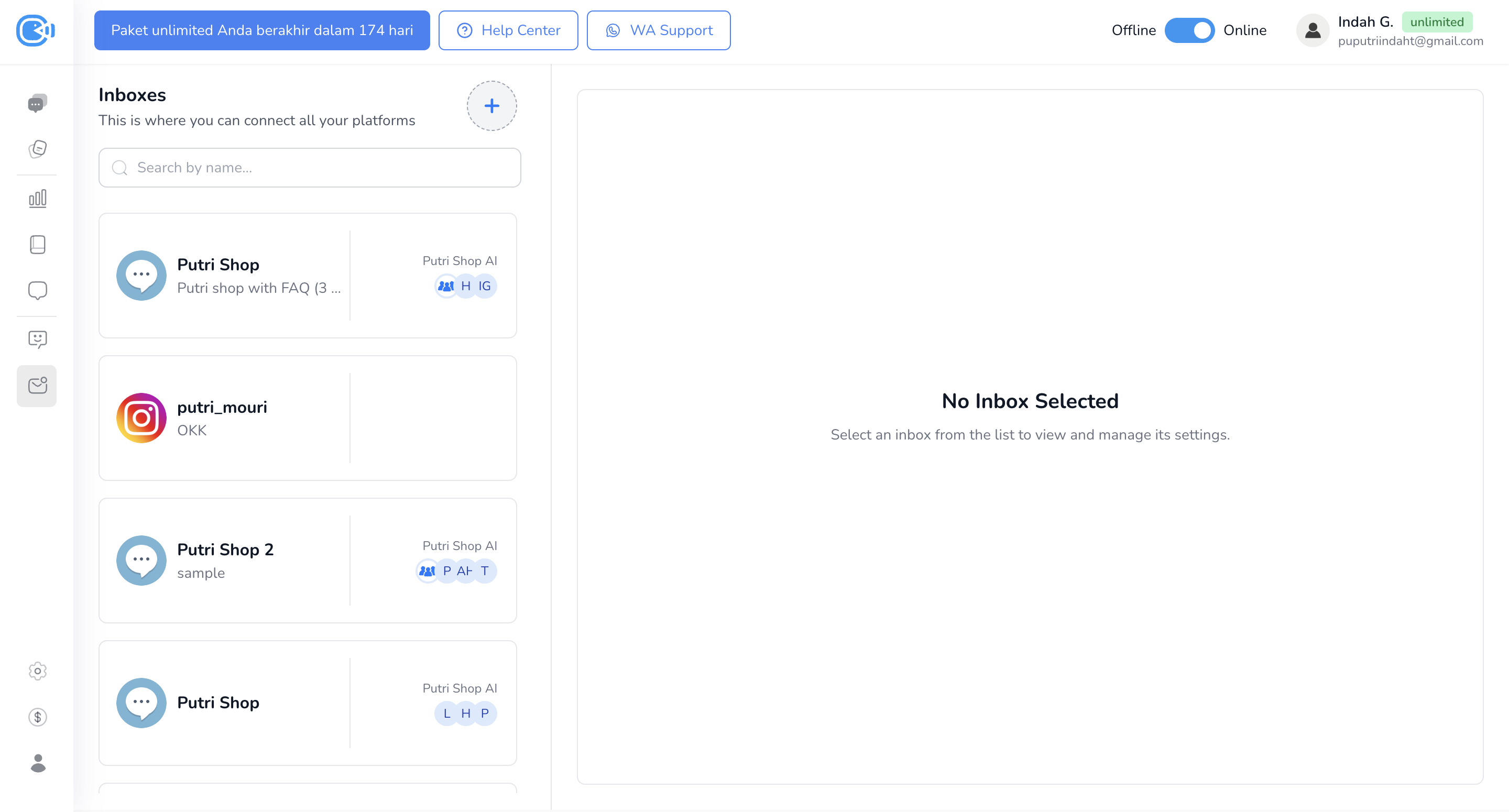
1. Masuk ke Halaman Connect Platform
* Akses halaman **Connect Platform** melalui **navbar** atau melalui **menu Setting**.
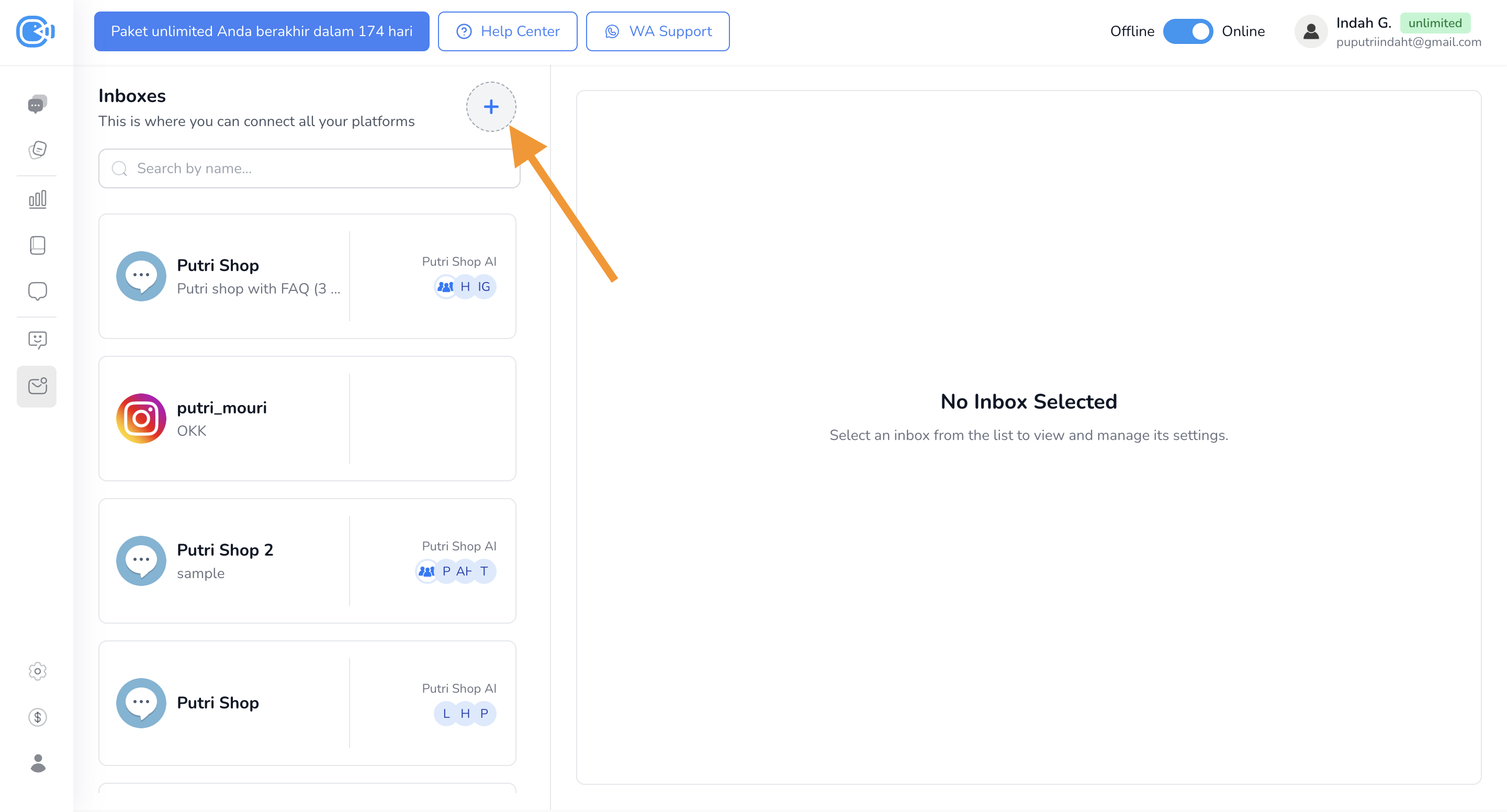
2. Klik Tombol Plus untuk Menambahkan Inbox/Platform Baru
* Klik tombol **"+"** yang berada di sebelah kanan tulisan **Inboxes** untuk menambahkan inbox atau platform baru.
####
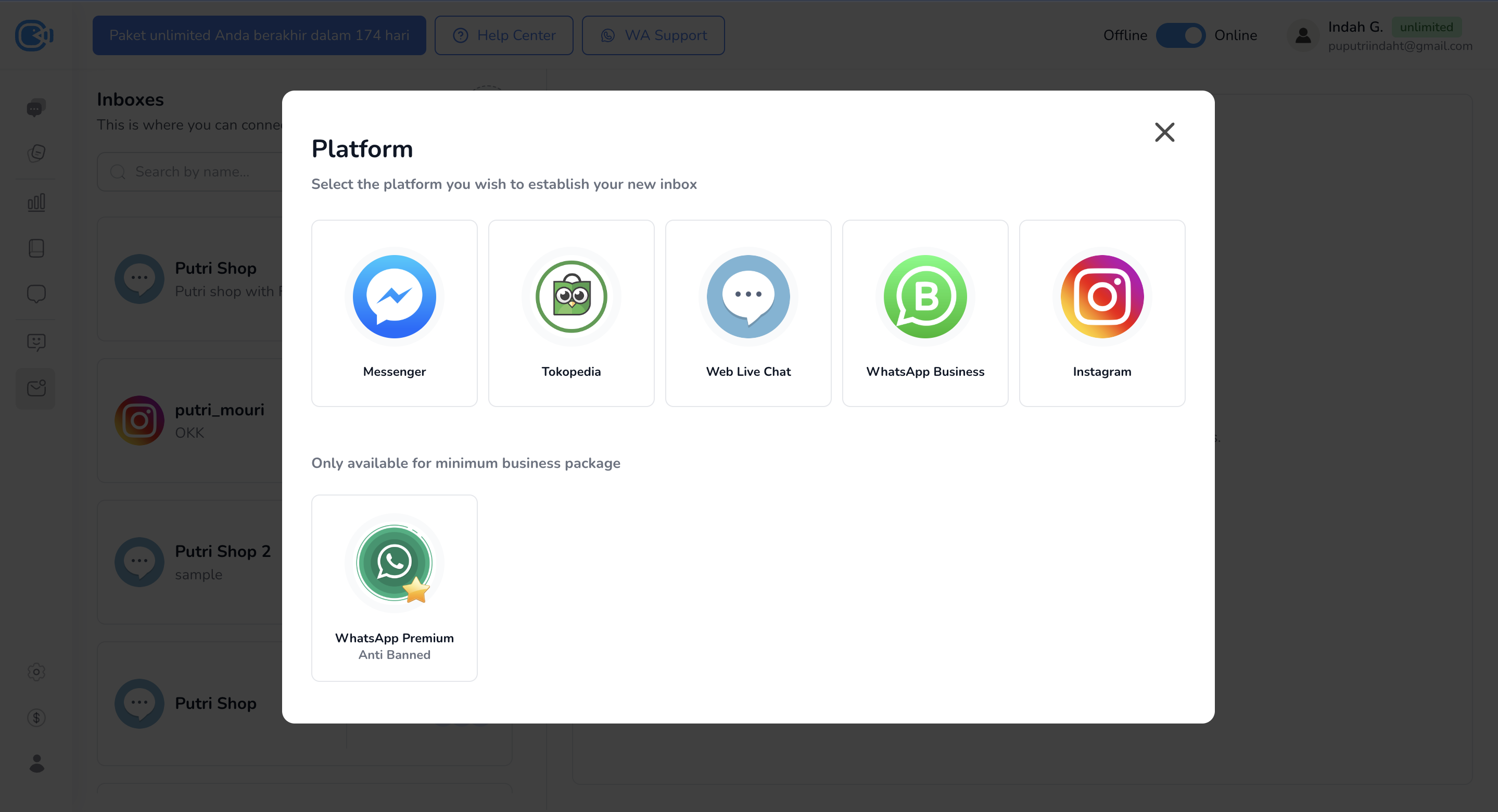
3. **Pilih Web Livechat**
* Pilih opsi **Web Live Chat**.
4. **Atur Pengaturan Web Livechat Inbox**
* Masukkan informasi berikut:
* **Nama Inbox**
* **Deskripsi**
* **Divisi**
* **Human Agent**
5. **Tambahkan FAQ**
* Masukkan pertanyaan dan jawaban yang akan muncul sebagai shortcut pesan untuk customer.
* Tambahkan FAQ baru dengan mengklik tombol **Add Question**.
6. **Tambahkan Social Link**
* Masukkan tautan media sosial seperti Instagram, Facebook, atau website bisnis.
* Tambahkan tautan baru dengan mengklik tombol **Add New Link**.
7. **Selesaikan Setup**
* Klik tombol **Finish**.
* Web Livechat Inbox kini sudah tersedia di bagian **Connected Platform**.
### **Step 2: Menambahkan Web Livechat ke Dalam Website Bisnis**
1. **Akses WordPress untuk Menambahkan Plugin**
* Masuk ke website bisnis melalui **WordPress**.
* Di bagian **Plugin**, pilih **Add New Plugin** di sisi kiri layar.
2. **Cari dan Install Plugin**
* Cari plugin dengan mengetik **"Simple Custom CSS and JS"** di kolom pencarian.
* Klik **Install Now**, lalu klik **Activate**.
3. **Konfigurasi Plugin**
* Di halaman **Plugin**, cari **Simple Custom CSS and JS** yang baru saja diinstall dan klik **Settings**.
* Klik tombol **Add JS Code** di bagian atas layar.
4. **Tambahkan Embed Code dari Web Livechat**
* Salin **embed code** dari inbox Web Livechat yang sudah dibuat sebelumnya.
* Tempelkan kode tersebut ke kolom yang tersedia di plugin.
* Klik tombol **Publish** di sisi kanan layar untuk menyimpan.
5. **Selesai dan Verifikasi**
* Buka website bisnis Anda untuk memastikan bahwa Web Livechat sudah tersedia dan berfungsi dengan baik.
#### Jika masih ada yang kurang jelas, tonton video tutorial berikut untuk melihat langkah-langkahnya secara langsung.
{% embed url="" %}